Your year in Fortnite is now a stat sheet of wins, eliminations, and wild moments – here’s how to check your Fortnite Wrapped 2025 and see what your playstyle says about you.
Whether it was the iconic Chapter 2 Remix season or a season-wide Simpsons crossover, Epic delivered its best content this year, and millions of players tuned in to witness stunning live events. Now that the year is over, you may be wondering about how your year in Fortnite has been statistically.
Like each year, this time around as well, Fortnite Wrapped has arrived for 2025, and here’s how you can get your complete wrap-up of the year on the Battle Royale island and other game modes.
How to Get Your Fortnite Wrapped Stats in 2025
To get your Fortnite Wrapped stats for 2025, visit the official Fortnite.GG Wrapped page and sign in using your Epic Games account. Once connected, the site will generate a personalized summary showing details such as matches played, eliminations, favorite weapons, and time spent in-game throughout the year. You can also share your results directly through social media or compare them with your friends’ stats to see how your performance ranks.
Although Epic Games does not introduce an official version of Fortnite Wrapped, the companion website Fortnite.GG is known to introduce its version of Wrapped each year. In 2025, as well, you can head over to their Wrapped page or navigate to it from the stats menu.
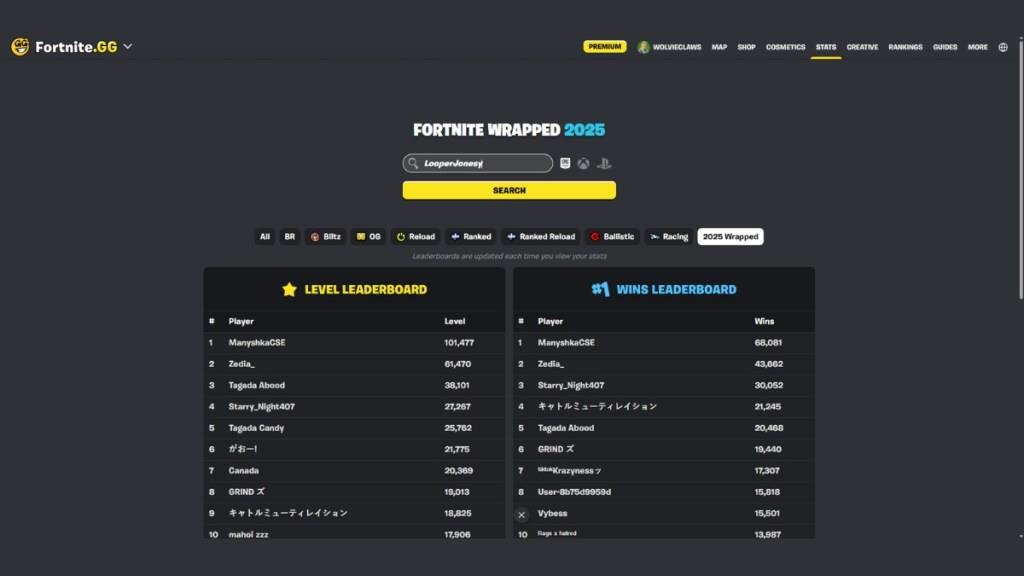
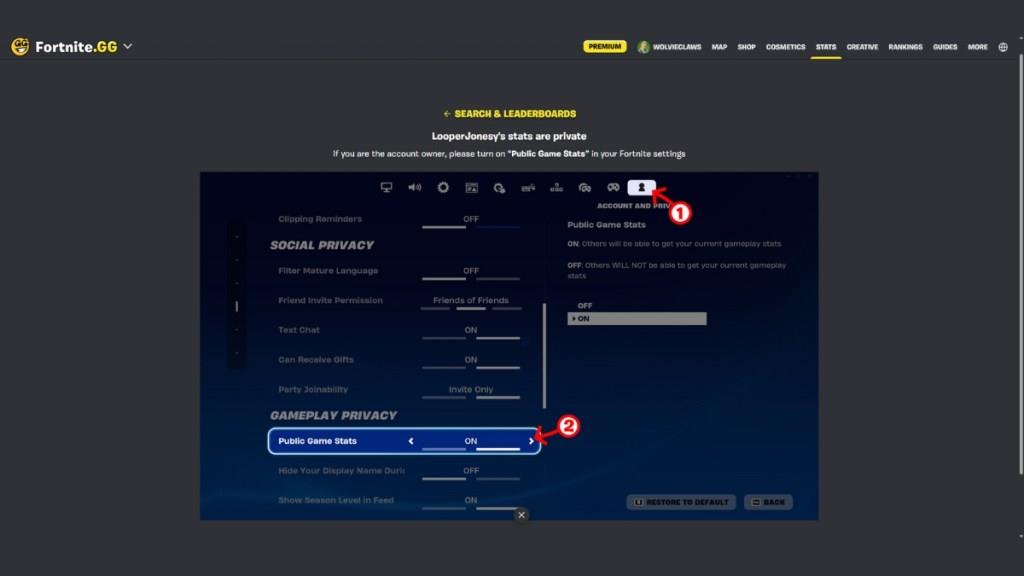

Once you’re there, enter your Epic username and hit Search. You can also enter your Xbox ID or PlayStation ID in the search bar if those are your primary platforms to play Fortnite. As soon as you do that, you’ll either get your stats or you’ll get a prompt to enable Public Stats in-game.
To do so, head to the Account and Privacy Menu in Fortnite Settings, and under Gameplay Privacy Settings, you’ll see a Public Game Stats option that you need to turn on. Once it’s turned on, come back to the website and type in your username and hit search.
As soon as you do that, it will show you an image of your full stats, which includes the number of account levels you gained, the number of hours you spent in the game, the number of matches played, the number of wins, and the number of kills you got in 2025.
Furthermore, it gives a detailed breakdown of how much you played each season based on the percentage of playtime and compares you against average values for other Fortnite players. You can then download your full stats in the form of an image from the website itself.
Make my Fortnite profile public to view Wrapped stats
To make your Fortnite profile public so your Wrapped stats show up on sites like Fortnite.GG, you only need to change one privacy setting in-game.
Change stats to public
-
Launch Fortnite and go to the main lobby screen.
-
Open Settings (gear icon in the top-right, then choose the settings option).
-
Go to the Account & Privacy tab (the last tab with the user/profile icon).
-
Scroll down to the Gameplay Privacy section.
-
Turn Public Game Stats ON (sometimes shown as “Make Stats Public” or similar).
-
Press Apply to save your changes.
After turning it on
-
Wait a few minutes, then go back to Fortnite.GG’s Wrapped page and search your Epic username again.
-
If stats still do not show, play a couple of Battle Royale or Zero Build matches and try again later, since external trackers only read those modes and updates can be delayed.
What is my Epic Games username
The Epic Games username (also called your Display Name) is something only you can see in your account; it cannot be looked up from here. However, you can find it very easily:
Check on the Epic website
-
Go to the Epic Games site and sign in with the account you use for Fortnite.
-
Open your Account settings (usually by clicking your name in the top-right, then “Account”).
-
On the General/Account Settings page, look for the field labeled “Display Name” – that is your Epic Games username.
Check inside Fortnite
-
From the Fortnite lobby, look at the name shown in the top-left or above your character; that is your current display name.
-
If your console gamertag is showing instead, your Epic display name will still be visible in the Epic account settings on the website as described above.
If you still are not sure which account you use, try signing in on the Epic site with the same login method as your platform (PlayStation, Xbox, Switch, etc.), then check the Display Name in account settings.
