Simple Build can make building in Fortnite smoother-or more chaotic-depending on how you use it. Here’s how to switch it on or off and take full control of your matches.
In the past, Epic has made significant changes to encourage newer players to learn how to build in Fortnite and play the classic Battle Royale experience without having to break a sweat. As an initiative, the Simple Edit option was introduced which lets you choose from a selection of pre-edits and edit your structures on the go with a press of a single button.
However, if you’re still stuck at the fundamentals of building structures in Fortnite and are getting wiped out in even public matches, Epic has introduced a new Simple Build feature that can drastically aid your building skills in the game. Here’s how you can turn it on or off in Fortnite.
What is Simple Build in Fortnite?
Simple Build in Fortnite is a feature designed to make constructing structures easier for players who prefer a more streamlined experience. Instead of manually selecting each building piece, it automatically chooses the best option based on the situation, letting players focus more on movement and combat. This mode simplifies the traditional building system used in Fortnite, making it accessible for beginners or those who want faster gameplay without the complexity of advanced building techniques.
Simple Build is a new setting in Fortnite Chapter 7 update that aids players to build some pre-mapped structures like a 90s tower or even a conical box with the press of a single button and just changing your look direction. It works similarly to Simple Edit but lacks the precision of building structures as you’d like during an intense 1v1.
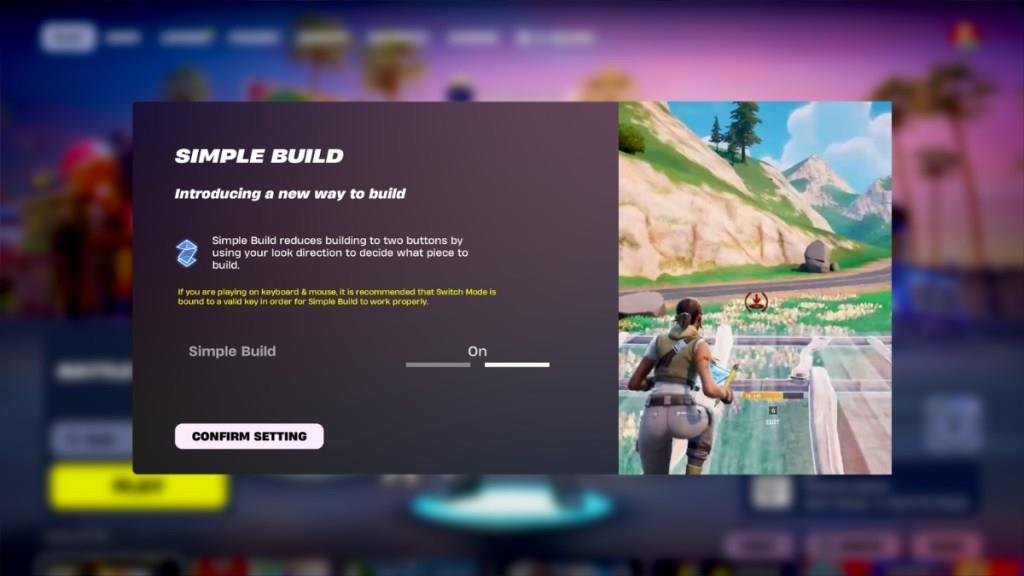
So, if you still like your old ways and want to turn off this setting, or rather experiment with it by turning it on, here’s how you can do so.
How to Turn On or Off Simple Edit in Fortnite
To turn Simple Edit on or off in Fortnite, open the main menu and go to Settings. Select the Controller Options tab if you play with a controller, or the relevant tab for your input method. Find the Simple Edit toggle and switch it to On or Off depending on your preference. After making changes, confirm and apply the settings before leaving the menu to ensure your adjustments take effect.
Simple Edit is turned on by default when you launch Fortnite Chapter 7 Season 1. The game will display a message screen introducing you to Simple Build, where you can either keep it on or disable it.
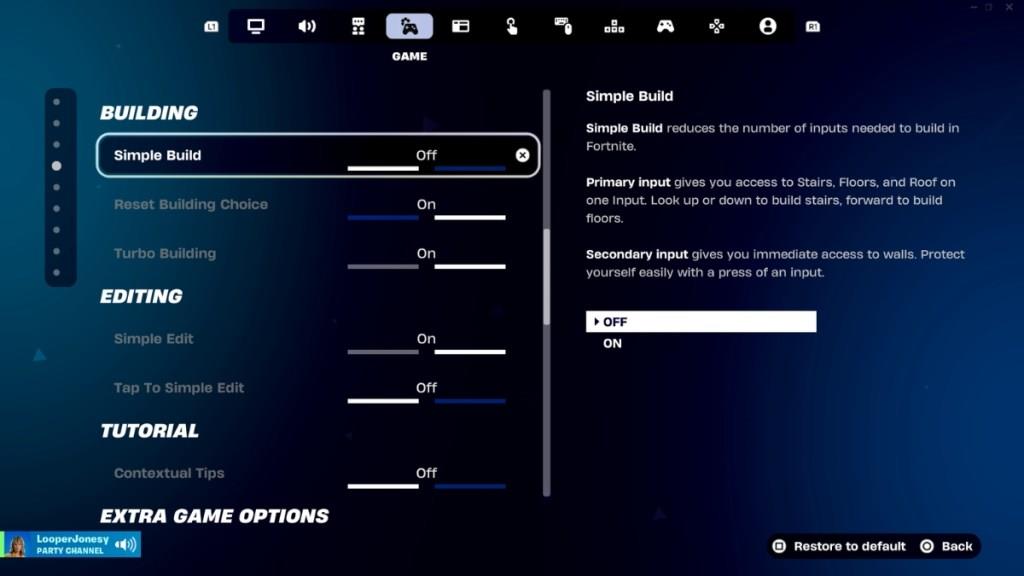
However, by mistake, if you close the window and it’s turned on by default, follow these steps to turn off Simple Build in Fortnite:
- Launch Fortnite
- Click on your Profile Image on the top right and click on Settings in the left pane
- Head over to Game Settings by clicking on the controller icon with a cog (fourth icon) on the menu bar
- Once there, navigate your cursor to the left side of the screen and choose Building from a list of options, or scroll down to find Building settings
- The first option there will be Simple Build, and you can simply click the arrows to toggle it on or off
- Click Apply to save your preferred settings
Now that you know how to toggle Simple Build on or off, let’s see how you can use it.
How to Use Simple Build in Fortnite
Simple Build in Fortnite streamlines the construction process, allowing players to place structures with fewer inputs and faster response time. After activating it from the settings menu, you can switch between building modes during a match by pressing the assigned build button. Walls, ramps, and floors automatically align for quick defense or positioning. This mode is especially useful for players who prefer faster gameplay and minimal setup while still keeping control over basic building options.
As mentioned earlier, Simple Build is a setting that’s designed to help you build structures like 90s, boxes, or cone tunnels faster than usual. Firstly, stock up on materials by farming them around you on the island.
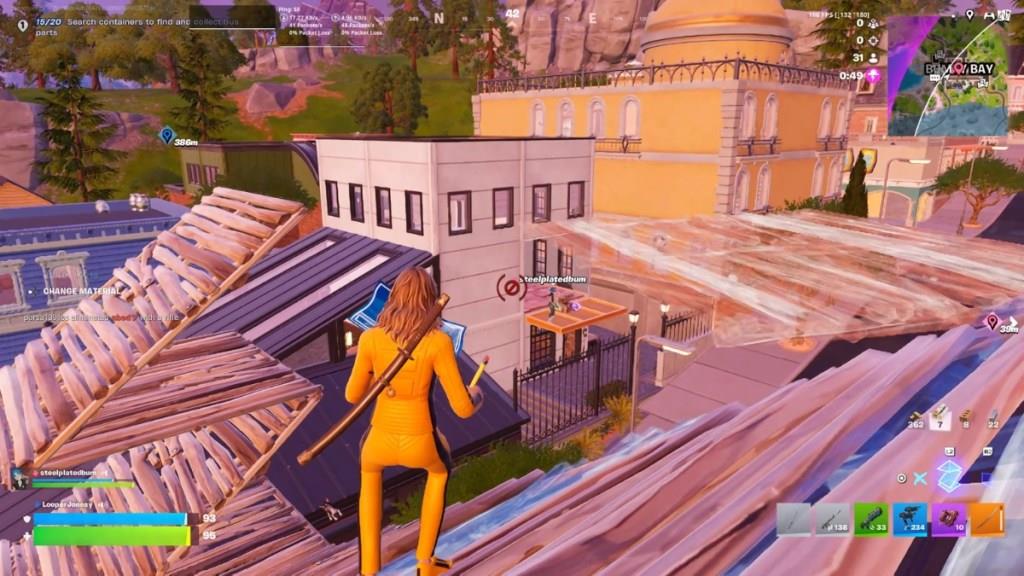
Then, open your build menu by pressing the Build button. Look around and hit the right click (or LT/L2) to start building wherever you look. For instance, if you’re looking straight, you may build a wall automatically, if you’re looking down you can build a floor, if you’re looking up you can build a roof or a cone, and if you’re looking slightly up at an angle of around 45 degrees, you can build a ramp.
Farm enough materials to build more complex structures like 90s while moving and looking around in different directions. While we tried the feature ourselves in a match, there’s a certain learning curve to building structures using this setting. We found the classic Fortnite building much easier to grasp once we knew the key assignments and precisely placed a structure where we wanted to.
What is Simple Build in Fortnite Chapter 7
Simple Build simplifies Fortnite’s building mechanics for easier and faster construction. Introduced in Chapter 7, it reduces the inputs needed by condensing multiple build pieces into just two primary actions, making it ideal for new players or those preferring streamlined controls.
Core Functionality
Look in the desired direction-such as forward for floors, up for ramps or cones-and press the primary build key (e.g., left-click or L2) to place them automatically. The secondary input (e.g., right-click or R2) instantly builds walls regardless of angle.
Benefits and Use Cases
This mode cuts down on key switches between build types, speeding up reactions in build battles. It’s toggleable in Settings > Game > Building, similar to Simple Edit, and helps Zero Build players transition or casual users avoid complex inputs.
How does Simple Build change input mapping and controls
Simple Build in Fortnite remaps building inputs to streamline construction, condensing four traditional piece types (walls, floors, stairs, roofs) into two primary actions based on view direction. This overrides standard slot-switching keybinds during build mode, prioritizing cursor context over manual selection.
Input Changes
Primary input (default: left-click or L2/LT) places contextual pieces-forward for floors/roofs, up for stairs/cones-without needing to cycle slots. Secondary input (default: right-click or R2/RT) exclusively places walls at any angle, eliminating separate binds for each piece.
Customization Options
Access keybinds in Settings > Keyboard/Controller tab > Building section to reassign Simple Build Primary/Secondary actions independently. Builder Pro or Custom presets integrate best, but toggling it off restores classic multi-slot mapping for precise control.
