Hidden for the curious: a private server you can call your own, where mods bend to your rules and the forge hums with untapped potential.
Still, if you’re new and want to learn how to get a private server in The Forge, we have detailed the step-by-step process below. We have also included all the free private servers you can join in The Forge in this guide.
All Free The Forge Private Server Links
All Free The Forge private server links give players direct access to exclusive Roblox servers that replicate the full gameplay without needing a paid subscription. Each link connects to a community-hosted copy of The Forge, allowing users to join friends, test features, and enjoy the game with fewer restrictions. These servers often update alongside the official version, so players can expect familiar mechanics, custom options, and stable performance as long as the host maintains the link.
The Forge private servers cost Robux, which is why it is always nice to find some free links. Wondering how to join a free private server in The Forge? Below, we have compiled all the free private server links for you can use:
| Server Link | Host |
|---|---|
| Link 1 | UnoTwo |
| Link 2 | UnoTwo |
| Link 3 | UnoTwo |
| Link 4 | UnoTwo |
| Link 5 | UnoTwo |
| Link 6 | ABeast |
| Link 7 | ABeast |
Note: Servers can shut down due to no renewal or overcrowding. If you are unable to join one, please mention it in the comments.
How to Set up a Private Server in The Forge
Start by identifying a hosting option, then install the Forge client and set up your server directory. Configure security settings, assign administrative permissions, and test connectivity from a sample client to confirm everything runs smoothly.
To mine the best ores in The Forge in peace, make a private server using one of the two ways listed below.
You can either approach the setup from the ‘Servers’ tab on the game page on the Roblox website in a browser. Or you can open the game page in the Roblox app and scroll down to the ‘Servers’ option. The steps from there onwards remain the same and have been explained below.
- Under the Private Servers section, click the ‘Create Private Server’ button.
- Next, enter a ‘Server Name‘ in the pop-up window that opens.
- Click the ‘Subscribe‘ button at the bottom to make the server.
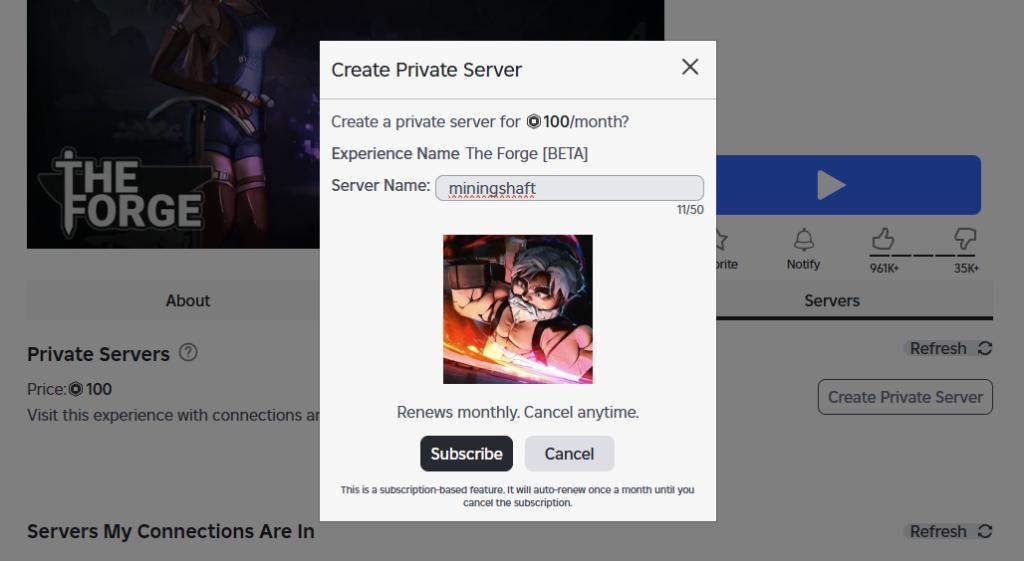
The required Robux, 100 Robux, will be deducted from your Roblox account on the creation of the server in The Forge.
Note that Roblox sets up a recurring monthly subscription for paid private servers. So, make sure you have enough Robux in your account if you want to use your private server regularly in the future.
The first thing you should do after setting up your server is redeem the latest The Forge codes to get free race rerolls in the game.
How to Invite Friends to Your The Forge Private Server
Invite friends by sharing a direct invite link from The Forge server menu, then have them join your private world using the link or the server’s code, ensuring they accept any permissions prompts and confirm their Roblox account is connected to the Forge client.
Once your server is set up, you can then choose who can and cannot join your private server in The Forge. To change that, follow the steps below.
- On the Servers page, click the three-dot icon next to your private server.
- Select the ‘Configure’ option from the three-dot menu.
- Now, you need to make sure the ‘Allow Joining’ toggle is enabled so your friends can join the private server.
- Moreover, you can either allow all your collections to be allowed to join the server, or you can choose to allow select people on the server by adding their names to the list, as shown below.
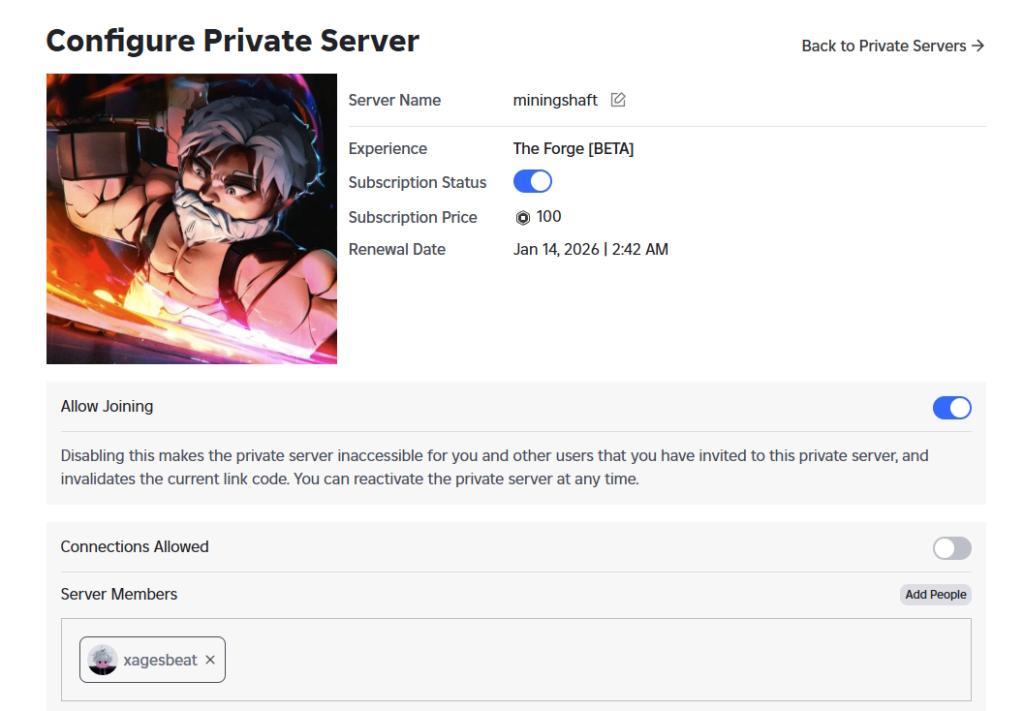
If you don’t wish to continue using your private server, make sure to cancel the subscription. You’ll just need to the ‘Configure Private Server’ page and turn off the toggle next to the ‘Subscription Status’ option.
Should You Get a Private Server in The Forge?
Opting for a private server in The Forge gives you more control over who joins, when to play, and how you customize experiences, making it a strong choice if you value consistent uptime and a tailored game environment.
How to create a private server in The Forge step by step
Creating a private server in The Forge on Roblox requires a one-time purchase of 100 Robux, which sets up a recurring monthly subscription managed by Roblox. This feature allows a controlled environment for mining and playing without random players, provided you configure access properly.
Access the Servers Tab
Navigate to The Forge game page on Roblox via browser, mobile app, or the Roblox player. Scroll or tap to the Servers section, then locate the Private Servers area at the bottom.
Create the Server
Click Create Private Server (or Buy on some interfaces). Enter a server name in the pop-up, confirm the 100 Robux cost, and select Subscribe or Purchase to deduct from your balance. The new VIP server appears in your Purchased Private Servers list immediately.
Configure Access
Click the three-dot menu next to your server and select Configure. Toggle Allow Joining on, then choose public access (friends/followers), or add specific usernames to a whitelist for privacy. Save changes to generate an invite link for sharing.
Join and Manage
Return to the Servers tab to see your VIP server; click it to join anytime. Manage via the three-dot menu for renaming, permissions, or deletion if needed. Note that the subscription auto-renews monthly unless canceled through Roblox settings.
How much Robux does The Forge private server cost now
Private servers in The Forge on Roblox cost 100 Robux initially, followed by a recurring monthly subscription of 100 Robux to keep the server active.
Pricing Details
The fee is set by the game’s developers through Roblox’s standard VIP server system, where the initial purchase deducts 100 Robux and auto-renews each month unless canceled in Roblox account settings. As of January 2026, no price changes have been reported across recent guides and discussions.
Renewal Process
Roblox handles renewals automatically from the purchase date; check your server’s configuration page for the exact renewal date and ensure sufficient Robux balance to avoid expiration. Servers expire if not renewed, removing access until repurchased.