Roblox levels up its accessibility as it lands on the Samsung Galaxy Store and Xbox Ally, giving players more ways to connect, create, and compete across platforms without missing a beat.
Roblox Is Now Available on Galaxy Store and Xbox Ally
Roblox is now accessible through the Samsung Galaxy Store and Xbox Ally, giving players more ways to join their favorite experiences without extra downloads or device switching. This expansion strengthens cross-platform play, allowing users to enjoy Roblox seamlessly whether they are on mobile or console. With integration through the Galaxy Store, Android users gain a smoother installation process, while Xbox Ally players can explore the platform’s endless user-created content with improved compatibility and performance.
Roblox is taking another step toward its goal of being everywhere gamers are. The company announced that the platform is now available on the Samsung Galaxy Store and will launch later this week on Xbox Ally handheld devices, including the ROG Xbox Ally and Ally X.
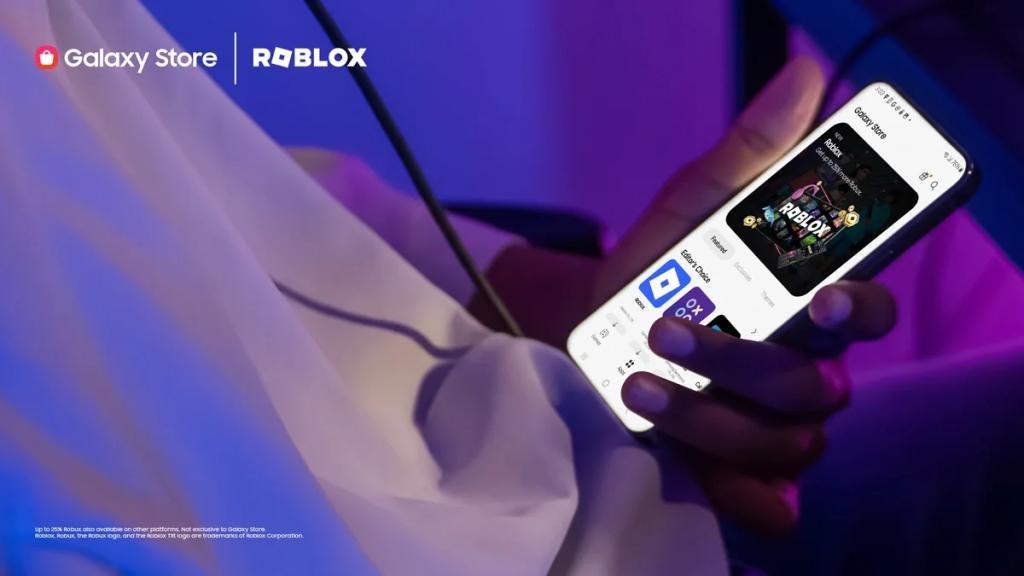
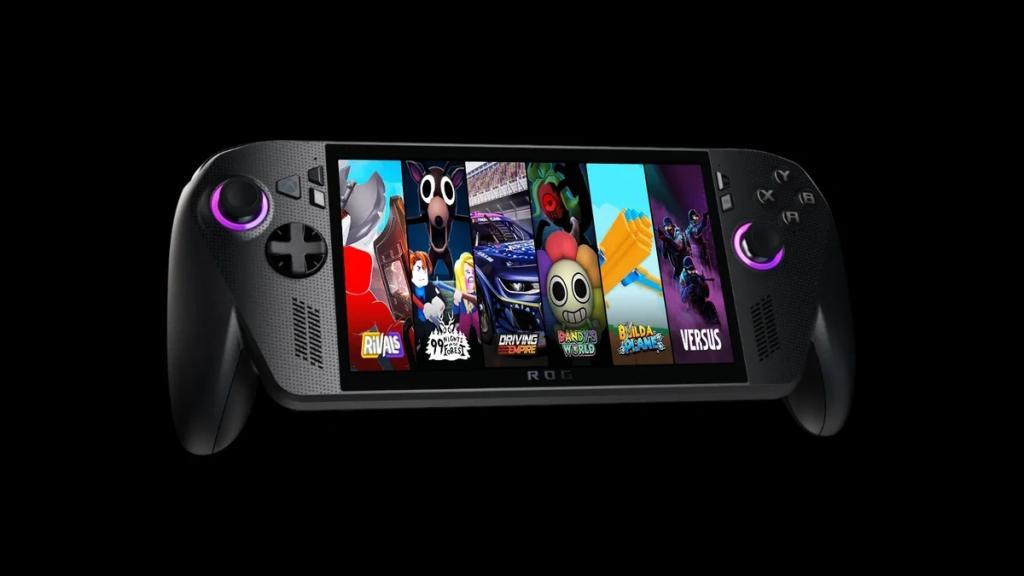
Officially revealed through an Twitter, Roblox said, “Play, create, and connect anywhere. Roblox continues to expand across devices so you can experience the games you love-and the ones you’ll play next-wherever you are. Now available on the Samsung Galaxy Store and tomorrow on Xbox Ally handhelds.” This expansion furthers Roblox’s vision of making its world accessible on every major platform, giving players freedom to play, create, and connect across devices.
According to Roblox, players who use multiple devices spend 2.5 times more and play 20% longer than single-device users. This shows that cross-platform accessibility drives engagement. And with games like Steal a Brainrot and Grow a Garden reaching over 25 million player count every weekend, it only makes sense for the company to make it more accessible.
Also Read: Roblox Codes for All Top Experiences (October 2025)
That’s not all. Year-over-year growth also remains strong across all major categories. Roblox Galaxy Store and Xbox Ally availability is part of the company’s ongoing effort to make the platform accessible anywhere people want to play. Desktop users have grown by 13.7%, mobile by 21.2%, and console by an impressive 99.6%.
As part of this rollout, Roblox is also extending a key benefit to its community. Yes, just before the Roblox Halloween Spotlight event, players who purchase Robux through the PC app, web, or Gift Cards will receive up to 25 percent more Robux. It is also applicable for the Samsung Galaxy Store and the Microsoft Store. It also creates more opportunities for creators to earn.
How to download Roblox on Samsung Galaxy Store
Downloading Roblox from the Samsung Galaxy Store is straightforward on compatible Galaxy devices, following its October 2025 launch. This native option provides perks like up to 25% bonus Robux on in-app purchases.
Access Galaxy Store
Open the pre-installed Galaxy Store app on your Samsung Galaxy phone or tablet, such as those in the Galaxy S, Z, or Tab S11 series. Ensure your device runs a supported Android version (typically Android 5.0+).
Search and Install
Tap the search icon, type “Roblox,” and select the official app by Roblox Corporation from the results. Hit “Install” and wait for the download to complete over Wi-Fi or mobile data-file size is around 126 MB.
Launch and Log In
Once installed, tap “Open” from the Store or find the Roblox icon on your home screen or app drawer. Sign in with your existing account or create a new one to sync progress, inventory, and Robux across platforms.
What are the steps to login after installing Roblox on Samsung
Logging into Roblox after installing it on a Samsung Galaxy device follows the standard mobile app process, syncing your account across platforms like the recent Galaxy Store version. The steps remain consistent whether downloaded from Galaxy Store or Google Play.
Open the App
Launch Roblox from your home screen, app drawer, or Galaxy Store’s “Open” button. The app loads to the login screen automatically if you’re not signed in.
Enter Credentials
Tap the Login button at the bottom. Input your Roblox username (or email) and password in the provided fields, then tap Login to authenticate. Your progress, inventory, and Robux sync instantly for cross-platform play.
Alternative Options
For passwordless entry, select Log In with Another Device to generate a one-time code-enter it from a logged-in device via Settings > Quick Login. New users can tap Sign Up instead.
