Fortnite Chapter 6 Season 4 has brought a fresh wave of Twitch Drops, and players are racing to grab the exclusive Shock N Awesome rewards. Here’s how you can claim every free item before the event ends.
How to Get Free Shock ‘N Awesome Twitch Drops in Fortnite
To get the free Shock ‘N Awesome Twitch Drops in Fortnite, link your Epic Games account to your Twitch account and watch any participating Fortnite stream with drops enabled. Make sure you’re logged in on Twitch while watching to ensure your view time counts. After watching for the required duration, the drops will appear in your Twitch inventory, and you can claim them to have the rewards added automatically to your Fortnite account.
Fortnite Chapter 6 Season 4 is kicking off with Power Rangers, bugs, and some flashy free Twitch Drops. Players can grab a free wrap, back bling, and pickaxe by simply watching Fortnite streams on Twitch. These Shock ‘N Awesome Twitch Drops will be available from August 7, 2025, at 6:00 AM PT to August 11 at 9:00 PM PT.
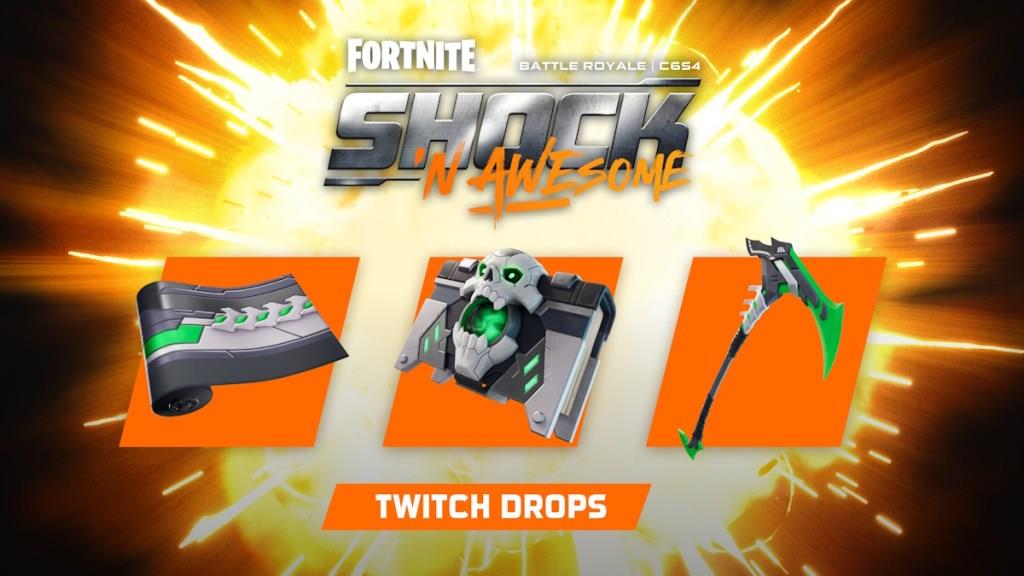
You don’t need to hunt down a specific streamer, just tune into anyone playing under the Fortnite category. Watch for around 90 minutes total, and you’ll unlock all three rewards. After that, head to your Twitch Drops Inventory to claim them.
Make sure your Epic and Twitch accounts are linked to receive the items in-game. Most players get the items quickly after logging into Fortnite, though sometimes it can take a little time. You’ve got four days to knock this out, and with such a low time requirement, it’s a pretty easy win.
All Fortnite Chapter 6 Season 4 Twitch Drop Rewards
Players can earn exclusive Fortnite Chapter 6 Season 4 Twitch Drop rewards by watching partnered Fortnite streams for a set amount of time on Twitch. These rewards include cosmetic items like sprays, emotes, banners, and sometimes limited-edition back blings tied to the Shock N Awesome event. To claim them, viewers need to link their Epic Games and Twitch accounts, watch eligible live streams, and collect the rewards through their Twitch inventory before they expire.
Now that you know the timings of the Twitch Drops and how to get them, here is a list of rewards you can collect:
- Metal Menace Wrap: 30 Minutes
- Tome of Skulls Back Bling: 1 Hour
- Skeletal Cyberscythe Pickaxe: 1 Hours and 30 Minutes
Also Read: What is Fortnite Gift Card and How to Use It
How to Link Your Twitch to Epic Games Account
To link your Twitch account to your Epic Games account, log in to your Epic Games account on the official website, navigate to Connections, select Twitch, and follow the prompts to authorize the connection. Once linked, your Twitch drops will drop to your Epic Games account during eligible Fortnite streams.
To claim the Fortnite Chapter 6 Season 4 Twitch drops, you must link your Twitch account to your Epic Games account. If you have not set up your accounts already, here is how to do it:
- Open the Accounts page Epic Games website and log in to your account.
- Now, go to the linked accounts and click the link button under the Twitch option.
- Sign in to your Twitch account to connect it with your Epic Games account.
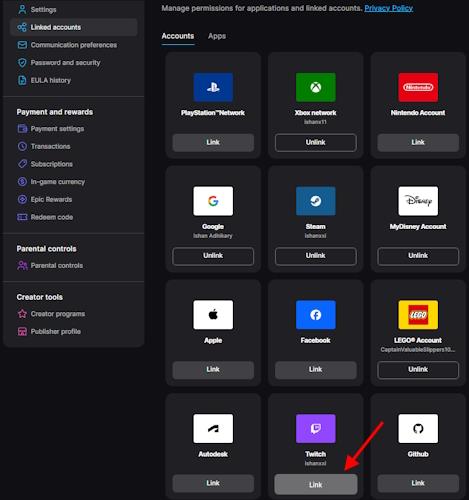
Link Epic Games to Twitch account
To link an Epic Games account to a Twitch account, you do everything from your Epic account settings and then confirm on Twitch.
Step 1: Prepare both accounts
-
Make sure you can sign into your Epic Games account (the one you use for Fortnite or the Epic Games launcher).
-
Make sure you can sign into your Twitch account and that you know your login details.
Step 2: Open Epic account settings
-
Go to the Epic Games website (epicgames.com) and click Sign In in the top-right, then log in to your Epic account.
-
Once logged in, open your Account page and go to the Linked accounts or Apps and accounts section in the left menu.
Step 3: Link Twitch inside Epic
-
In the Linked accounts list, find Twitch and click the Link or Connect button next to it.
-
A new window will open asking you to log in with your Twitch account and authorize Epic Games; sign in and click Authorize to confirm the connection.
Step 4: Confirm on Twitch (optional check)
-
On Twitch, you can go to Settings → Connections to see Epic Games listed under connected apps if everything worked correctly.
-
If you ever need to unlink, you can disconnect from either your Epic Linked accounts page or from the Twitch Connections page.
What are current Fortnite Twitch Drops
Epic Games does not keep a permanent, always-on list of Fortnite Twitch Drops; they rotate with specific events, seasons, and promotions.
How current Drops work
-
Each Fortnite Drop is tied to a limited-time “campaign” (for things like FNCS, special events, or new season launches), and only exists while that campaign is active.
-
When a campaign ends, its items are no longer earnable from Twitch, so the “current” Drops are only the ones listed in active campaigns right now.
How to see what’s active right now
Because the active campaigns change frequently, the only reliable way to see the current Fortnite Twitch Drops at any moment is:
-
Check the official Fortnite Twitch Drops page linked from Epic’s Fortnite site; this page explains active watch-to-earn promotions and how to connect your accounts.
-
On Twitch, go to your Drops & Rewards → All campaigns section, search for Fortnite, and it will show any live Fortnite campaigns with their rewards and watch-time requirements.
Identifying eligible Fortnite streams
-
In the Twitch Fortnite category, look for streams tagged with Drops Enabled or use the “participating channel” link from the Fortnite campaign card in the Drops page.
-
When you watch an eligible stream, your progress toward current Drops fills in your Drops & Rewards panel, where you can also claim each reward once the required watch time is met.
If you share your region and platform, guidance can be tailored a bit more (for example, mobile app navigation versus desktop) while you check the campaign list.