Running out of space for your plants in Grow a Garden? Learn how to secure another garden slot, manage your save files wisely, and expand your Roblox farm without losing progress.
However, as weekly updates keep coming, even the expanded plot is starting to feel a bit cramped. That’s where the save slot option comes in to get you another garden slot. So, if you’re tired of tossing your favorite plants just to make space, this is your chance. Follow this Grow a Garden save slots guide and learn everything about it.
How to Add a Save Slot in Grow a Garden
Open the game menu with the three-line icon in the top right corner. Scroll to the bottom and select “Add Save Slot.” Confirm the action to create your new garden world, ready for planting and growth from scratch. This gives you multiple gardens without losing progress on existing ones.
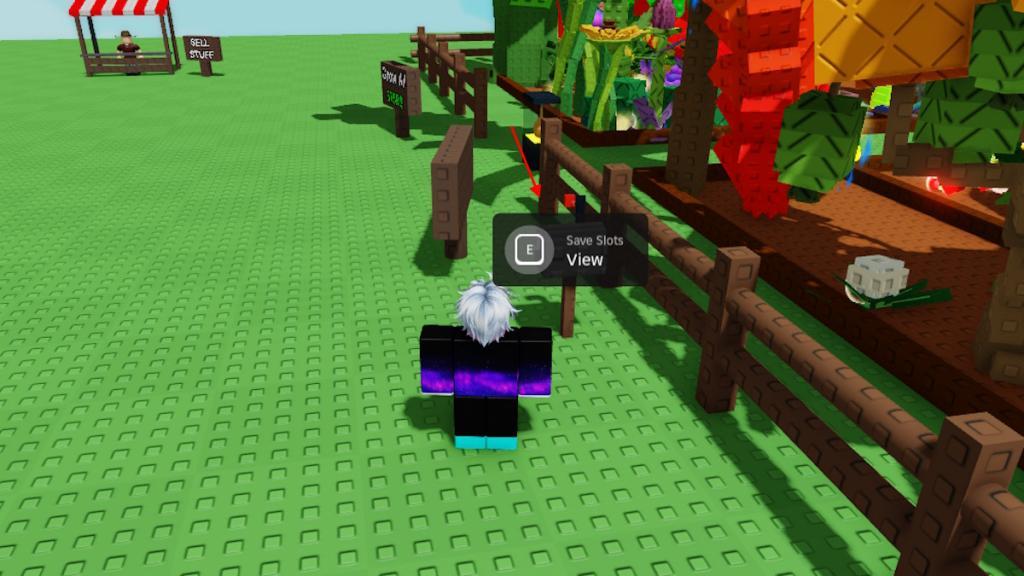
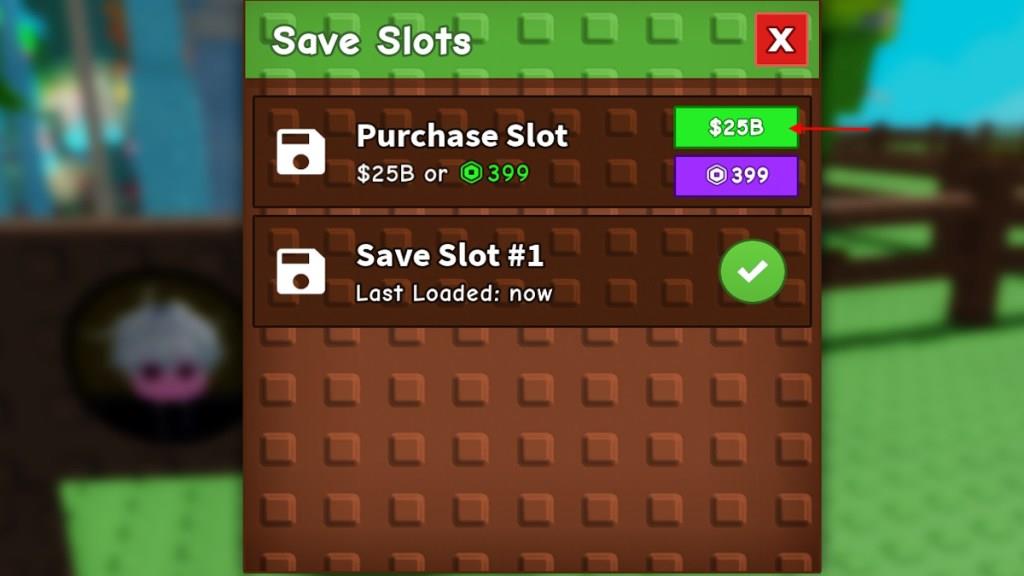
To add a new garden slot in Grow a Garden, walk to the mailbox outside your plot and interact with it by pressing the E key. Now, click the green button beside the Purchase Slot option to spend 25 Billion Sheckles and purchase a new save slot. You can also choose to spend 399 Robux if you are tight on Sheckles.
How to Load a Save Slot in Grow a Garden
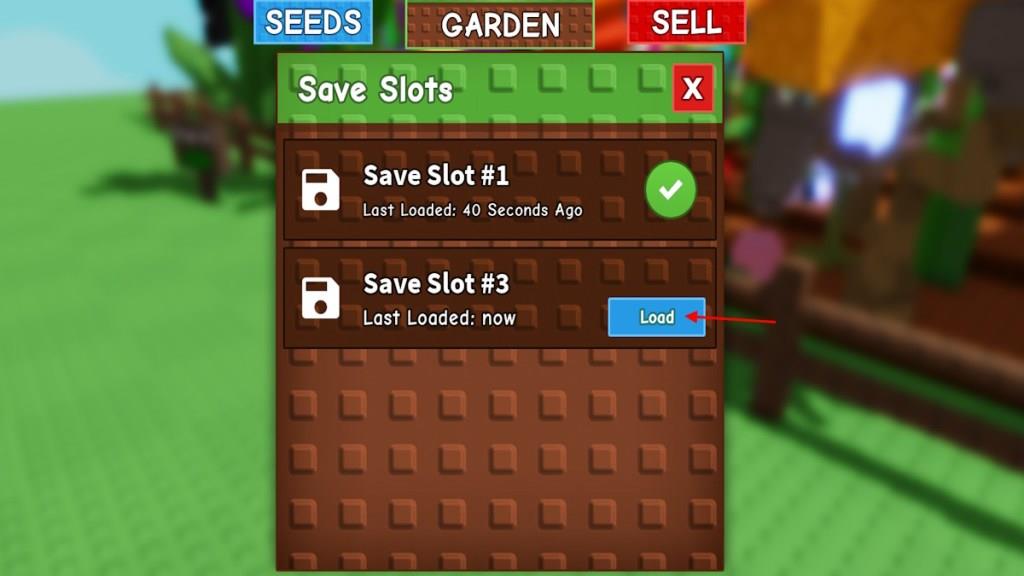
Walk up to the mailbox in front of your garden and press the E key to open the save slots menu. In the pop-up, select the garden slot you want to use and click the Load button to switch to that garden. After loading, your character, pets, currency, and items carry over, but the layout changes to match the selected slot, and you must wait for the short cooldown before swapping again.
Once you have purchased the slot, you can access it at any time by interacting with the mailbox in front of your garden. Press the ‘E’ key when near it and open the save slots pop-up window. Now, click the Load button to enter the alternative slot right away.
Important Things to Know About Save Slots in Grow a Garden
Save slots in Grow a Garden let players manage multiple gardens at the same time, each with its own progress and layout. You can use them to experiment with different plant setups or themes without changing your main garden. Some slots may need to be purchased or earned through gameplay. Managing your slots wisely helps keep your plants organized and makes it easier to switch between gardens as you expand your collection.
Before you spend that hefty amount on getting new save slots, here are a few important things you must know:
- You can only purchase one save slot for now, and there is no way to purge or delete the slot. Once you start using it, it will work like a different, fresh garden.
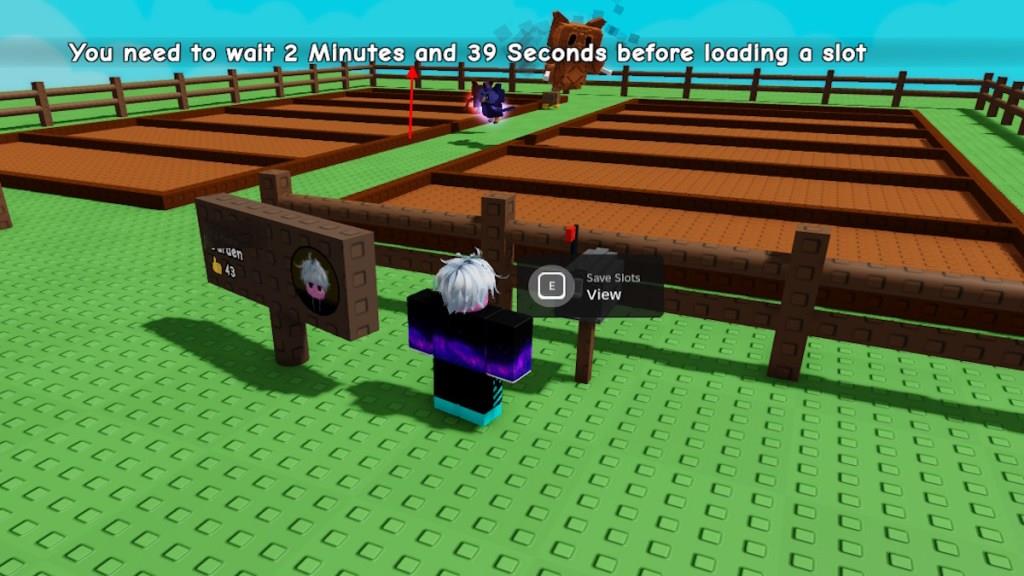
- After switching to a garden slot, players must wait 3 minutes before they can use the Save Slots option again.
- Once you switch to the original garden, everything in the second garden will be paused. This includes pet actions, sprinklers, or even offline growth.
- Your pets will automatically switch to the other garden and start working on the crops in this garden.
Should You Get New Save Slots in Grow a Garden?
Getting new save slots in Grow a Garden is a smart move if you want to manage several farms or experiment with different setups. Extra slots let you try new layouts or crops without losing your progress in your main garden. They’re also helpful if you share your account or want to keep seasonal gardens separate. While you can progress just fine with one slot, having more gives you flexibility and makes the game more enjoyable over time.
If you’re like me and have been playing the game for a long time, chances are you are struggling to keep everything decorated. With new updates dropping different seeds every week, plots are filling up fast. Even with the shovel and reclaimers solving your space demands, there’s always a need to hold on to important plants.
That’s where the new save slot becomes a real savior in Grow a Garden. With an extra garden slot, players can easily switch to a fresh plot and grow the new plants without losing their old progress. So, if you’ve got the money, getting an extra garden is definitely worth it.
How to switch between save slots in Grow a Garden
To switch between save slots in Roblox’s Grow a Garden, interact with the gray mailbox located outside your garden plot, next to the sign displaying your username and likes.
Switching Steps
-
Approach the mailbox and press E to open the Save Slots menu.
-
Select the desired slot (e.g., Save Slot #1 for your original garden or Save Slot #2 for the secondary one).
-
Click Load to instantly enter that garden; your pets, Sheckles, seeds, tools, and inventory carry over automatically.
Key Limitations
A 3-minute cooldown activates after each switch (or upon joining the game), preventing rapid toggling to maintain server stability.
Crops continue growing offline in both gardens, but pet eggs and sprinklers only progress in the active slot-switch to the relevant garden before logging off.
Cosmetics and gears save per slot, moving to inventory if not placed, but planted crops cannot transfer directly between slots (use reclaimers for seeds).
How to buy an extra save slot with Sheckles or Robux
To buy an extra save slot in Roblox’s Grow a Garden, use the gray mailbox outside your garden plot.
Purchasing the First Extra Slot
Approach the mailbox next to your username sign and press E to open the Save Slots menu.
Click the green Purchase Slot button for Save Slot #2, which costs 25 billion Sheckles or 399 Robux.
This unlocks a fresh second garden while keeping Slot #1 intact; inventory like pets and seeds carries over.
Purchasing the Second Extra Slot
After the first purchase, a new option appears in the same mailbox menu for Save Slot #3 at 100 trillion Sheckles or 399 Robux.
Players can buy up to two extra slots directly from the mailbox this way.
Additional slots (e.g., fourth) may require Garden Coins from the Ascension shop post-rebirth, but mailbox purchases are the primary Sheckles/Robux method.
