Tracking players across vast Minecraft worlds can be tricky-until you master the Player Locator Bar. This built-in feature turns position data into a visual guide, helping you find teammates, rivals, or your way home with precision.
How to Enable Player Locator Bar in Minecraft
To enable the Player Locator Bar in Minecraft, open the game’s settings and select the “World Options” or “Game Settings” menu, depending on your version. Locate the option labeled “Show Coordinates” and switch it on. This activates the bar that displays player positions, allowing you to view your location and those of other players in multiplayer sessions. After enabling it, rejoin your world or server, and the bar should appear on your screen during gameplay.
For now, the Minecraft player locator bar can only be enabled in the latest snapshots in Java and Bedrock beta and preview. By default, the setting is already turned on. This is an upcoming feature in the Minecraft Summer Drop 2025. As such, you won’t find it in the stable release just yet.
Nonetheless, if you’re a creator or server admin and can’t see it, here’s how to turn on the player locator bar in both Minecraft editions:
Enable Player Locator Bar in Java Edition
In Java, Mojang has brought the feature out of the experimental features and integrated it into the Minecraft world, starting with Snapshot 25W17A. So, you can enable the locator bar in the following steps:
- Open up Minecraft Launcher and boot up the latest snapshot.
- Now, you can start a multiplayer world by typing the server address and the name of your world.
- Invite a few friends to your server, and you’ll be able to notice the locator bar overlay on your XP bar.
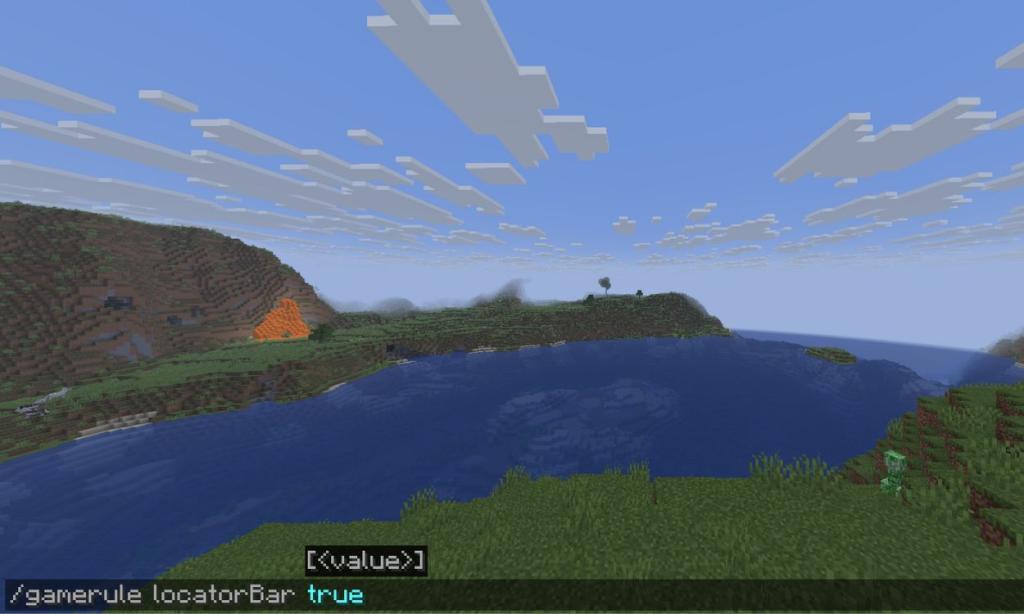
- If you still can’t see it, open the in-game chat using the “T” key and enter this command: /gamerule locatorBar true. This will enable the locator bar in your Java world.
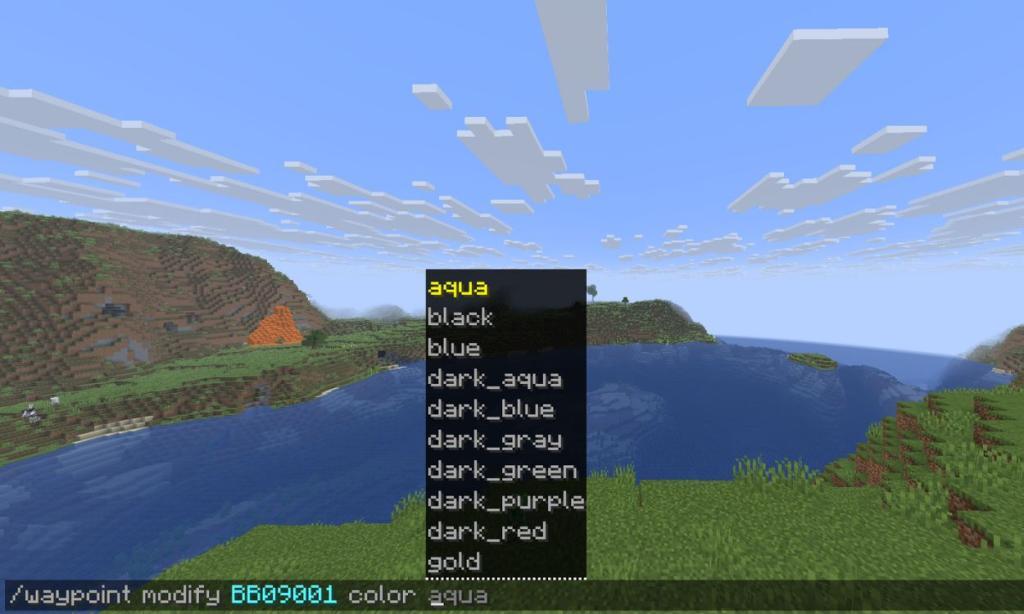
- You can further modify the indicators using the command: /waypoint modify .
Enable Player Locator Bar in Bedrock Edition
In Minecraft Bedrock edition, the player locator can be turned on slightly differently during the world creation. So, follow the given steps below to enable it:
- Open your Minecraft Launcher and launch the latest Bedrock preview.
- Now, create a new world and you’ll be presented with the world customization menu.
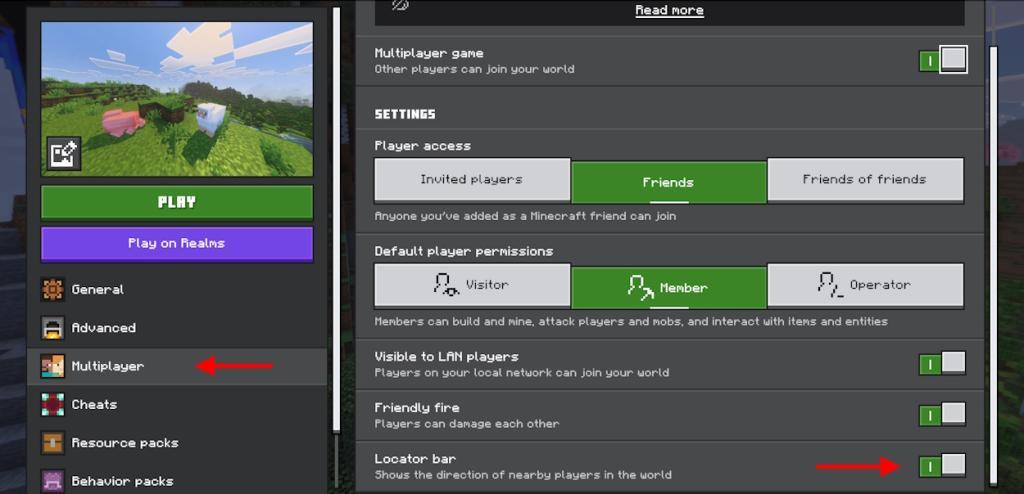
- Select the multiplayer tab and scroll to the bottom on the right-hand side.
- Here, toggle on the locator bar option and start your Minecraft world.
- Invite your friends over, and the locator bar will be displayed over your XP bar with indicators.
If you have started a new Minecraft world without enabling the feature, don’t worry. Like the Java edition, you can turn it on from inside the game using the same /gamerule locatorBar true command. However, do note that you cannot modify the locator bar in the Bedrock Edition.
Also Read: How to Get Happy Ghast in Minecraft
How to Use Player Locator Bar in Minecraft
The player locator bar in Minecraft helps you track other players’ positions in multiplayer mode. It appears at the top of the screen and shows directional indicators leading to teammates or nearby players. Each player’s icon moves as they change location, helping you keep track of their movement in real time. This feature is especially useful for coordinating exploration, building projects, or locating friends quickly without using coordinates.
The player locator bar is always displayed if other players are in your world. However, it disappears for five seconds, showing the XP bar whenever you gain XP. Moreover, if you’ve opened the anvil or enchanting table UI, the XP bar replaces the locator bar.
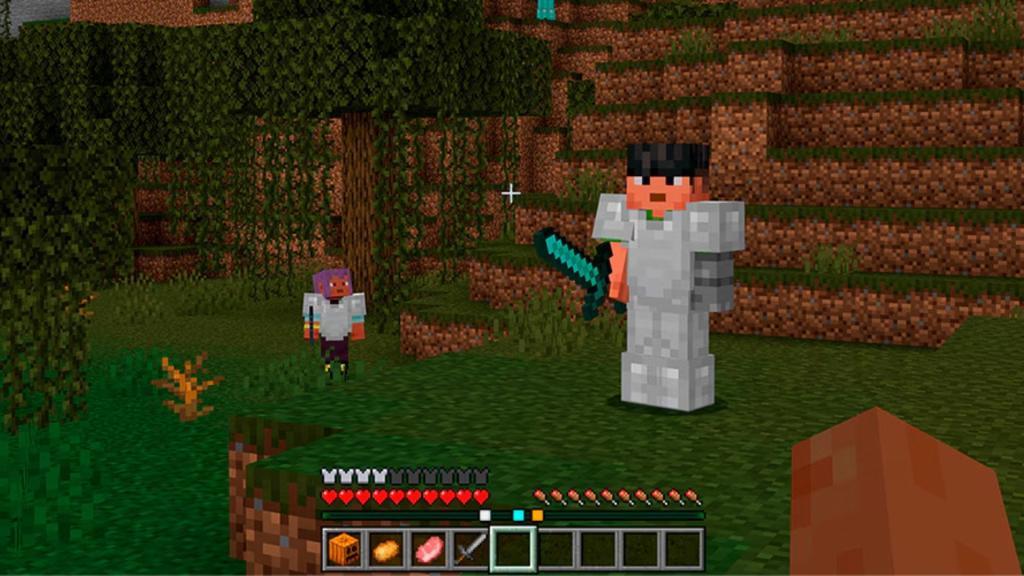
You can make the most out of this efficient tool by noticing the small square indicators on the bar. These are called waypoints, and each will be of a unique color, denoting each individual in your world unless you modify them. Furthermore, the waypoints change depending on the number of blocks you’re away from the player in the following manner:
- Square: 0-179 blocks
- Circle: 179-230 blocks
- Small Square: 230-281 blocks
- Small Circle: 281 Blocks
Additionally, sometimes, you might find small white arrows on the waypoints. An arrow on top or bottom means the player is at a higher or lower level than you, respectively.
So, no need to write your coordinates in the game chat and wait until your friends arrive. You can continue mining or looting structures, and others can easily find you by following the waypoints.
How to Hide from Player Locator Bar in Minecraft
To stay hidden from the player locator bar, disable the “Show Coordinates” or “Player Locator” options in the game settings before joining a multiplayer session. Using an in-game invisibility potion or sneaking can also reduce visibility on maps when sharing multiplayer worlds. For private servers, disabling position tracking in the world settings or using add-ons that limit player location data helps keep your position concealed from other players.
Despite the fact that the player locator bar will be a boon to most, we can understand if you want some privacy. Thankfully, there are some ways to hide from this radar. As such, here’s how to hide from the player locator bar in Minecraft:
- Crouching or sneaking: Crouching or sneaking in Minecraft will hide your waypoint from the player locator bar. However, your speed will decrease a lot as well unless you have the Swift Sneak enchantment on your boots.
- Wear a carved pumpkin/mob head: Get yourself a pumpkin, carve it using shears, and wear it to hide your waypoint. The same can be done using any Minecraft mob head. However, it’s challenging to obtain, but it gives a better vision than a carved pumpkin.
- Use the potion of invisibility: You can also drink a potion of invisibility to stay hidden from the radar as well as from the eyes of your friends. This is probably the best and most efficient way to hide from the locator bar.
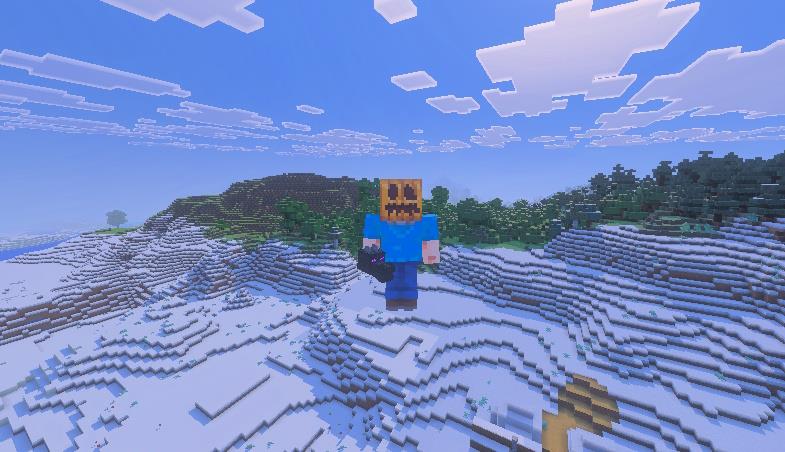
How to hide from Player Locator Bar in Minecraft
Players can hide from the Minecraft Player Locator Bar using several in-game mechanics designed for stealth. These methods work in both Java and Bedrock editions on multiplayer servers or worlds where the feature is enabled.
Personal Hiding Methods
-
Sneak (crouch by holding Shift): Your icon vanishes from others’ bars instantly, ideal for temporary concealment.
-
Wear a carved pumpkin or mob head: Equipping these on your head slot removes you from the locator bar, though it sacrifices helmet protection.
-
Potion of Invisibility: Drink this to become undetectable on the bar while invisible to players.
-
Spectator Mode: Switch to spectator (via commands if permitted) to fully hide from the locator.
Server-Wide Disabling
Server operators or world owners disable it for everyone with the command /gamerule locatorBar false, restoring the standard XP bar. Regular players cannot toggle it off individually via settings.
How to disable Locator Bar on Minecraft servers
Server operators can disable the Player Locator Bar across an entire Minecraft server using a simple command, restoring the standard XP bar for all players. This works in both Java and Bedrock editions, though it applies per dimension and requires operator (OP) permissions.
Using the Command In-Game
Log into the server with OP status and enter chat, then type /gamerule locatorBar false. The bar disappears immediately for everyone in that dimension, such as the Overworld.
Server Console Method
Access your server’s console directly (no login required) and input gamerule locatorBar false. This executes instantly without needing cheats enabled on the server.
Handling Multiple Dimensions
Repeat the command in the Nether (/execute in minecraft:the_nether run gamerule locatorBar false) and End (/execute in minecraft:the_end run gamerule locatorBar false) to disable it everywhere. Some hosts add these to config files or startup scripts for persistence after restarts.
Player Restrictions
Regular players cannot re-enable it themselves; only OPs or console access can toggle it back with /gamerule locatorBar true. Mods or plugins exist for client-side disabling but aren’t needed for server-wide control.
