Cracking the cloak: a hidden tier in Minecraft wardrobes that hides more than just pixels.
Well, Mojang has dropped yet another brand new cape that’s up for grabs, and the best part is that you don’t need to spend any money for it. Want to get your hands on it? Keep on reading to learn how to get the Common Cape in Minecraft here.
How to Get the Common Cape in Minecraft
The Common Cape can be obtained by linking your Minecraft account to a Mojang or Microsoft profile that has this cosmetic available through official promotions or updates. Once connected, launch the game and open the wardrobe menu from the main screen or pause menu. From there, choose the cape section and select the Common Cape from the list of owned items. After saving the changes, your character will wear the cape across all compatible versions of the game.
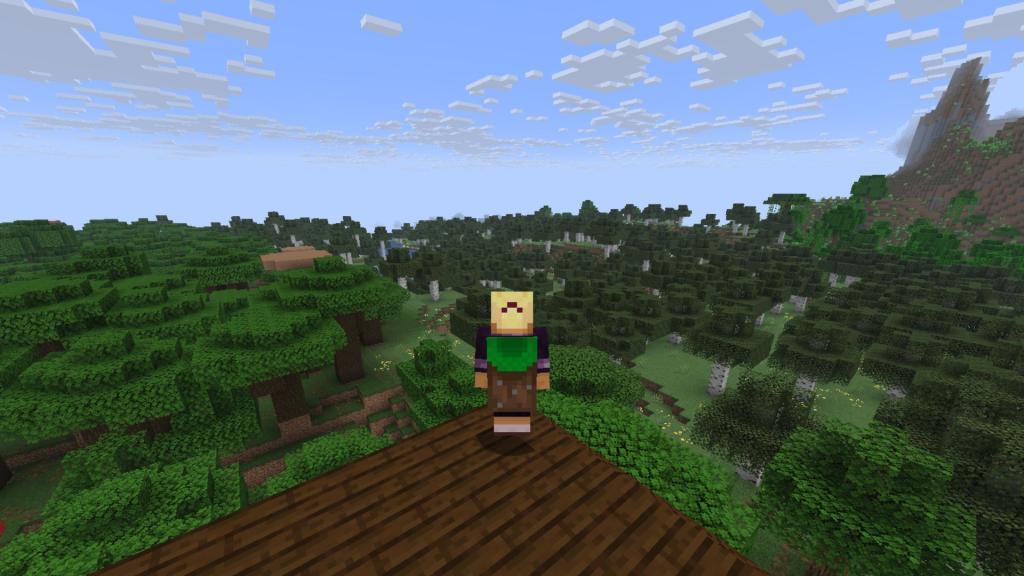
The Common Cape represents the most iconic block in Minecraft, the grass block. If you’re a true fan, you’ll recognize it at first glance. So, to add this simple and classy cape to your wardrobe, all you need to do is sign in to your Microsoft account through the Minecraft Bedrock Edition.
The good news about the cape is that it appears in both Java and Bedrock editions. However, do note that you must claim it first in Bedrock before you open up the Java world. The Common Cape will be available to all players who have logged in to Minecraft Bedrock after May 6, 2025, and you can claim it until May 5, 2026.
Also Read: Minecraft VR Support Officially Discontinued by Mojang
How to Claim the Minecraft Common Cape
To claim the Common Cape in Minecraft, sign in to your Mojang or Microsoft account and open the official Minecraft website or launcher. Go to your profile settings and locate the “Cape” or “Wardrobe” section. If the Common Cape is available to your account, you’ll see it listed as a selectable option. Choose it and save your changes so the cape appears on your Minecraft character across all supported versions.
Once you have successfully logged in to Minecraft using your Microsoft account, the Common Cape will be available to equip in both your Bedrock and Java worlds. Although the process to equip capes in both editions is a bit different, it doesn’t require you to follow a large number of steps.
In Java, before you launch your game, head over to the Skins tab and edit the character you want to play with. Select the Common Cape under the Cape section, and click on the Save and Use button.
If it’s still not there, pause the game, go to Options > Customization, and toggle the Cape button. This will make sure the Cape is visible at all times.
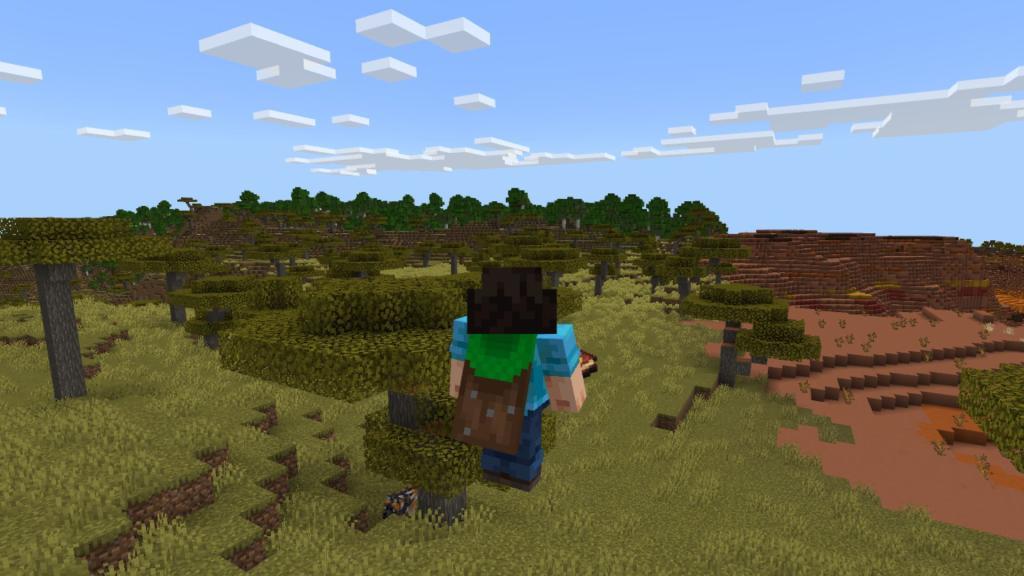
In Bedrock, you can do the whole method by launching the game first. Click on the Dressing Room button and then the red Cape icon on the left. Now select the Common Cape and click on the Equip button. Finally, go back and start a new world or launch an existing one.
This way, your cape will be equipped on your back, and you can press the F5 key to view it in third-person mode in both editions. If you’re still facing issues, check out our guide on how to get and change a cape in Minecraft.
This way, you’re all set, and if you log out of your account by mistake, you can always use your credentials to sign back in and continue your Minecraft progress.
How to equip Common Cape in Java Edition
To equip the Common Cape in Minecraft Java Edition, first ensure you’ve claimed it by logging into Bedrock Edition with the same Microsoft account during the promo period (May 6, 2025 – May 5, 2026), as it syncs account-wide.
Via Minecraft Launcher
Launch the official Minecraft Launcher and log in with your Microsoft account. Go to the Skins tab, then click New Skin or Edit on an existing skin; the Common Cape appears in the cape selection-select it, click Save & Use, and launch your world.
In-game, verify by opening Options > Skin Customization and toggling Cape: ON if needed.
Via Minecraft.net Profile
Visit minecraft.net, log in, and navigate to your profile page under Java Edition. Click Change Skin, select the Common Cape from available options, and save-it syncs to the launcher automatically.
Troubleshooting
If the cape doesn’t appear immediately, equip and wear it in a Bedrock world first, then rejoin Java or wait up to a few days for server sync. No mods like OptiFine are required for official capes.
Steps to link Microsoft account between Bedrock and Java
Microsoft accounts unify Minecraft Java and Bedrock Editions, so linking happens automatically by signing in with the same account-no separate migration steps needed for capes like the Common Cape.
Sign in on Bedrock Edition
Launch Minecraft Bedrock on any device (PC, console, mobile). At the main menu, select Sign in with Microsoft and enter your account credentials used for Java Edition.
Claim the cape by simply logging in during the promo period (active until May 5, 2026).
Sign in on Java Edition
Open the Minecraft Launcher on PC. Click your profile icon (top right), select Sign out if needed, then Sign in with Microsoft using the exact same account as Bedrock.
The cape syncs after Bedrock login and appears in the Skins tab.
Verify and Troubleshoot
Check account linkage at account.microsoft.com by viewing your Minecraft purchases (both editions should list under one profile).
If issues arise (e.g., old account cached), log out everywhere, clear launcher cache (.minecraft folder), and re-sign in-progress/worlds don’t sync, but skins/capes do.
