Minecraft’s newest visual overhaul transforms every block and biome into a breathtaking display of color and detail, giving players a fresh reason to pause, admire, and lose hours building in awe.
Mojang Announces Revamped Graphics for Bedrock Edition
Mojang has announced a major update to the Bedrock Edition’s graphics, giving Minecraft a fresh visual boost across all supported platforms. The overhaul introduces richer lighting effects, sharper textures, and smoother animations that enhance every element of the blocky universe. Players can expect more realistic shadows, dynamic reflections, and improved color depth, making builds and biomes feel more alive than before. This update also aims to maintain performance balance, ensuring that both high-end and mobile devices can enjoy the new visuals without sacrificing gameplay quality.
Its been so long that the original blocky world of Minecraft had a visual update. As for the players in the Java edition, anyone can install mods and shaders into their system to upgrade the quality of the Minecraft surroundings. Since mods do not apply to the Bedrock version, this community remained alienated from experiencing the real beauty of Minecraft worlds.
With the latest Live event of Minecraft in 2025, Mojang announced a new feature called Vibrant Visuals. This will change everything about how you view Minecraft in Bedrock, except for the vanilla gameplay.
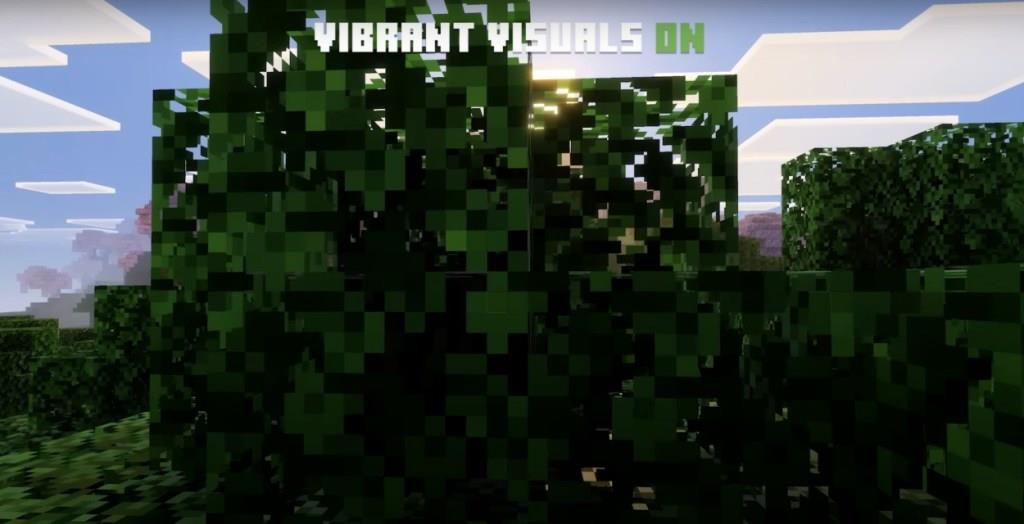
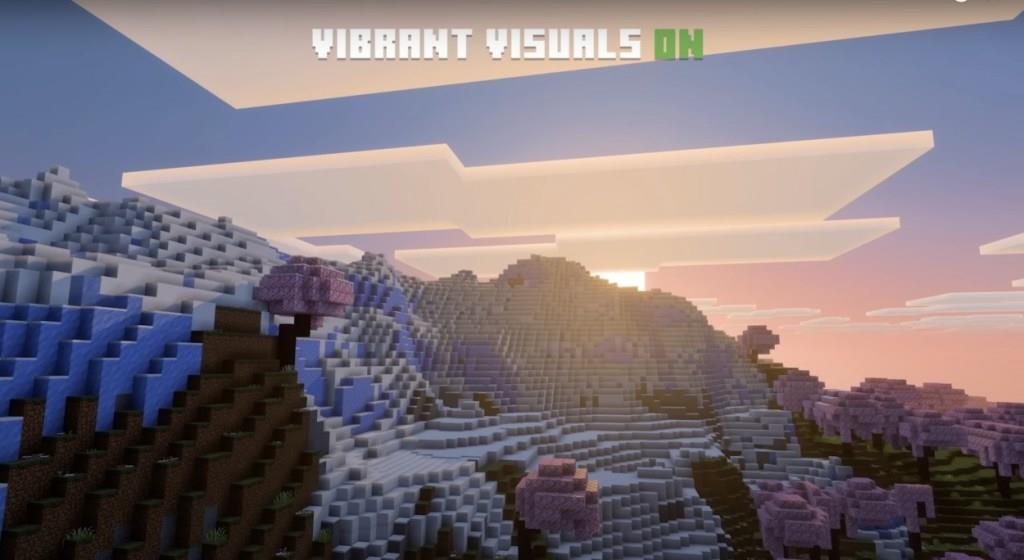
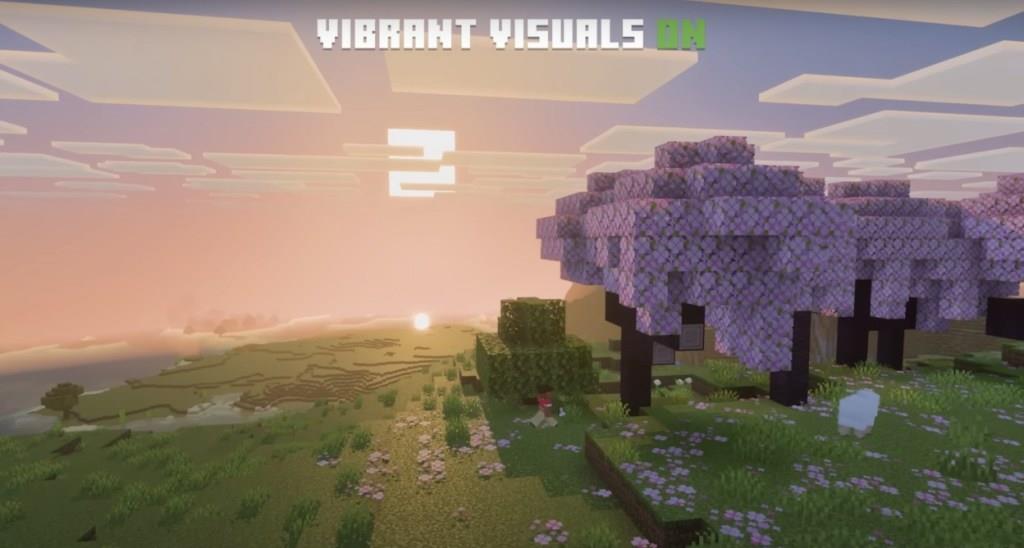
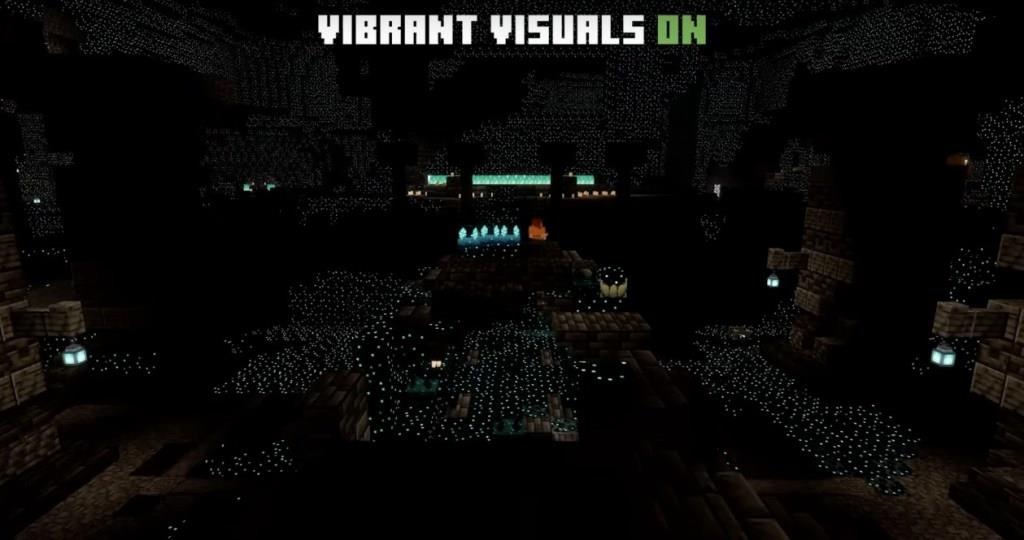
As you notice the sunrises and sunsets, you will be completely awestruck by the beauty of the orange and red gradients transitioning with the sky. Furthermore, I’m sure you will fall in love with the magical green Lush caves and the glowing Skulk sensors in the Deep Dark biomes.
Want even more? Check out the amazing light reflections and the shadows that move by the pixel. I mean, how cool is that!
How do I enable Vibrant Visuals in Bedrock Edition
To enable Vibrant Visuals in Minecraft Bedrock Edition, first ensure you’re on version 1.21.80 or later with a compatible device (like modern PCs, Xbox Series X/S, PS5, or high-end mobile).
Enable Experiments (If Needed)
Access world creation or edit settings, then toggle “Vibrant Visuals” under the Experiments tab (under Graphics). This step was required early on but may be automatic in fully released versions. Load or create the world afterward.
Activate in Video Settings
Pause the game or go to main menu Settings > Video tab. Scroll to “Graphics Mode” at the bottom and select “Vibrant Visuals” from the dropdown. Pick a preset like “Favor Performance” for smoother FPS or “Favor Visuals” for max quality, then tweak options like shadows or fog as desired.
Optimization Tips
Boost render distance, enable Fancy Bubbles/Leaves/Clouds, and update graphics drivers for best results. It’s client-side only, so others won’t see your changes unless enabled. If greyed out, verify hardware compatibility or restart the game.
Check if my device supports DirectX 12 and Vibrant Visuals
To check if your device supports DirectX 12 and Minecraft Bedrock Edition’s Vibrant Visuals, use built-in Windows tools since Vibrant Visuals requires DirectX 12 on compatible hardware like modern PCs, Xbox Series X/S, PS5, or high-end mobiles.
Verify DirectX 12 Support
Press Windows Key + R, type dxdiag, and hit Enter to open the DirectX Diagnostic Tool. Switch to the Display tab and check the “Feature Levels” under Drivers-if you see 12_0, 12_1, or higher, your GPU supports DirectX 12. Update your graphics drivers via Device Manager (right-click Display adapters > Update driver) if levels are missing or outdated.
Test Vibrant Visuals Compatibility
Launch Minecraft Bedrock (version 1.21.80+), go to Settings > Video, and look for “Graphics Mode.” If “Vibrant Visuals” appears and isn’t greyed out, your device supports it-toggle to enable. Greyed out? Ensure DirectX 12 is active (Minecraft launcher > Installation > More Options > check “Use DirectX 12”), disable resource packs, set Minecraft to high performance in Windows Graphics settings, and restart.
Common Fixes
Older DirectX 12 GPUs may still fail; verify hardware meets Mojang’s list (e.g., RTX 20-series+ or equivalent). No support on integrated graphics like Intel HD or non-DX12 consoles. Test in a new world without experiments or packs for confirmation.
