Unravel the glitch: a single fix can flip the odds in Fortnite’s matchmaking maze.
One such painful issue is the matchmaking error #1 that stops your queue eligibility. If you’re also suffering from this pesky error, this one’s for you. So keep reading as we detail and show you how to fix Fortnite matchmaking error #1 right here.
What is Fortnite Matchmaking Error 1
Fortnite Matchmaking Error #1 usually appears when the game fails to connect players to the matchmaking servers. This issue often occurs due to unstable internet connections, server outages, or mismatched game versions between players and Epic Games’ servers. It can also result from temporary data corruption or network restrictions on the player’s system. Understanding these causes helps identify the right troubleshooting steps, whether through network adjustments, server status checks, or game updates.
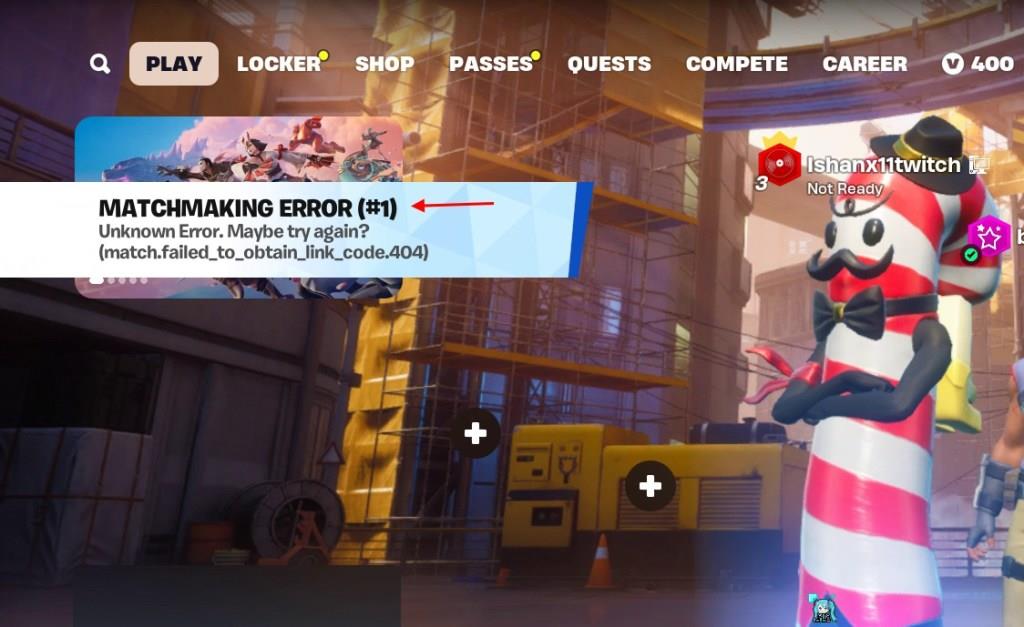
Multiple errors in Fortnite mostly happen during updates or patch fixes. Fortnite matchmaking error 1 is one such error in Fortnite that prevents players from matchmaking. Once you try to enter matchmaking, the message pops up on the left top of the screen. The message also says, “Unknown Error. Maybe try again?”
Although the error occurs mostly during a new update, here are all the possible reasons behind matchmaking error 1 in Fortnite:
- Corrupt Files
- Fortnite Matchmaking Server Down
- Internet Issues
- Epic Games Launcher Error
How to Fix Fortnite Matchmaking Error 1
Fortnite Matchmaking Error 1 usually appears when the connection between your game client and Epic Games’ servers fails. To fix it, first check your internet connection and restart your router if needed. Then, ensure your game is fully updated and that Epic Games’ servers are online by visiting their status page. If the issue remains, try verifying the game files through the Epic Games Launcher and temporarily disable any firewalls or VPNs that might interfere with the connection.
If you are struggling with Fortnite matchmaking error 1, here is how you can fix it:
1. Verify File Integrity
Fortnite updates are bigger than usual, especially during a season or chapter change. Mostly, the error happens during these periods. The issue also occurs when a new game mode is introduced, such as LEGO Fortnite or Fortnite Ballistic. This happens because the server downloads the wrong files or clashes with your device, creating corrupt files.
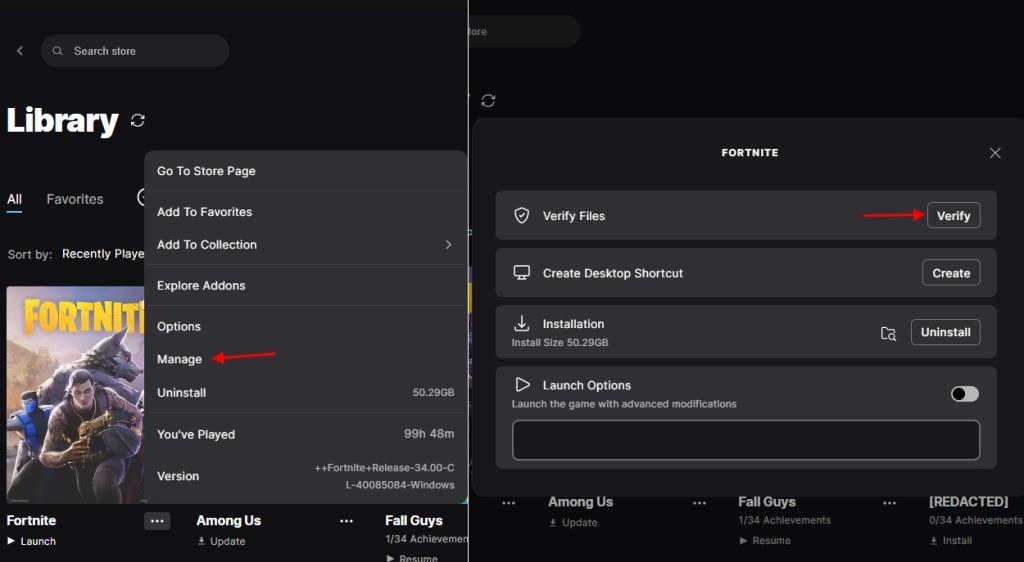
To solve it, you must verify file integrity for Fortnite. Follow the steps below to verify file integrity in Fortnite and fix matchmaking error #1:
- Open Epic Games Launcher and click the three dots below Fortnite.
- Go to the Manage section and click Verify.
- Wait until the full verification is complete.
2. Change Matchmaking Server
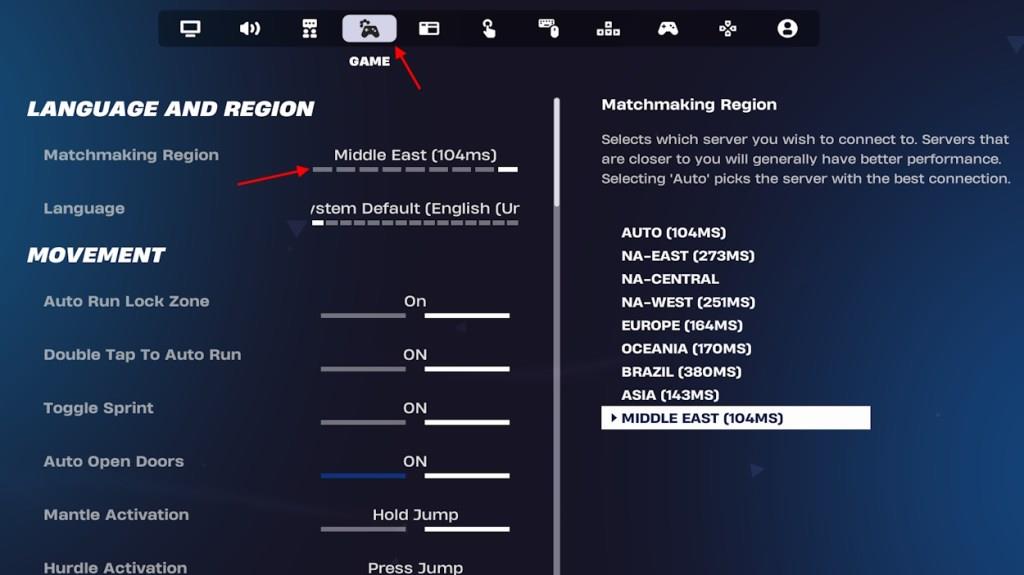
If verifying files does not fix the issue, you must change the matchmaking region in Fortnite. A lot of times, some of the regions in the game work while others are down. Here is how to change the matchmaking server in Fortnite to fix the matchmaking error 1:
- Open Fortnite settings and look for the Game tab.
- Select the Matchmaking Region option and change it to a different one.
- Restart your match queue to fix the issue.
3. Restart Router and Game
Although the error is caused by server-related errors, simple tricks can fix it. Make sure your router and the internet are working fine. If your router is having issues, restart it to see if the issue persists. Otherwise, restart Fortnite and check it again! Didn’t solve the problem? Proceed to the next method. Also Read: Is Fortnite Cross-Platform? Answered
4. Re-Install Epic Games Launcher
Epic Games Launcher is notorious for its operation, so it may interfere with your game. You can simply uninstall and reinstall Epic Games Launcher from your device and see if the issue is fixed. Otherwise, proceed to the next step.
5. Fix For Mobile Devices
If you are having Fortnite matchmaking error 1 on mobile devices such as iOS and Android, there are some fixes for it as well. For starters, make sure you have no rooting on your device. Otherwise, clear the cache of your Epic Games Launcher after an update. This will solve the issue for you.
6. Wait for the Official Fix
If none of the mentioned methods work, you must wait till an official fix is out. The Fortnite status page on X actively shows if Fortnite is down. Once the problem is solved, you just need to restart Fortnite to see the changes. After an official fix is out, it will also reflect on the Epic Games server status page.
Check Epic Games server status and scheduled maintenances
Check Epic Games’ official status page at status.epicgames.com for real-time updates on server status and any ongoing or scheduled maintenance. This page covers key services like Epic Online Services (matchmaking and logins), Fortnite servers, the Epic Games Launcher, Store, and Login systems, showing if they are operational, degraded, under maintenance, or experiencing outages.
Current Status Check
As of the latest available data, no widespread outages were reported across Epic Games services, but localized issues like Fortnite server responsiveness have been noted recently (e.g., within the last few hours in some trackers). Visit the page directly for live indicators: green for operational, yellow for degraded performance, red for major outages, or blue for maintenance.
Scheduled Maintenance
Epic Games announces planned maintenance in advance on status.epicgames.com, typically for updates, bug fixes, or security patches, with estimated durations provided. No major scheduled downtimes were listed in recent reports, but check @FortniteStatus or @EpicGames on X (Twitter) for game-specific alerts.
Additional Monitoring Tools
Use Downdetector (downdetector.com/status/epic-games-store) for user-reported issues and outage graphs over the past 24-48 hours. Sites like StatusGator or IncidentHub aggregate status data and historical trends for proactive notifications.
View current Epic Games status page for live updates
Visit https://status.epicgames.com for the official Epic Games status page, which provides real-time updates on all major services including Fortnite servers, Epic Online Services (matchmaking and login), Epic Games Launcher, Store, and more. The page uses color-coded indicators: green for fully operational, yellow for performance issues, red for outages, and blue for scheduled maintenance, with detailed incident histories and estimated resolution times when applicable.
Live Status Indicators
Components like Fortnite, Rocket League, and Epic Online Services show as “Up” in the most recent aggregated reports from monitoring sites, with no major ongoing outages noted across services. Minor user-reported issues (e.g., launcher or login delays) appear on trackers like Downdetector, but these do not indicate widespread server problems.
Maintenance and Alerts
No scheduled maintenance is currently listed, though Epic posts updates directly on the status page or via @FortniteStatus and @EOSStatus on X for game-specific alerts. Follow these accounts or subscribe to the page’s RSS feed for push notifications on disruptions.