Roblox isn’t just for PCs anymore – Chromebook players can now jump into their favorite games with a few simple tweaks or by streaming through now.gg. Here’s how you can set it up and start playing in minutes.
So without further delay, let’s jump to the steps.
Install and Play Roblox on Chromebook (Play Store Required)
If your Chromebook supports Android apps, you can install Roblox directly from the Google Play Store. Open the Play Store, search for “Roblox,” and select Install. Once the app is downloaded, launch it and sign in with your Roblox account. Make sure your device runs the latest ChromeOS version and that Play Store access is enabled under settings for a smoother experience.
If you have never installed any Android apps on your Chromebook before, open Settings and turn on the Google Play Store toggle. This will allow you to use the Play Store on your Chromebook and install any Android app.
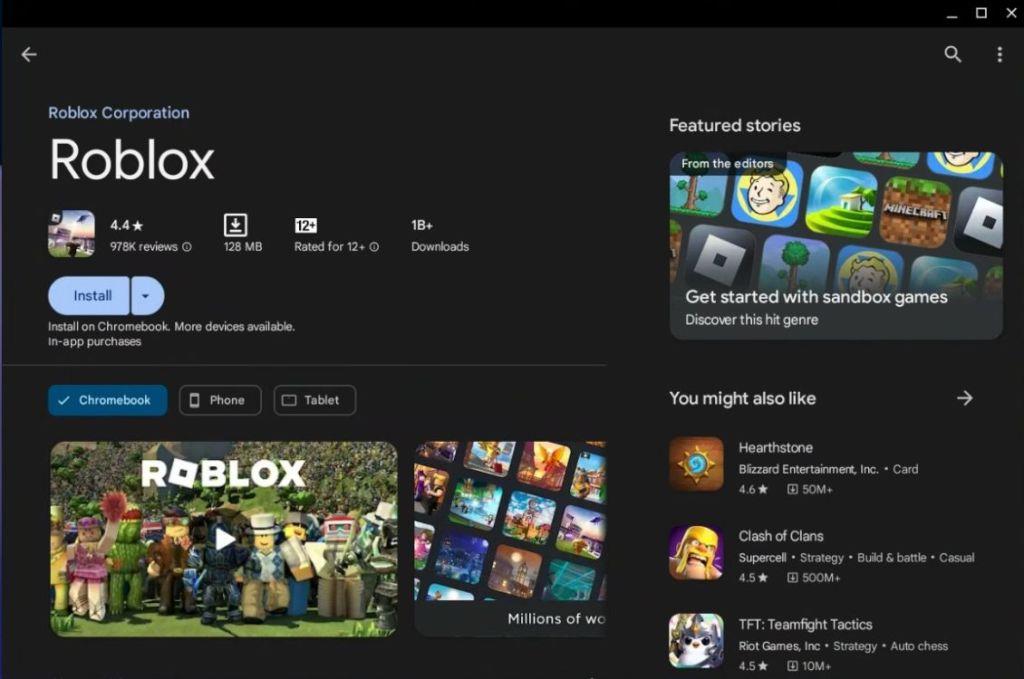
- Once enabled, launch the Google Play Store.
- Search for Roblox (Free) and install it on your Chromebook.
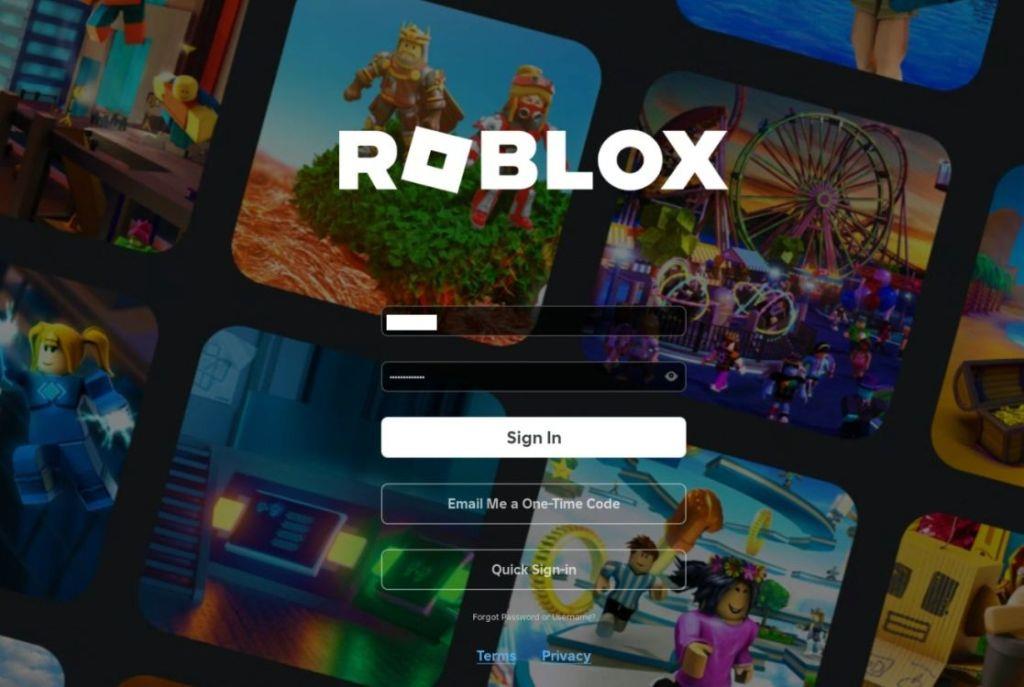
- After that, launch the Roblox player and sign into your account.
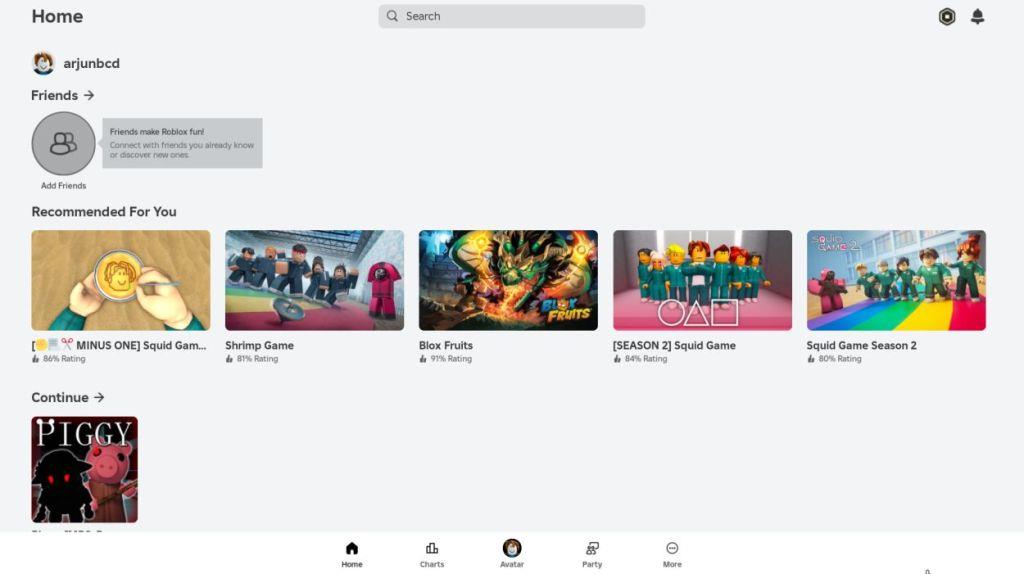
- You can now play the best Roblox games on your Chromebook just like that!
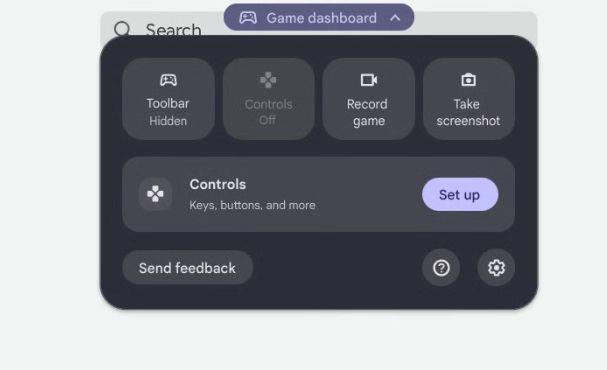
By the way, you can also set up ChromeOS’ Game Dashboard and map your keys and buttons from the title bar.
Also Read: How to Install and Play Minecraft on Chromebook
How to Play Roblox In the Browser on School Chromebooks
Playing Roblox in the browser on school Chromebooks is possible through cloud gaming platforms like now.gg. This method runs Roblox on remote servers, allowing the game to stream directly in your browser without installation or system restrictions. To get started, visit the now.gg website, search for Roblox, and sign in with your existing account. Because most school Chromebooks have limited permissions, this approach bypasses blocked app installations while still offering smooth gameplay through an internet connection.
If you have a school-issued Chromebook, there is now a way to play Roblox, thanks to now.gg. It is a mobile cloud gaming platform that allows you to play any mobile game on your Chromebook, Mac, or PC without having to download anything.
You don’t even need to sign up or pay for anything on now.gg, although there sure is a time limit. It works and performs fairly well in the browser. So, let’s go ahead and learn how you can play Roblox on school-issued Chromebooks.
Note:
If you are not from the US, you must use a VPN to play Roblox on now.gg. So, make sure to connect to a US server to make the game available.
- If you are not from the US, launch a VPN app on Chromebook and connect to a US server.
- I am using ProtonVPN for this tutorial, but you can also try VPN extensions like NordVPN on school-issued Chromebooks.
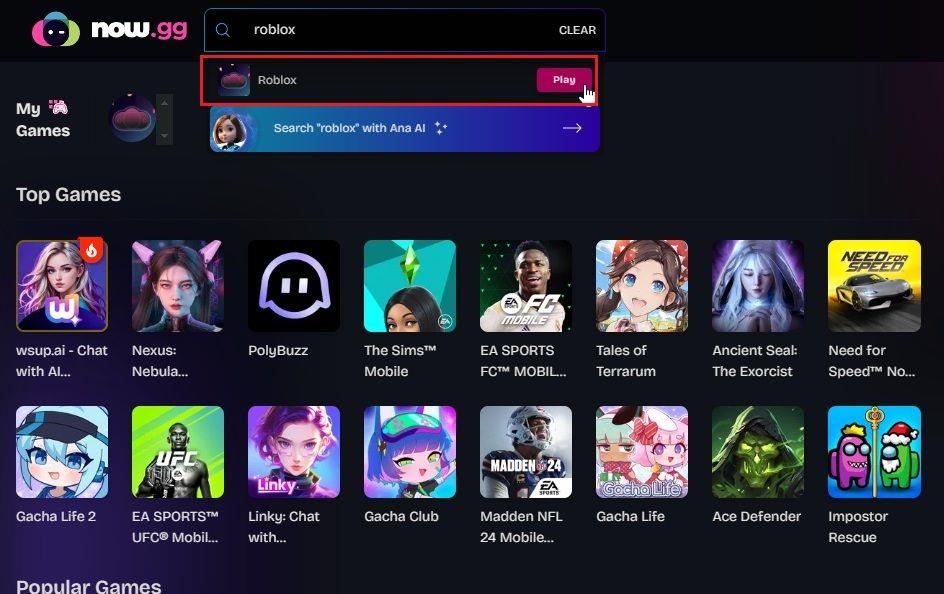
- Just head over to this now.gg and search “Roblox”. Now, click on “Play”.
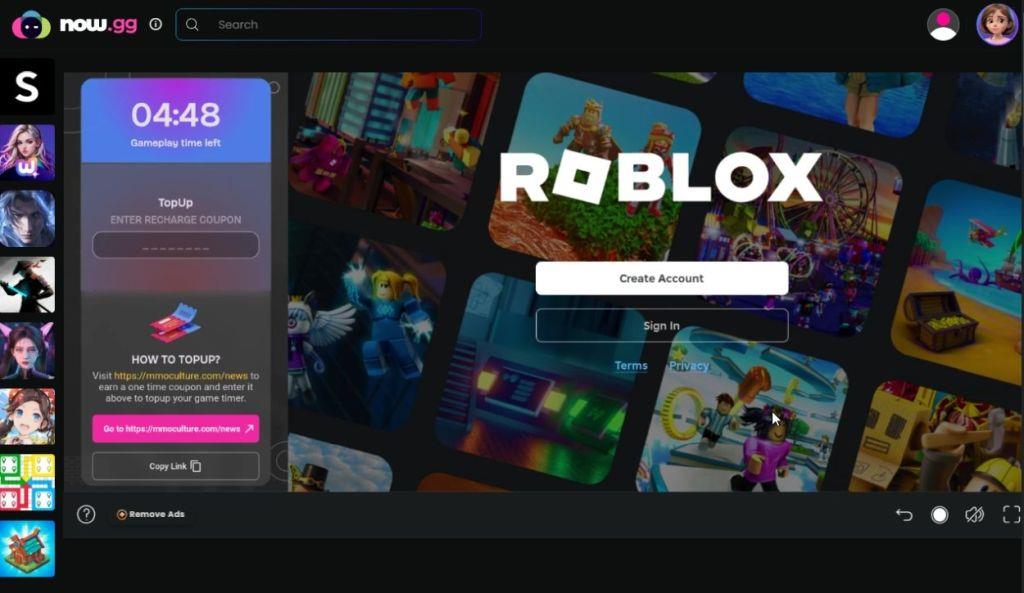
- Next, wait for a few seconds and then log into your Roblox account.
You can now play some of the best scary Roblox games with friends. Moreover, if you are not into scary or horror games, you can check out the best Roblox characters to use while gaming online. If you are looking for Blox Fruits codes, Fisch codes, or Blue Lock Rivals codes, we’ve got you covered on that front too.
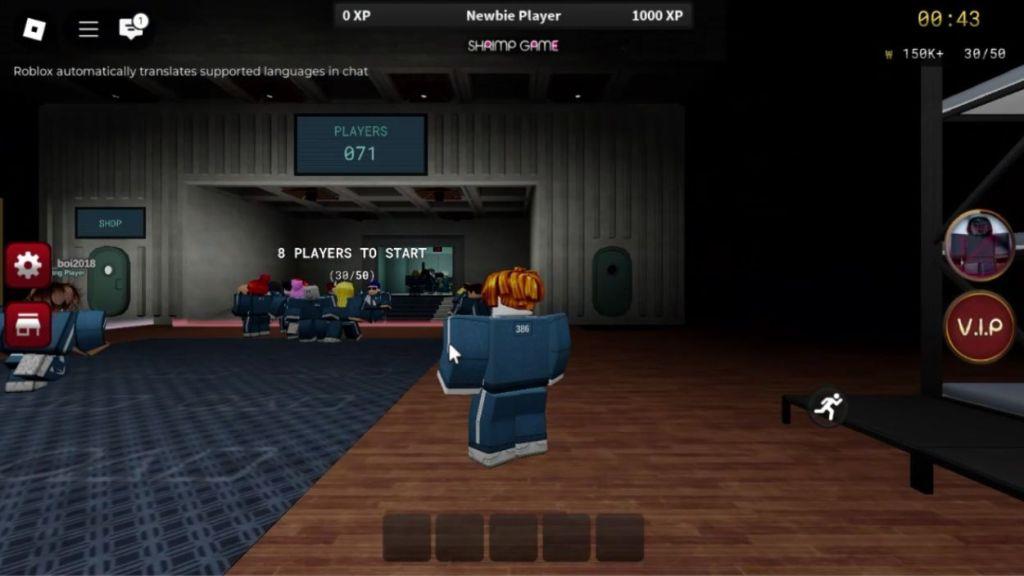
So those are the steps to install and play Roblox on any Chromebook. As you can see, this popular sandbox game like Minecraft is already available on the Google Play Store, and you don’t need to go through any sort of hassles to play this multiplayer game.
Check if my Chromebook supports Google Play apps
To check if your Chromebook supports Google Play apps, follow these simple steps directly on your device. Most Chromebooks from 2019 onward support it, but verification confirms compatibility.
Quick Launcher Check
Open the Launcher (circle icon at bottom-left) and search for “Google Play Store.” If the app icon appears in results, your device supports Android apps and Play Store access.
Settings Verification
Click the time in the bottom-right corner, then the gear icon for Settings. Navigate to “Apps” > “Google Play Store” (or “Manage Google Play preferences”). A “Turn on” option or preferences menu means it’s supported; absence indicates no support.
Update and Model Check
Ensure ChromeOS is updated via Settings > “About ChromeOS” > “Check for updates,” as newer versions (69+) enable Play Store on compatible models. Google maintains a full compatibility list at support.google.com/chromebook/answer/7021273. School-managed devices may restrict it-contact your admin if needed.
How to find my Chrome OS version
To find your Chrome OS version, access the Settings menu directly on your Chromebook. The version number appears prominently in the About section, helping verify compatibility for features like Google Play apps.
Via Settings Menu
Click the time in the bottom-right corner, then select the gear icon to open Settings. Scroll to and click “About Chrome OS” on the left; your current version (e.g., 137.x.xxx.xxx) displays under “Google Chrome OS,” along with update options.
Alternative: Browser Method
Open the Chrome browser and type “chrome://version/” in the address bar, then press Enter. This shows detailed Chrome OS and browser version info, useful if the touchpad is unresponsive.
Diagnostics Mode
Press Ctrl + Search/Launcher (circle key) + Esc simultaneously to open Diagnostics. The top line lists your Chrome OS version and device codename for advanced troubleshooting.