Master Fortnite wherever you are with your Nintendo Switch. This guide breaks down controls, performance tips, and smart settings to help you build faster, aim sharper, and make every match count.
Well, keep reading as we walk you through the step-by-step process of how to download and play Fortnite on the Nintendo Switch here.
How to Download Fortnite on Nintendo Switch
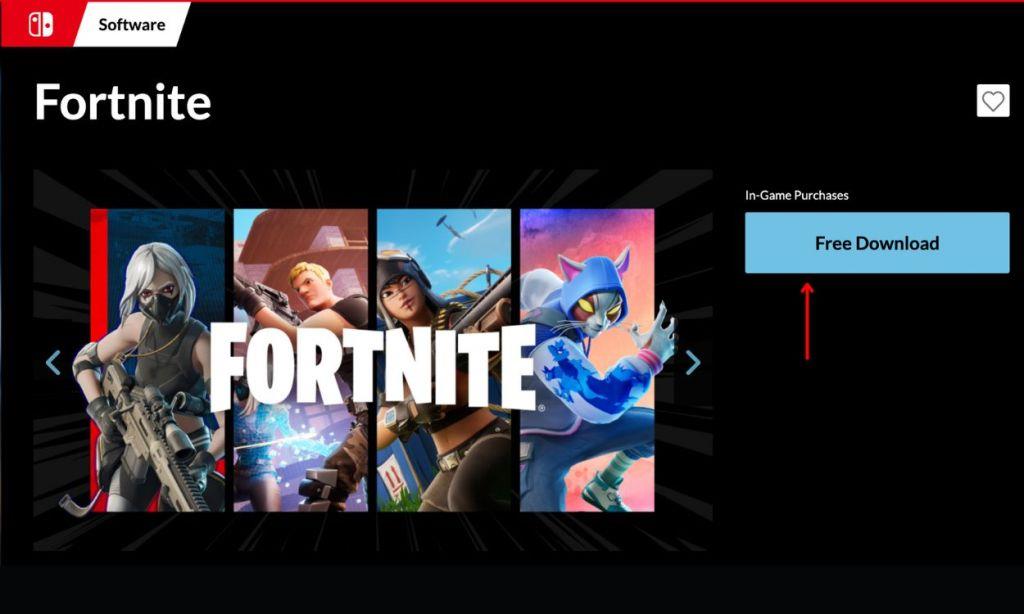
To download Fortnite on your Nintendo Switch, open the Nintendo eShop from the console’s main menu and make sure you’re signed in to your Nintendo account. Use the search bar to find “Fortnite,” select the game from the results, and choose “Free Download.” Once the download is complete, the game will install automatically. After installation, launch Fortnite from your home screen and sign in with your Epic Games account to begin playing.
Before you start downloading, make sure your Nintendo Switch is connected to the internet and you’re logged into your Nintendo account. You’ll also need enough storage space, as Fortnite takes up about 18 GB. The download process is simple, but you must go through the Nintendo eShop. Follow the steps below to do so:
- Turn on your Nintendo Switch and log into your Nintendo account.
- Find and click the Nintendo eShop icon.
- Select Search from the left menu and type “Fortnite” to select it.
- Click the “Free Download” button.
- Confirm by clicking “Free Download” again.
How to Link Epic Games Account to Nintendo Switch
To link your Epic Games account to your Nintendo Switch, open Fortnite on your console and select the option to sign in with an Epic account. Use a web browser or your phone to visit the official Epic Games website, then log in and enter the code displayed on your Switch screen. This connects your game progress, purchased items, and friends list across platforms. Once linked, you can play with your existing Epic Games data and continue using your same account on other devices.
While your game downloads, you’ll need to set up an Epic Games account. This saves your progress and lets you play with friends. Follow the steps below to do so:
- Visit the official Epic Games store website and sign in.
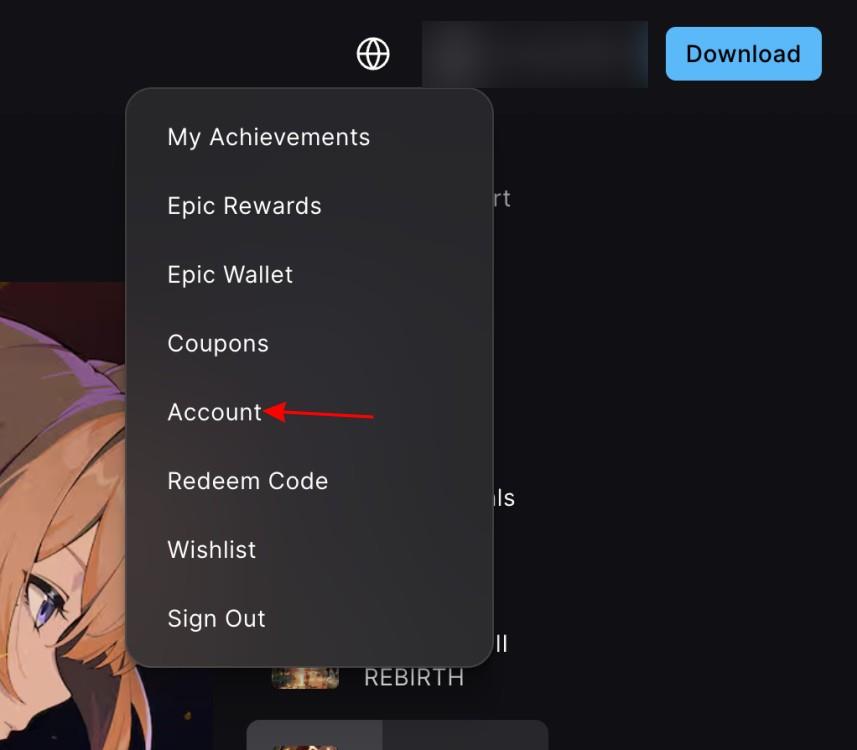
- Click on your username and then on Account from the dropdown menu.
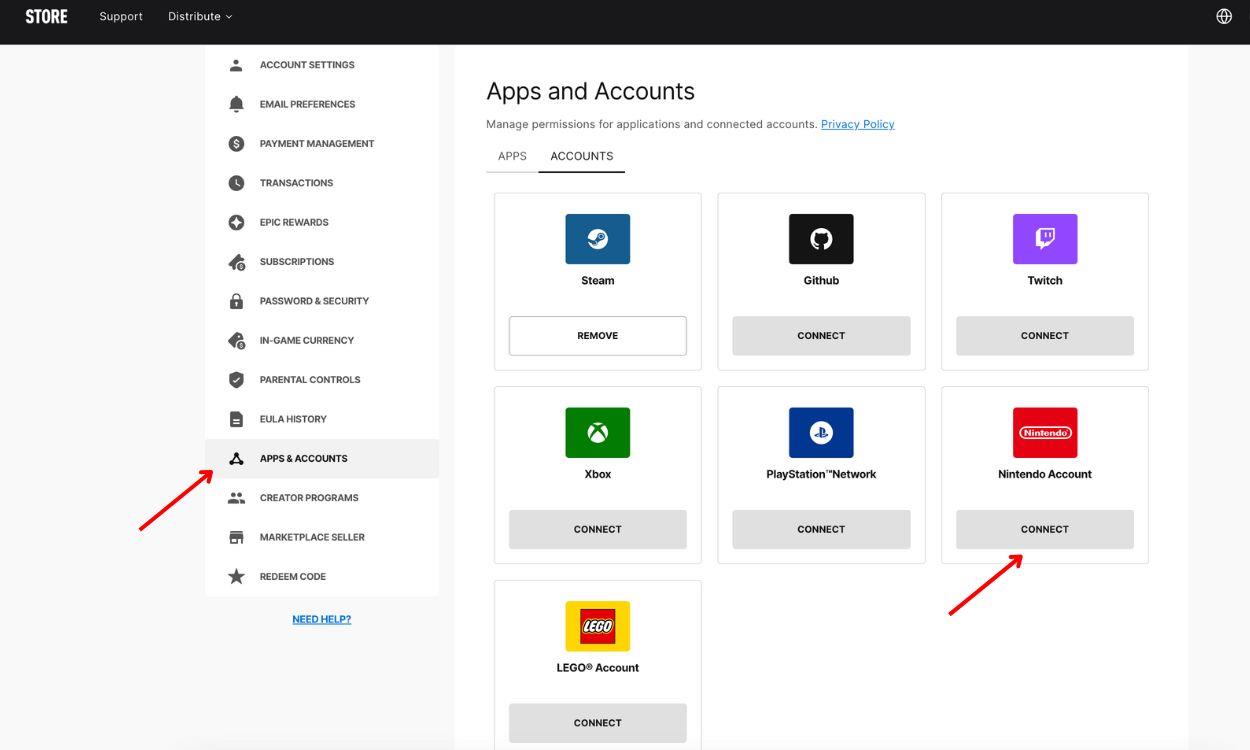
- Click on the Apps and Accounts section from the left sidebar.
- Finally, click on the Connect button next to the Nintendo account.
From then on, it’s simply signing into your Nintendo account, and you’re all done. Once Fortnite finishes downloading, just open the game and accept the user agreement. The game will automatically connect to your Epic account since you’ve already linked it.
How to Add Nintendo Switch Friends to Fortnite
To add Nintendo Switch friends to Fortnite, open the game and go to the main menu. Select the friends icon, then choose “Add Friends.” You can search for friends using their Epic Games username or link your Epic account to your Nintendo account to see your Switch friends automatically. Once the request is accepted, you’ll be able to join games, send invites, and play together across platforms.
Adding friends in Fortnite is a bit different from adding regular Switch friends. Since Fortnite uses Epic Games’ system, you’ll need to add friends through the game itself. Here’s how to do it:
- While Fortnite is open, press the minus (–) button.
- Press Y to open the friend request screen.
- Enter your friend’s Epic Games username or email.
- Press the plus button () or select OK to send the request.
Once your friend accepts, they’ll appear on your Fortnite friends list. Remember that this is separate from your Nintendo Switch friends list. Just because someone’s your friend on Switch doesn’t mean they’ll automatically appear in Fortnite. Also Read: How to Get Free Fortnite Skins (January 2025)
Fortnite Nintendo Switch Controls
The Fortnite controls on Nintendo Switch use the Joy-Con or Pro Controller with quick, precise mapping: move with the left stick, look with the right stick, jump with A, aim with ZL, fire with ZR, build with B and X, edit with Y, and sprint by clicking the left stick. Quick-swapping items sits behind the R button, while the minus button opens the map and inventory.
Fortnite, as a game, needs a lot of granular control. As such, you can’t play using a single Joy-Con to play the game. However, here are all the ways you can play Fortnite on Nintendo Switch:
- Both Joy-Cons in the grip that came with your Switch
- Both Joy-Cons attached to the Switch in handheld mode
- Joy-Cons separated (one in each hand)
- Nintendo Switch Pro Controller
If you want to adjust your controls, you can do this in the game menu. Just press the plus button (), then A, and use R to tab over to the controller settings. You can change button layouts and adjust sensitivity to match how you like to play.
Getting Fortnite up and running on your Switch isn’t complicated, but there are a few steps you need to follow. The whole process, from downloading the game to setting up your account, usually takes about 15-20 minutes, depending on your internet speed.
Best controller settings for Fortnite on Switch
Optimal controller settings for Fortnite on Nintendo Switch emphasize Builder Pro layout, low deadzones for responsiveness, and multipliers for faster building and editing. These configurations, drawn from pro player recommendations and recent guides, work well with Joy-Cons, Pro Controller, or docked play. Adjust slightly based on your controller’s stick drift and playstyle after testing in Creative mode.
Core Controller Options
Enable Builder Pro for dedicated build buttons, turn on Advanced Options, and select Linear response curve for precise aim. Set Edit Hold Time to the minimum (0.1s), disable vibration to reduce distractions, and turn off Auto Run for better control. Aim Assist Strength (both Position and Tracking) goes to 100% for maximum tracking help on Switch hardware.
Sensitivity Settings
Use these multipliers with Look Sensitivity at 35-40% and a base multiplier of 1.7x for builds/edits to balance speed and accuracy on Switch’s 30-60 FPS cap.
| Setting | Recommended Value | Notes |
|---|---|---|
| Build Mode Multiplier | 1.7x – 2.1x | Faster piece control |
| Edit Mode Multiplier | 1.7x – 2.1x | Quick resets |
| Look Sensitivity | 35% | Slower for Switch aim |
| ADS Sensitivity | 30-35% | Precise tracking |
Deadzone and Adva
Try gyro vs stick aiming which is better for Switch Fortnite
Stick aiming outperforms gyro aiming for most Fortnite players on Nintendo Switch due to the console’s smaller Joy-Con sticks, stick drift issues, and 30-60 FPS limitations that amplify gyro’s jittery feel during intense fights. Gyro excels in precision fine-tuning-like scoped shots or tracking distant targets-when paired with sticks for broad camera control, but it disables aim assist and demands steady hands, making it inconsistent handheld or with Pro Controller. Top Switch players favor pure sticks for reliable muscle memory in builds, edits, and close-quarters combat.
Stick Aiming Strengths
Traditional right-stick aiming leverages aim assist (up to 100% strength) for smooth tracking, especially effective on Switch where gyro’s motion sensitivity falters in fast-paced BR matches. Set Exponential or Linear curves at 35% sensitivity with low deadzones (8-13%) to counter drift while maintaining snappy response. No recalibration needed mid-game, unlike gyro which can drift if you tilt awkwardly.
Gyro Aiming Pros and Cons
Enable gyro under Touch and Motion > Gyro Aiming (set to Scope/Aiming or Always), with sensitivity at 1.0-1.5x and 2x Acceleration for quick flicks; use right stick as “Disables” modifier to reset orientation. It shines for pixel-perfect adjustments in Creative or sniping, as seen in Splatoon-style precision, but community tests show it hinders builds/edits and feels “way worse” than sticks in Fortnite’s chaos. Switch Lite users can’t access it at all.
Recommendation
Test both in Creative mode (e.g., aim duel maps): Start with sticks + aim assist for competitive viability, then layer gyro on-scope only if your setup (docked Joy-Cons) handles it without nausea or fatigue. Sticks win for consistency on Switch hardware per Reddit pros and Epic’s v19.30 notes.
