In Roblox’s dress-up duel, lashes steal the show as you ace the look that whispers, “impress.”
However, DTI recently introduced a new eyelash that you can grab for free. Want to know how? Jump right in as we will explain the step-by-step process to unlock and use lashes in Dress to Impress.
How to Get Lashes in Dress to Impress
Lashes in Dress to Impress can be added through the in-game customization menu found in the avatar editor. Players can browse the cosmetics section, where different lash styles appear under accessories or facial features. After selecting a preferred design, they can purchase or equip it using in-game currency or rewards. Some lashes are part of event prizes or limited drops, so checking new updates and seasonal collections helps find rare options that suit different outfits.
A single pair of eyelashes has been made available with Dress to Impress codes. In order to get the lashes, simply redeem the latest code “SUBM15CY” in the game.
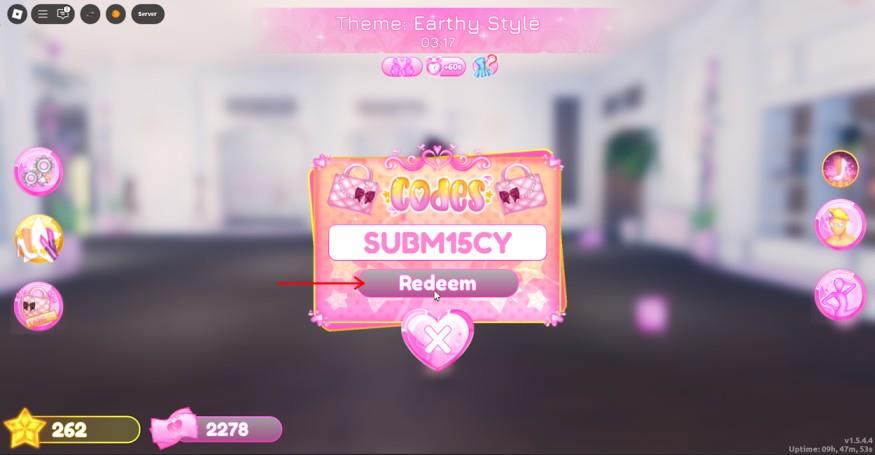
Once you launch the game, click the third icon on the left side of the screen to open the “codes” pop-up window. Now, enter a code and press the Redeem button. This way, you will receive a pearl necklace and a pair of eyelashes in Dress to Impress.
How to Equip Lashes in Dress to Impress
To equip lashes in Dress to Impress, open the customization menu and select the “Face” or “Makeup” section, depending on the style you want. Browse through the available lash options, which may include both free and premium designs, and preview how they appear on your avatar. Once you find a style that fits your outfit, click to apply it, then save your look before exiting the menu to ensure the lashes stay equipped during gameplay.
The place to access items redeemed from DTI codes has been updated. So, if you are wondering how to equip your newly unlocked lashes, follow the steps below:
- From the skin tones section, turn backward and walk towards the changing room.
- Walk into an empty pod and press “E” to interact with it.
- Now, you will find a few tabs in the right menu.
- Click on the fourth tab that has a pink handbag with the “Codes” text.
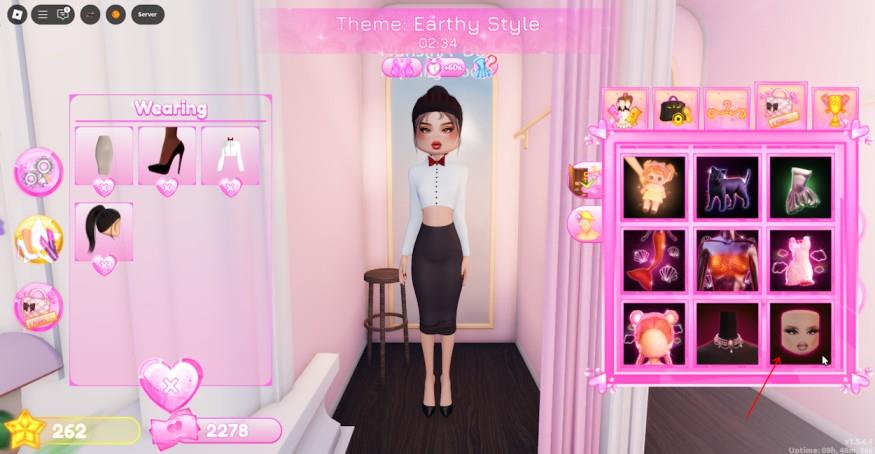
- In the Codes tab, scroll down to find the lashes you claimed before.
- Left click to equip the lashes, and they will give your eyes a nice volume, making them look bigger.
How to Change Lashes Color and Type
To change your lashes in Dress to Impress, open the customization menu and select the “Lashes” category. You can browse through different lash types to adjust their shape or volume, giving your avatar a distinct look. To switch colors, use the palette tool beside the lash options, then pick a shade that matches your chosen makeup or outfit. Once you’re satisfied, save your changes so your lashes appear the same during gameplay and in photos.
Having equipped the lashes, you may want to customize them to your liking. Follow the steps below to give your lashes a unique touch:
Go to the changing room and click the yellow mannequin icon on the right. Now, select the lashes from the “Wearing” section on the left to open its customization menu.
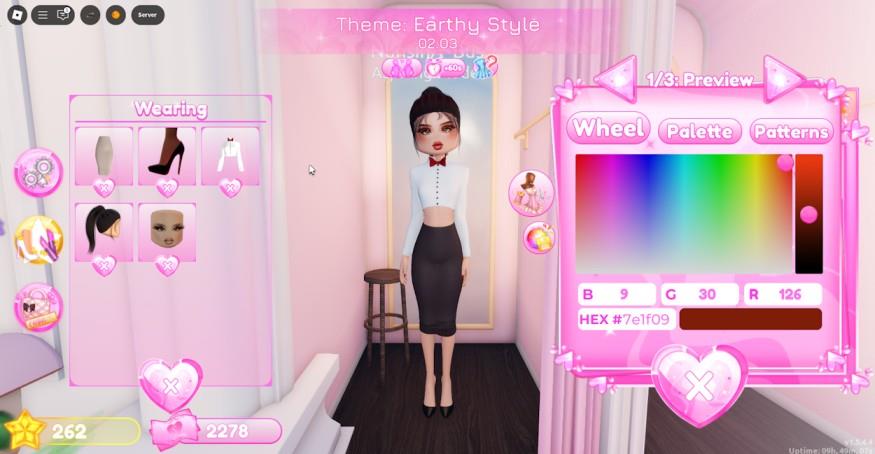
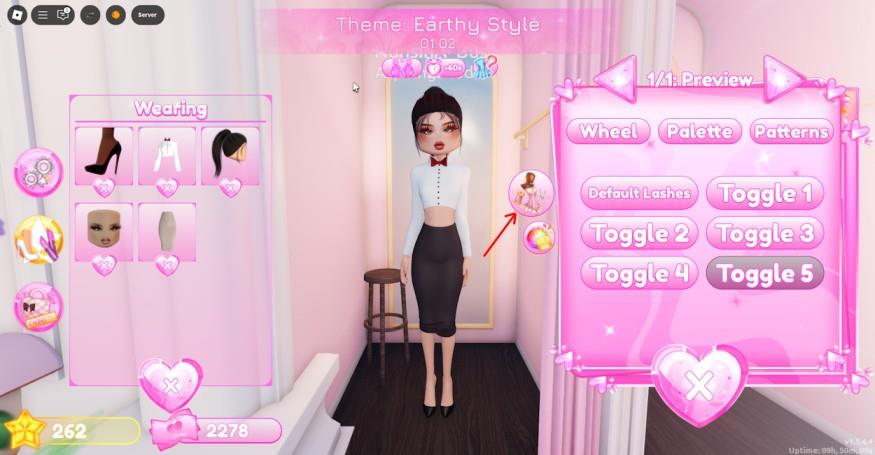
Now, on the right, you can select the color of your lashes from the palette tab or toggle the type of lashes by clicking on the second icon.
Redeem Dress to Impress code SUBM15CY step by step
Dress to Impress code SUBM15CY unlocks free lashes and a pearl necklace in the Roblox game. Redeem it anytime during gameplay via the in-game menu.
Step-by-Step Redemption
Launch Dress to Impress on Roblox and join a server. Click the handbag or purse icon labeled “Code” on the left side of the screen to open the code input menu.
Enter SUBM15CY exactly as shown (all caps, case-sensitive) into the text box. Press the pink checkmark or “Redeem” button to claim the items instantly.
Claim Confirmation
A pop-up confirms “Unlocked” with the lashes and necklace added to your inventory. Reopen the code menu, select the face icon or items, and equip them on your avatar.
Open Dress to Impress and show where the Codes button is located
Dress to Impress features a straightforward codes menu accessible right after launching the game on Roblox. The Codes button appears as a handbag or purse icon.
Launching the Game
Open Roblox, search for “Dress to Impress,” and join a public or private server. Wait for the lobby to load, where customization options appear on screen.
Locating the Button
Look at the left side of your screen for the handbag/purse icon labeled “Codes” or “Code”-it’s among icons like wardrobe toggles. Click it to open the redemption popup with a text field.
Visual Layout
The button sits vertically aligned on the left UI panel, below profile/hat icons and above dressing room access. Enter codes like SUBM15CY here for instant rewards.
