Roblox fans, assemble: Tongue Battles Codes drops a fresh stash of cheats and bonuses for January 2025, but only the sharpest players will snag them before they vanish.
To assist you, we have compiled all the working Tongue Battles codes that will give you free coins and other rewards. Use the coins and other in-game rewards to increase your chance of winning the battles against opponents with stronger tongues.
All New Tongue Battles Codes
All new Tongue Battles codes give players fresh rewards such as coins, boosts, and exclusive items to enhance progress faster. These active codes are updated for January 2025, letting you claim free bonuses that help improve your gameplay experience. Be sure to redeem them quickly, as expired codes stop working without notice.
- like400s: 500 Coins (NEW)
- tongue: 200 Coins
Expired Tongue Battles Codes
- monster
- bee
- water
- impact
- springboard
- volcano
- 150kliks
- l200k
- l60k
- like30k
- capture
- tongue
Tired of swinging your tongue around? Roblox has plenty of RPGs that let you fill in the shoes of top anime characters. If you love JJK, Blue Lock, or One Piece, you can grab the Jujutsu Infinite codes, Blue Lock Rivals codes, or Blox Fruits codes and try them out. We also have a Roblox game codes master list that is a compilation of different genres of experiences.
How to Redeem Tongue Battles Codes
To redeem Tongue Battles codes, open Roblox and launch the game. Once you’re in the main menu, find and click on the “Codes” button, usually shown with a ticket or gift icon. A text box will appear-enter your active code exactly as it’s written, paying close attention to capitalization. After typing it in, press “Redeem” to claim your rewards instantly. If the code is valid, your new items or boosts will appear in your inventory or take effect right away.
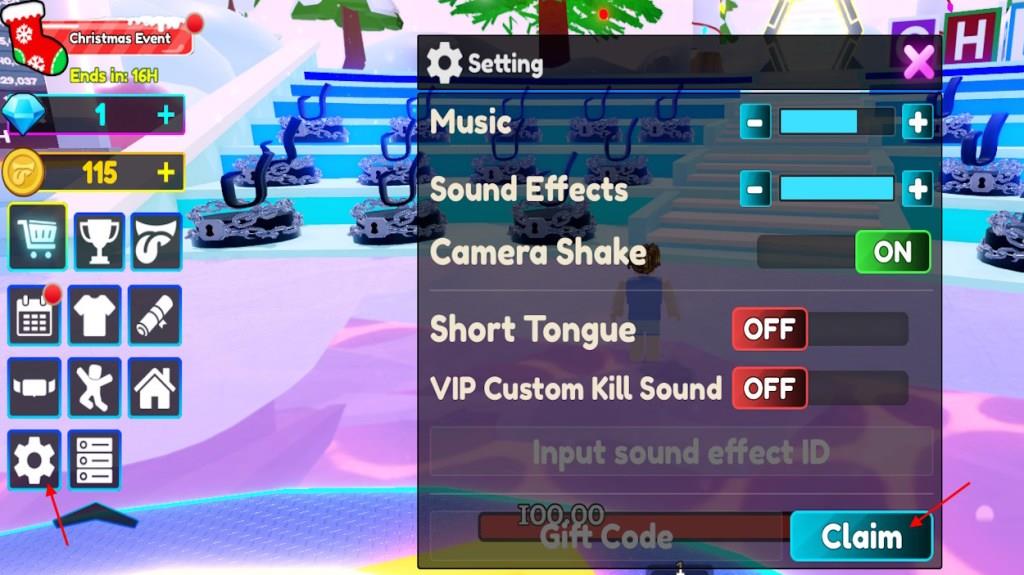
Redeeming the codes in this Roblox experience can be a little tricky. Here is the step-by-step process to redeem the codes for Tongue Battles:
- Launch the Tongue Battles on Roblox.
- Expand the left menu and select the Gear button.
- Type in a working code in the Gift Code area.
- Click the Claim button to get your rewards.
How to Get More Tongue Battles Codes
Players can find new Tongue Battles codes by following the game’s official Roblox page, joining the developer’s Discord server, or checking their Twitter and other social media channels. Codes are often released during special events, updates, or milestones, so staying active in the community helps you catch them early. It’s also useful to revisit trustworthy fan sites or Roblox code lists that regularly update their collections with the latest working codes.
The official place to find the new codes for Tongue Battles is the LDS Discord server. In the server, look for the tb-codes channel and try them out. You can also look through the Twitter account and @LightningDragonStudios YouTube channel to find the latest updates.
While doing all of the scavenger hunting, you might get tired. That is why we suggest bookmarking our page. As we frequently check for the latest Tongue Battles codes, you will never miss out on a freebie.
Other Free Rewards in Tongue Battles
Players can gain extra bonuses beyond code rewards through daily logins, event participation, and completing special challenges. Spinning the reward wheel or joining game groups may also grant limited-time boosts, exclusive skins, or in-game currency. These free rewards provide steady progress and help players upgrade their tongue strength without spending Robux.
There are plenty of ways to make coins, gems, or collect tongues in the game apart from the codes. The ideal way is to participate in the daily rewards. With each day you enter the game, you will have a high-rarity freebie to claim. Moreover, there are also seasonal events that will give you a lot of rewards to upgrade your character.
If you are new to the game, you can complete the apprentice quests and claim some bonuses. Furthermore, like the game and join the LDS Fighting Roblox group to grab the limited special reward from the game.
How to redeem codes step by step in Tongue Battles
To redeem codes in Tongue Battles on Roblox, follow these exact steps. The process is straightforward but requires accessing a hidden menu on the left side of the screen. Codes grant free coins for upgrades and must be entered precisely, as they are case-sensitive.
Step-by-Step Guide
-
Launch Tongue Battles through the Roblox platform and join a server to load into the game.
-
On the left side of the screen, locate and click the black arrow, gear icon (cogwheel), or Settings button below options like Store, Achievements, or Tongues-this expands the left menu.
-
In the Settings pop-up menu, scroll to the bottom and find the “Gift Code” text box.
-
Copy-paste an active code (e.g., “tongue” or “monster”) into the box exactly as listed-no spaces or typos.
-
Click the “Claim” button next to the box; rewards like coins apply instantly, though you may need to return to the lobby to use them.
Troubleshooting Tips
-
If a code fails, rejoin the server, as some require a fresh load. Verify capitalization and avoid expired ones like “l60k” or “lava”.
-
Copy-paste directly from reliable lists to prevent errors; mobile users tap the gear clearly.
Show where the Settings/Gear icon is located in the UI
In Tongue Battles on Roblox, the Settings/Gear icon (also called the cogwheel) is located on the left side of the screen in the game’s UI. It appears as part of a vertical menu below buttons like Store, Achievements, or Tongues, often as a small black arrow or gear that expands when clicked.
Visual Location
-
Look at the left edge of your screen once loaded into a match or lobby-avoid the right side or top bar, which handle different menus.
-
The icon sits in a slim sidebar; hover or tap the black arrow/gear near the bottom-left to reveal the full Settings panel with the code redemption box.
-
On mobile, it may require pinching/zooming out slightly if the UI overlaps during battles.
Quick Access Tips
-
If hidden, ensure you’re not mid-battle (return to lobby via ESC or menu); the sidebar auto-hides during active play.
-
Videos confirm it’s consistently left-aligned across updates, not top-right like Roblox global settings.
