Outfits in Dress to Impress aren’t just about flair-they can earn you exclusive codes, limited items, and rare rewards. Here’s how to use them smartly to turn style into real in-game treasure.
In this guide, we show you how to use Dress to Impress code and reward items.
How to Use Code Items in Dress to Impress
To use code items in Dress to Impress, launch the game on Roblox and head to the main lobby area. Find the “Codes” section, usually shown as a button on the screen’s side or in the menu. Click it and enter the active code exactly as it appears, then confirm to claim your reward. After redeeming, check your inventory or avatar customization menu to equip the new clothing or accessories before joining a round or fashion challenge.
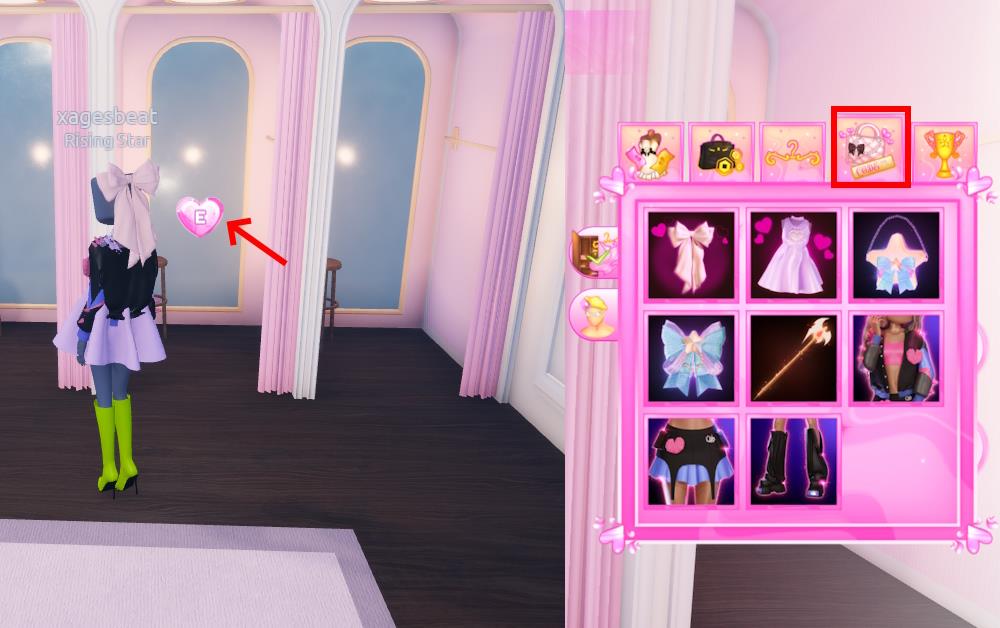
To use the dresses, accessories, and other reward items you get from Dress to Impress codes, you must visit the changing rooms. The changing rooms are located across the tanning booths in the lobby. Once there, follow the step-by-step process to access the outfits:
- Press E on your keyboard or click the button on your phone.
- Next, move to the Codes tab in the pop-up menu that appears.
- All the code items you’ve redeemed in DTI will appear here.
How to Access Reward Items in Dress to Impress
To access reward items in Dress to Impress, open the game on Roblox and head to the “Codes” section in the main menu. Enter valid codes provided by the developers, usually shared on official social media or event pages. Once redeemed, the reward items will appear automatically in your inventory. You can then equip them from the customization menu to use them in your outfits and fashion competitions.
Before the DTI Halloween update, the code items would appear within your redemption window. However, the UI changes for the redeem codes section shifted the code items as well as the reward items to a new location. The cosmetic items from the Brat update or Halloween update are also on the same menu.
If you are a DTI VIP pass user, you will find the exclusive items in this section as well. To access the reward items, click on the hanger icon (third tab) beside the code option from the same changing room menu in Dress to Impress. You can also access the limited-time quest items in DTI by clicking on the trophy button on this menu.
How to redeem Dress to Impress codes step by step
Dress to Impress codes are redeemed directly in the Roblox game for free cosmetic items like outfits and accessories. The process is straightforward and accessible anytime during gameplay.
Step-by-Step Redemption
Launch Dress to Impress on Roblox and join any server. Click the handbag or bag icon labeled “Code” on the left side of the screen to open the code menu. Enter the exact code (case-sensitive, using numbers for letters like 1 for I) into the text field and press Enter or the checkmark button to claim your reward.
Confirmation and Access
A pop-up confirms the item unlock, such as a dress or headband, added permanently to your inventory. Access redeemed items anytime via the same Code menu or in the Dressing Room’s Codes tab during rounds.
Troubleshooting Tips
Double-check spelling, as codes expire without notice-use active lists from reliable sources. Redeem promptly in any lobby or intermission; no Robux required, and items persist across sessions.
Open the Codes menu in Dress to Impress where is it located
The Codes menu in Dress to Impress is located on the left side of the screen, represented by a handbag or bag icon labeled “Code.” Tap or click this icon from the lobby or intermission screen to open the redemption input field and view redeemed items.
Detailed Location Guide
Join any Dress to Impress server on Roblox; the icon appears immediately in the main lobby UI, near other tools like skin color adjustment. Recent updates (post-October 2024) integrated code items access within this menu or nearby dressing booths, where a “Codes” tab lists rewards separately from standard wardrobe.
Viewing Redeemed Items
After opening the Codes menu, redeemed items appear automatically in a dedicated section-no extra navigation needed unless in a booth for equipping. Items persist across sessions and show under categories like accessories or clothing once unlocked.
