Fortnite’s gifting system hides a satisfying twist: you can hand someone a skin they’ll actually love, but the real thrill is in choosing the moment, the message, and the mystery behind each purchase.
Here’s a full guide on how to gift skins in Fortnite.
Prerequisites to Gifting Skins in Fortnite
Players must meet platform prerequisites, own an eligible Fortnite item, and have a valid purchase region to gift skins; both sender and recipient must be on a supported account, and the gift option appears only after selecting an eligible skin in the item shop.
If you’re planning to gift a skin in Fortnite, there are some important requirements you should know about. First, you’ll need to have enough V-Bucks in your account (at least 800, which is the cost of the cheapest skin available). Moreover, you’ll also need your 2-FA to be enabled.
Last and most importantly, you will need friends. The game requires you to have been friends with the person you want to gift to for at least 48 hours. You’ll also need to be at least level 2 in the game, which shouldn’t take long to achieve.
How to Gift Skins in Fortnite
To gift skins in Fortnite, make sure you have enabled two-factor authentication on your Epic Games account and have been friends with the recipient for at least 48 hours. Open the Item Shop, choose a skin that can be gifted, and select the “Buy As A Gift” option. Pick your friend from the list, choose a wrapping design, and confirm your purchase. The selected item will then be sent directly to your friend’s locker as a surprise.
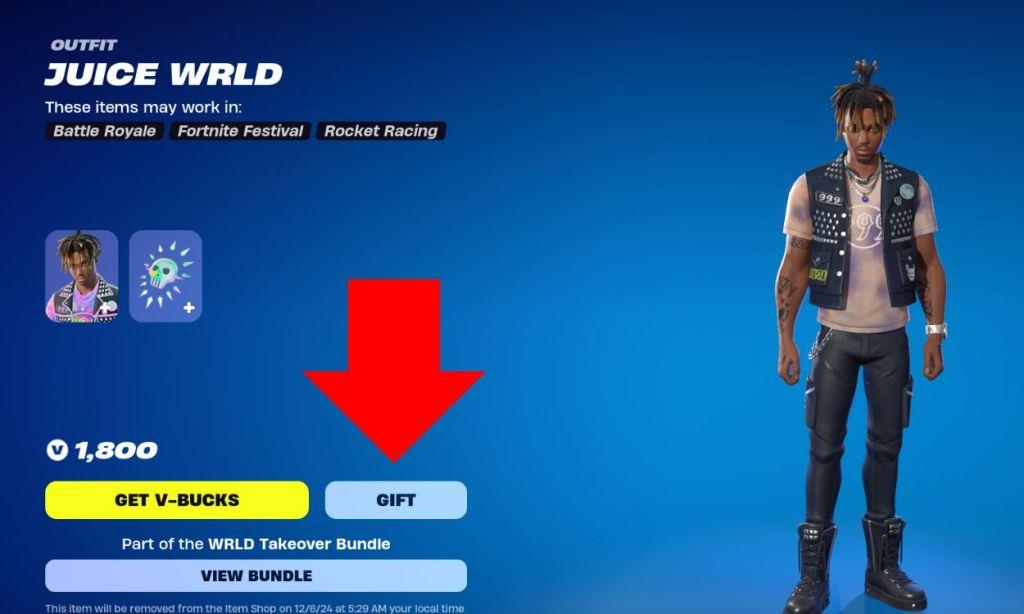
Follow the steps below to learn how to gift to skins in Fortnite:
- Launch Fortnite and go to the Item Shop from the main menu.
- Find the skin you want to gift.
- Instead of the regular purchase button, look for the BUY AS A GIFT button.
- Select your friend from the list (you’ll see a notice if they already own the skin).
- Confirm your purchase, and you’re all done.
Remember, once you send a gift, it can’t be refunded, so double-check everything before confirming! Also, there’s a daily limit of 5 gifts per person, so you can’t go on an unlimited gifting spree.
What You Can Gift in Fortnite
Players can gift a variety of items in Fortnite, including skins, emotes, pickaxes, gliders, wraps, and bundles available in the Item Shop. Giftable content changes daily as the shop rotates, so it’s best to check regularly for new options. Battle Passes can also be sent as gifts, allowing friends to earn rewards through gameplay. However, V-Bucks themselves cannot be gifted directly, and both players must have two-factor authentication enabled and be friends for at least 48 hours before sending any gift.
Here is a list of things that are giftable in Fortnite:
- Skins (outfits)
- Harvesting tools
- Gliders
- Emotes
- Back bling
- Wraps
- Music packs
- Loading screens
Now you know how to gift your friends that cool skin they won’t shut up about! While you can’t share the skins sitting in your locker, the Item Shop updates daily with new options. Remember to check your V-Bucks balance and ensure you’ve been friends for those two days before hitting that gift button.
What items can and cannot be gifted in Fortnite skins details
Giftable Items
Most cosmetic items available in the Fortnite Item Shop qualify for gifting, including skins, emotes, gliders, pickaxes, back blings, and music packs. Bundles sold for V-Bucks can also be gifted, with dynamic pricing adjusting to exclude items the recipient already owns.
Non-Giftable Items
V-Bucks, Battle Passes or Event Passes bought with V-Bucks, Battle Pass Levels, and Fortnite Crew subscriptions cannot be gifted through the standard system. Items not currently in the Item Shop, real-money offers (except specific passes like OG or Lego), and owned locker items are also ineligible.
Key Restrictions
Gifting works only for new purchases from the Item Shop, with a daily limit of five items per account. Recipients must be friends for at least 48 hours, and both parties need 2FA enabled.
How do I enable two-factor authentication for Fortnite gifting
To enable two-factor authentication (2FA) for Fortnite gifting, access your Epic Games account settings and follow the setup process, as it’s a required security step. This ensures your account meets gifting prerequisites alongside level 2+ and a 48-hour friend requirement.
Enable 2FA Steps
Go to your Epic Games account page at epicgames.com/account, sign in, and select the Password & Security tab. Scroll to the Two-Factor Authentication section, click Set Up or Enable, choose your method (email, SMS, or authenticator app like Google Authenticator), and enter the verification code sent to you. Confirm activation via the success message or email.
Verification Tips
After enabling, verify it’s active on the correct Epic account linked to Fortnite by checking your account ID in-game (under settings) against the Epic site. Log out and back in across devices if gifting still fails, as changes may take time to propagate. Email must be verified first, and you’ll enter codes on new logins or every 30 days.
Common Fixes
If 2FA shows as enabled but gifting blocks persist, ensure you’re using the right login method (e.g., Xbox/PlayStation if console-linked) and submit an Epic support ticket. Avoid app-based 2FA initially if preferring simplicity-email or SMS works reliably for most.
