Smooth gameplay in Fortnite isn’t just about skill-it’s about precision settings. From frame rate tweaks to display adjustments, here’s how to push your hardware for sharper visuals, faster response times, and the highest possible FPS advantage.
Best Fortnite PC Settings
For the best Fortnite settings on PC, focus on balancing performance and visual clarity. Set your display mode to Fullscreen for smoother gameplay and lower input lag. Choose a resolution that matches your monitor’s native settings, and keep frame rate limit slightly below your monitor’s refresh rate to maintain stability. Lower graphics options like shadows, post-processing, and effects for higher FPS, while keeping textures on medium or high if your GPU can handle it. Enabling NVIDIA DLSS or AMD FSR, if supported, can also improve performance without losing image quality.
Display Settings
Your display settings have a major impact on how smoothly Fortnite runs and how clearly you see opponents and environments. Set your resolution to match your monitor’s native option and use Fullscreen mode to reduce input lag. Turn off V-Sync and Motion Blur to keep gameplay sharp and responsive. A frame rate limit matching your monitor’s refresh rate helps maintain consistent performance. Finally, adjust Brightness to improve visibility in darker areas without washing out the colors.
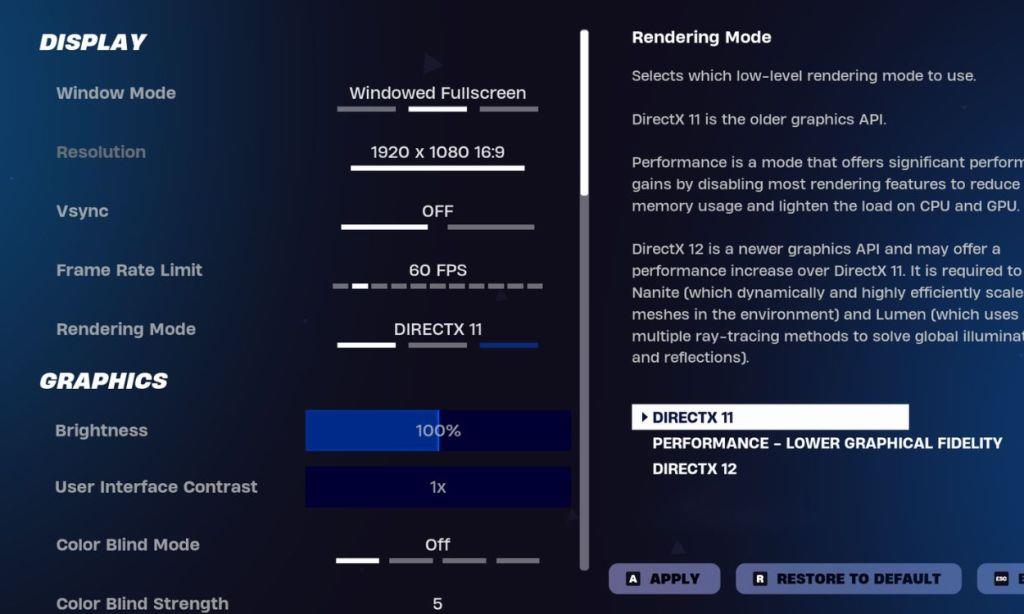
The base of your Fortnite experience starts with display settings.
How to configure NVIDIA Reflex and DLSS for Fortnite
Configuring NVIDIA Reflex and DLSS in Fortnite boosts FPS and cuts input lag on compatible RTX GPUs, with Reflex reducing system latency and DLSS upscaling for higher performance. Epic Games and NVIDIA guides outline in-game steps after ensuring prerequisites like updated drivers. Access these via Fortnite’s Video settings menu after selecting DirectX 12 rendering mode.
Prerequisites
Verify your NVIDIA RTX GPU supports DLSS (RTX 20-series or newer), install the latest GeForce Game Ready drivers, update Windows to the current version, and launch the newest Fortnite build from Epic Games Launcher. Restart the game after driver updates to activate compatibility.
Enabling DLSS
In Fortnite Settings > Video tab, scroll to DLSS and select a mode: Quality for 1080p, Balanced for 1440p, or Performance for 4K to upscale frames efficiently without quality loss. Pair with lower base resolutions if needed; test in-game for 20-50% FPS gains on mid-range rigs.
Enabling NVIDIA Reflex
Under the same Video settings, set NVIDIA Reflex Low Latency to “On” for baseline latency reduction, or “On + Boost” on RTX GPUs to maximize GPU clocks and further drop delay by up to 30%. Enable Latency Markers and Game UI’s Latency Debug Stats to monitor improvements live.
Optimization Tips
Combine with NVIDIA Control Panel’s Low Latency Mode set to Ultra globally, cap FPS slightly above your monitor’s refresh rate, and disable V-Sync for peak responsiveness. For advanced tweaks like DLSS 4 presets, use NVIDIA App’s Graphics tab under Fortnite settings, but stick to in-game options for simplicity.
Which DLSS version works best with my GPU model
RTX GPUs support different DLSS versions based on their Tensor Core capabilities, with newer models like DLSS 4.5 offering the best performance on RTX 40/50 series but viable options across all RTX cards. Since your specific GPU model isn’t specified, use this guide matching common NVIDIA GeForce RTX series to the optimal DLSS version for Fortnite, prioritizing FPS and quality in Performance or Balanced modes.
RTX 50 Series (e.g., 5090, 5080)
These flagship GPUs excel with the latest DLSS 4.5, leveraging FP8 precision for up to 35% FPS gains via 6X Multi Frame Generation and Dynamic modes at 4K. Enable via NVIDIA App’s “DLSS Override – Model Presets” set to “Recommended” (Preset M for Performance, L for Ultra Performance).
RTX 40 Series (e.g., 4090, 4080)
DLSS 4.5 delivers peak efficiency here with hardware-accelerated Tensor Cores, doubling throughput for Super Resolution and Frame Generation without drawbacks. Stick to in-game Balanced mode or NVIDIA App overrides for 240+ FPS in demanding titles.
RTX 30 Series (e.g., 3090, 3080)
Opt for DLSS 4.0 (Preset K) as the sweet spot, since DLSS 4.5 runs but incurs a 2-4% performance hit lacking FP8 support-still boosts FPS significantly over DLSS 3. Use NVIDIA App to select older models if quality dips.
RTX 20 Series (e.g., 2080 Ti)
DLSS 3.5 or 4.0 works best with minimal overhead; avoid forcing DLSS 4.5 to prevent heavier FPS penalties on these older Tensor Cores. All RTX cards get Super Resolution compatibility, but Frame Generation shines from RTX 40+.
Quick Setup Steps
Launch NVIDIA App, go to Graphics > Fortnite > DLSS Override, pick “Recommended” or manual Preset K/M based on your series, and test modes in-game. Update to driver 591.74+ for full compatibility across versions.