Fortnite connects players across platforms like never before-but how seamless is the experience between consoles, PC, and mobile? Here’s what you need to know about playing with friends no matter where they drop in.
Can You Cross-Platform in Fortnite?
Yes, Fortnite fully supports cross-platform play, allowing players on PC, console, and mobile devices to join the same matches. By linking your Epic Games account, your progress, purchased items, and friends list carry over across all systems. This means you can squad up with friends no matter which platform they use, keeping your gameplay seamless and connected across devices.
The good news is that yes Fortnite is indeed cross-platform. The game’s cross-platform play (or crossplay) lets players team up and compete regardless of their gaming device. Whether your friends are on PlayStation, Xbox, Nintendo Switch, PC, or Mobile, you can all jump into matches together. You can play cross-platform Fortnite with friends on the following devices:
- PlayStation 4 & PS5
- Xbox One & Series X|S
- Nintendo Switch
- Windows PC
- Mobile devices
How to Enable Cross-Platform in Fortnite?
To enable cross-platform play in Fortnite, go to the main menu and open the settings. Navigate to the Account and Privacy tab and make sure the “Cross-Platform Play” option is turned on. You’ll also need to sign in with your Epic Games account, as this connects your progress and friends across different systems. Once enabled, players from PlayStation, Xbox, Switch, PC, and mobile can join the same lobbies, party together, and compete without restrictions.
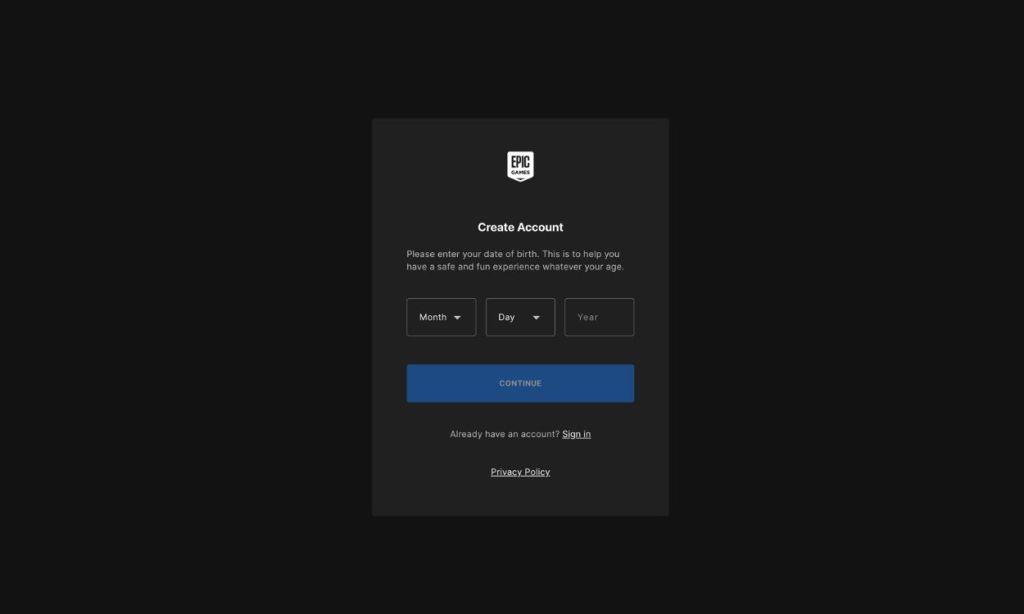
Want to enable cross-platform on Fortnite? Follow the steps below to do so:
- Epic Games Account Setup: First things first – you’ll need an Epic Games account. If you don’t have one, head to EpicGames.com and create an account. PC players typically already have this since it’s required to install the game.
- Platform Connection: For console players, you’ll need to link your PlayStation or Xbox account to your Epic Games account.
- Finding and Adding Friends: Launch Fortnite and navigate to the ‘Social‘ tab in the main lobby. Here, you can search for friends using their Epic Games username (not their console username). Enter their Epic ID and send a friend request.
- Party Setup: Once your friend requests are accepted, you’ll see your friends in the Epic Friends list on the Social tab. To play together, either send them an invite or join their party if they’re already in one.
How to Adjust Fortnite Cross-Platform Settings
Open Fortnite and head to the main menu, then select the gear icon to access the settings. From there, go to the “Account and Privacy” tab and scroll down to the “Gameplay Privacy” section. You’ll find options related to crossplay that let you enable or disable playing with users on other platforms. After making your selection, confirm your changes and restart the game to apply the updated settings.
Cross-platform settings can be adjusted based on your preferences, though options vary by platform.
- PlayStation users can control this through their in-game settings: press Start, select Settings, navigate to Account And Privacy, and find “Allow Cross Platform Play.“
- Xbox players need to adjust these settings through their console’s system settings, which affects all games with cross-play capabilities.
- For Nintendo Switch, PC, and mobile users, cross-platform play is always enabled to ensure quick matchmaking and can’t be turned off.
When playing in mixed platform groups, remember that matchmaking is based on the highest-tier platform in your party. This system helps maintain balance while still allowing friends to play together.
Cross-platform play makes Fortnite more accessible and fun, letting you team up with friends regardless of their gaming device. Whether you’re playing Battle Royale, joining Fortnite Festival, or exploring LEGO Fortnite, you can enjoy all game modes with your friends across different platforms.
How to link my Epic Games account to consoles
Linking an Epic Games account to consoles enables cross-progression for Fortnite and other titles. Follow these steps on your console or via web browser while signed into the correct Epic account.
Web Browser Method
Visit epicgames.com, sign in, and navigate to Account Settings > Apps and Accounts. Select “Connect” next to your console (Xbox, PlayStation, or Nintendo Switch), then log in with your console credentials to link it.
In-Game Console Method
Launch Fortnite on your console to reach the account linking screen. Choose “Link Account” for a code, or select “Connect” to directly sign in with your Epic details-restart the game if needed to verify.
Unlinking First (If Needed)
Log into Epic’s site, go to Apps and Accounts, and request a removal code via email for the console-note a 365-day cooldown applies before relinking the same platform type.
Which consoles can be linked to one Epic Games account
One Epic Games account supports linking to multiple console types simultaneously. This enables cross-progression across platforms like PlayStation, Xbox, Nintendo Switch, and PC.
Supported Consoles
-
PlayStation Network (PS4, PS5): Link one PSN account per Epic account.
-
Xbox Live (Xbox One, Series X|S): Link one Xbox account per Epic account.
-
Nintendo Account (Switch): Link one Nintendo account per Epic account.
Key Limitations
Only one account per console brand links to a single Epic account-no multiple PSNs or Xboxes on the same Epic profile. PC, Steam, and mobile can also connect alongside consoles for full cross-play access.
