Few players realize there’s a hidden way to connect farms on Stardew Valley’s mobile version. With a few tweaks, you can invite friends, share crops, and build your dream community from your pocket-here’s how to make it happen.
While this multiplayer feature is somewhat under wraps due to its experimental nature, you can absolutely start playing with friends right now.
Whether you’re planning to share crop duties, explore the mines together, or just hang out while fishing, this guide will walk you through how to unlock and play Multiplayer in Stardew Valley mobile.
How to Unlock Stardew Valley Mobile Multiplayer
Multiplayer on Stardew Valley Mobile becomes available after updating the game to version 1.6 or later. Players can host or join online sessions using their preferred save file through the new co-op menu. You’ll need a stable internet connection and a device running the latest update from your platform’s store. Once connected, friends can join using invitation codes or direct links, allowing everyone to share the same farm, complete tasks together, and progress as a team.
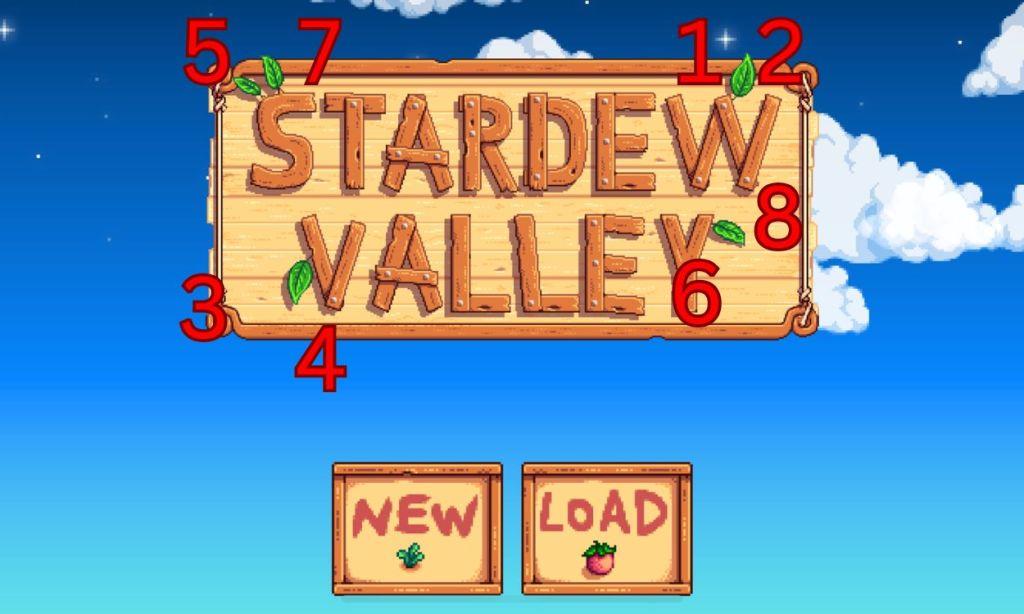
The new multiplayer feature in Stardew Valley mobile is hidden behind a secret code that you’ll need to unlock before you can play with friends. This code requires you to tap on the leaves on the title screen in a specific pattern.
When you look at the game’s title screen, you’ll notice decorative leaves attached to certain letters in both “Stardew” and “Valley.” Each of these leaves needs to be tapped in the right order to reveal the multiplayer option. Here’s exactly how to do so:
- Start at the title screen
- Tap the leaf on the “W” in “Stardew” twice
- Tap the leaf on the “V” in “Valley” twice
- Tap the leaf on the “S” in “Stardew” once
- Tap the leaf on the “Y” in “Valley” once
- Tap the leaf on the “S” in “Stardew” once more
- Finish with the leaf on the “Y” in “Valley” once
- Press the question mark (?) button in the bottom right corner
How to Play Stardew Valley Mobile Multiplayer
To play Stardew Valley’s mobile multiplayer, ensure your game is updated to the latest version that supports co-op mode. From the main menu, select “Co-op,” then choose to host or join a farm. Hosting allows you to invite friends via invite codes or your device’s friend list, depending on your platform. You can also set the number of cabins before starting to give each player their own home. When joining, enter the host’s code or accept an invite, and once connected, everyone can share resources, crops, and profits while customizing their own space.
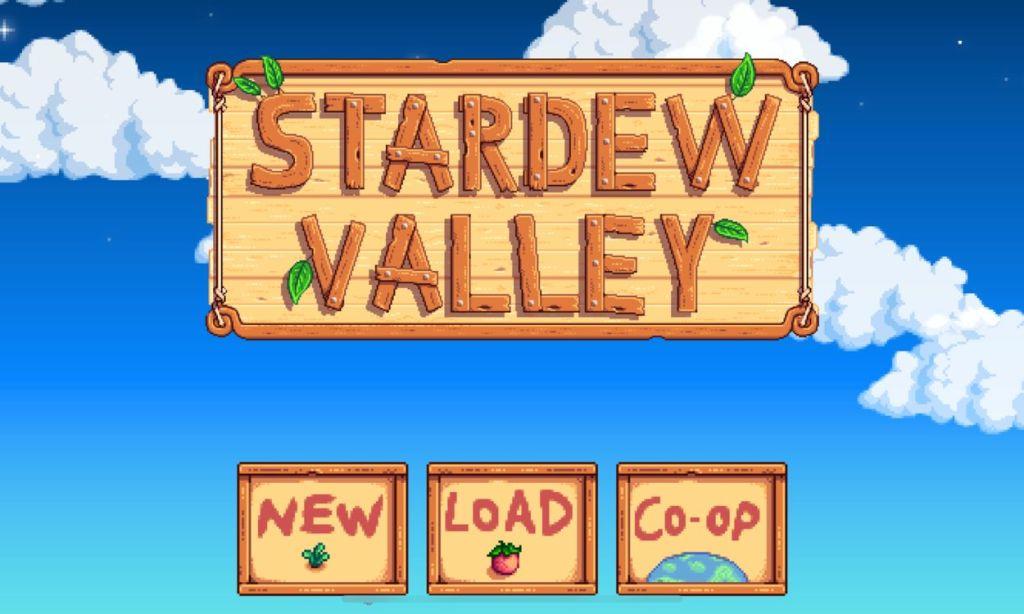
When it comes to playing with friends, you have two options: hosting your own game or joining someone else’s farm. Let’s look at how to do both. However, do note that the Stardew Valley mobile multiplayer mode is LAN only for now. So be sure your friends are on the same network!
Hosting a Stardew Valley Mobile Multiplayer Session
If you want to be the host, tap the new Co-Op button and select the “Host” tab. You can choose to either host an existing save file or create a fresh farm for your multiplayer adventure. The tricky part comes next – you’ll need to find your device’s IP address so others can join.
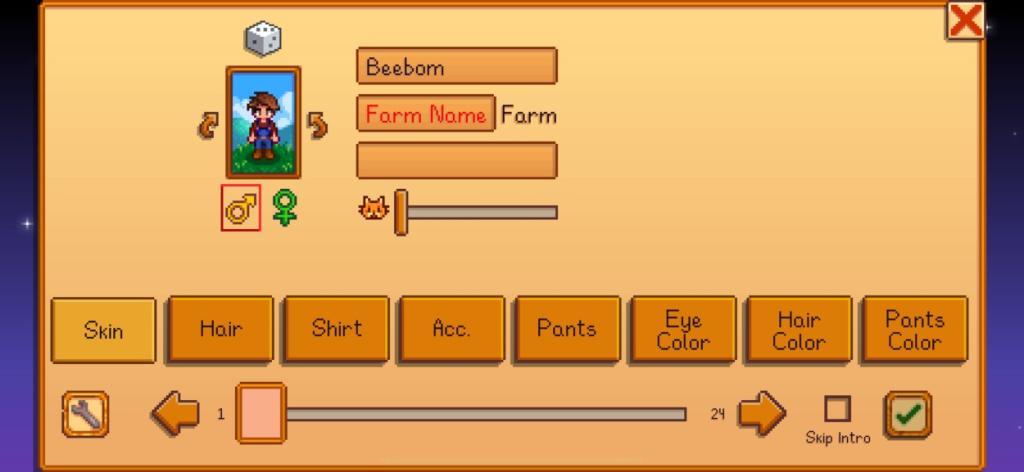
If you’re using an iPhone, open your Settings app and go to Wi-Fi. Tap the blue information icon next to your connected network and look for the IPv4 address. Android users should head to Settings > Connections > Wi-Fi, tap the gear icon next to their network, and find the IP address in the network details.
Joining a Stardew Valley Mobile Multiplayer Session
Joining someone else’s farm is straightforward. Just tap the Co-Op button, select the “Join” tab, and enter your friend’s IP address. You’ll then see any available farms you can join. If the host is on PC then you can use the ipconfig /all command into the command prompt to find the address.

While mobile multiplayer is exciting, it’s worth noting that this is still an experimental feature. According to the official mobile guide the devs recommend that for the smoothest experience, try to join a PC-hosted game when possible. Just remember to be patient with any connection issues – they’re normal for this experimental feature.
How to join a PC-hosted Stardew Valley farm from mobile
You can join a PC-hosted Stardew Valley farm from mobile by first unlocking mobile co-op, then using the Co-op → Join menu on your phone to connect via the PC host’s IP address on the same network.
1. Prerequisites
-
Both PC and mobile must be on the same Stardew Valley version (the experimental 1.6 mobile build that supports co-op).
-
The PC player must host a multiplayer farm with spare cabins and be reachable on the network (same Wi-Fi or correctly port-forwarded).
-
Mobile multiplayer is experimental, so expect lag or disconnects, especially over cellular data.
2. Unlock co-op on mobile
If you have not already enabled the hidden co-op mode on mobile, do this first.
-
On the mobile title screen, tap the leaf clusters around the logo in this pattern: up, up, down, down, left, right, left, right, then tap the ? button and close it.
-
A Co-op button will appear on the title screen; this is where you host and join games.
3. Prepare the PC host
The PC side should be ready before you try to join from mobile.
-
On PC, go to Co-op → Host and either Host New Farm (with cabins) or select an existing co-op save.
-
Once loaded, the PC will show that it is hosting a multiplayer game.
-
The PC player needs their IPv4 address on the LAN (for example from ipconfig on Windows) to share with the mobile player.
If the PC host is not on the same local network, they must port-forward UDP port on their router and then share their public IP instead.
4. Join from your phone
Now connect from mobile to the PC host using that IP.
-
Open Stardew Valley on mobile, tap Co-op, then choose the Join tab.
-
Select Join LAN Game / direct IP option, then type in the host PC’s IP address and confirm.
-
After a short search, the hosted farm should appear; tap it to join the game.
On iOS, the first connection attempt may fail right after a system prompt asking to allow local network access; after granting permission, trying a second time usually works.
5. Best-case setup and troubleshooting
-
Best performance is a PC host + mobile client on the same Wi-Fi, using a strong phone and good router.
-
Avoid using pure mobile data or weak hotspots; these often cause timeouts and rubber-banding.
-
If you cannot see the host farm:
-
Confirm both are on the same version.
-
Re-enter the IP carefully (no extra spaces).
-
Check that the PC firewall/router allows UDP 24642.
-
If you share whether you are on Android or iOS and whether you are on the same Wi-Fi or remote, more specific port-forwarding or network-permission steps can be tailored to your se
Set up port forwarding to join a remote PC-hosted farm
To join a remote PC-hosted Stardew Valley farm from mobile, the PC host needs to set up port forwarding on their router so outside connections (your phone) are sent to their computer on Stardew’s multiplayer port (UDP 24642).
1. What you need first
On the PC host machine:
-
A working multiplayer farm being hosted from the in-game Co-op → Host menu.
-
The PC’s local IPv4 address (for example 192.168.1.50). This is the address you forward traffic to inside the home network.
-
Knowledge of Stardew’s default multiplayer port: UDP 24642.
On the router:
-
Access to the router’s admin page (username/password from sticker or ISP docs).
On the mobile side (you):
-
Your phone needs the public IP of the PC host’s home network, which you’ll type into the Co-op → Join screen.
2. Get the PC’s local IP (host)
On the host PC (Windows example):
-
Open Command Prompt and run ipconfig, then note the IPv4 address under your active network adapter (often like 192.168.0.x or 192.168.1.x).
-
This IP is what you will use as the internal/target address in the router’s port-forward rule.
If the host PC’s local IP is dynamic (changes after reboots), it is safer to set a DHCP reservation in the router so that PC always gets the same IP.
3. Log in to the router
From a browser on the host network:
-
Enter the router’s gateway address in the URL bar (commonly 192.168.0.1 or 192.168.1.1, sometimes printed on the router label).
-
Log in with the router admin username and password (default values are often “admin” / “admin” or similar if never changed; check the sticker/manual).
Then find the port forwarding section, which may be under:
-
Advanced, NAT, Security, Virtual Servers, or Port Forwarding / Port Triggering, depending on router brand.
4. Create a Stardew Valley forwarding rule
In the router’s port-forwarding page, create a new rule:
-
Name/Service: anything helpful, for example StardewValley.
-
Protocol: set to UDP (or UDP/TCP if UDP-only is not available).
-
External port (WAN port): .
-
Internal port (LAN port): (same as external).
-
Internal IP / Server IP: the host PC’s local IPv4 address you found earlier (for example 192.168.1.50).
Save/apply the rule, then if needed reboot the router so the new rule takes effect.
Some routers also require:
-
Ensuring the rule is marked Enabled/On.
-
Disabling “strict NAT” or enabling “gaming mode” if such options exist.
5. Share the correct IP with the mobile player
The mobile player cannot use the PC’s local IP when connecting from outside. They must
