Mojang has officially ended support for Minecraft VR, marking the quiet retirement of one of the game’s most immersive features. Fans who built worlds through a headset are now facing a future without official updates, patches, or assistance from the developers.
An official announcement was made in October last year in the Minecraft 1.21.40 Bedrock changelog stating that VR/MR will no longer be supported in updates after March 2025. Interestingly, while the official deadline was much earlier, Mojang decided to extend the functionality for a few weeks and allow fans to enjoy a final stretch of an immersive blocky world before ultimately concluding it in May 2025.
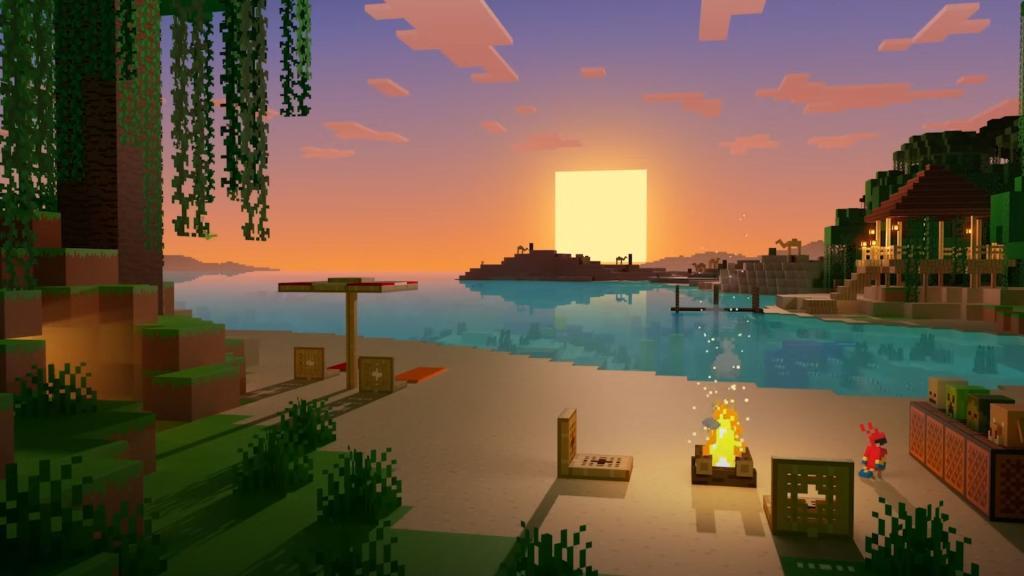
There was no specific reason for taking such a big step when the game is in such good shape, the player base keeps increasing, and, most importantly, the community is happy with this feature. The only statement provided by Mojang in October was, “Our ability to support VR/MR devices has come to an end, and will no longer be supported in updates after March of 2025.”
Also Read: Minecraft Snapshot 25W18A Tweaks Splash Potions, Changes Recipes for Lead and Dried Ghast
Unfortunately, whatever the reason, the news is official and thus ends the era of players engaging in a fully immersive environment by building and crafting massive, incredible structures. Finally, Mojang reassures that in spite of the end of VR/MR compatibility, all other features, like Marketplace purchases, Minecoins, and your beloved Minecraft world, will remain accessible on non-VR devices like your PC monitor.
How can I keep playing Minecraft in VR after official shutdown
Several unofficial methods allow continued VR play in Minecraft after Mojang’s Bedrock Edition support ended in May 2025. These rely on Java Edition mods, which limit cross-play with Bedrock users on consoles, mobile, or official servers.
PC VR Options
Use the Vivecraft mod for Minecraft Java Edition (versions 1.7.10 to 1.20.1), supporting SteamVR headsets like Quest via PC link, Valve Index, or PSVR2 on PC. It enables single-player, LAN, and modded server multiplayer with Forge compatibility for shaders. Download from vivecraft.org; non-VR friends need the free non-VR client for visible VR animations on compatible servers.
Quest Standalone
Install QuestCraft, a sideloaded Java Edition port bundling Vivecraft and Pojlib, via SideQuest on a PC. Performance lags on newer versions, but it supports local multiplayer without cross-play to Bedrock.
PSVR Workaround
Disable auto-updates on PS4/PS5 to retain the pre-1.21.80 Bedrock version for PSVR1; no options exist for PSVR2 without a VR-ready PC and Vivecraft. Note potential security risks from unpatched software.
Install Vivecraft for Minecraft Java VR setup guide
Vivecraft provides a reliable way to play Minecraft Java Edition in VR using SteamVR-compatible headsets after official Bedrock support ended. Installation requires Minecraft Java Edition, a mod loader like Fabric (recommended for recent versions), and SteamVR running beforehand.
Prerequisites
Own Minecraft Java Edition from minecraft.net. Install Java from java.com and SteamVR from store.steampowered.com/app/250820/SteamVR. Ensure your VR headset (Quest via link, Valve Index, etc.) works with SteamVR.
Installation Steps
-
Download Fabric installer from fabricmc.net/use/installer, run it for your Minecraft version (e.g., 1.21.4), select “Create Profile,” and install.
-
Launch Minecraft once with the Fabric profile to generate folders, then close it.
-
Open the Fabric profile’s folder via Minecraft Launcher > Installations > fabric-loader > Open Folder; locate or create the “mods” subfolder.
-
Download matching Fabric API from modrinth.com/mod/fabric-api or curseforge.com/minecraft/mc-mods/fabric-api, and Vivecraft JAR from modrinth.com/mod/vivecraft/versions or vivecraft.org.
-
Place both JAR files in the “mods” folder.
Launch and Play
Start SteamVR first. In Minecraft Launcher, select the Fabric profile, launch, and toggle VR mode on in the main menu. Configure controls on first run; non-VR players need a compatible client for multiplayer visibility. Use room-scale or seated mode as preferred.
