A sudden “Failed to Find Installed Product” error can stop Minecraft from launching altogether, leaving players confused as to why the game won’t start. Here’s what triggers this error and the exact steps you can take to get back to building and exploring without interruptions.
Although Mojang has checked this bug and released a hotfix, Minecraft users do run into this error from time to time. So keep reading as we teach you how to fix the failed to find installed product error in Minecraft.
What Is the “Failed to Find Installed Product” Error in Minecraft
The “Failed to Find Installed Product” error in Minecraft usually appears when the game launcher cannot detect the existing game files or installation directory. This can happen if the game files are corrupted, missing, or installed in a different location than expected. The issue often arises after updates, system changes, or incomplete installations, preventing the launcher from verifying the version needed to start the game.
The “failed to find installed product” is a general Minecraft error that happens across various versions. This error happens when the Minecraft launcher cannot detect the necessary files and hence cannot start the game.
Thankfully, this sneaky error is unrelated to the new Spring to Life update in Minecraft. After the official release of stable version 1.21.5, many players faced this common issue while starting up their worlds, and it was more common for the Bedrock edition.
This can be due to various reasons, such as any pending updates for Minecraft, a broken internet connection, a bug at Mojang’s end, and so on. As such, keep reading to learn how to fix this error.
How to Fix the “Failed to Find Installed Product” Error in Minecraft
This error usually appears when Minecraft’s installation files are missing, corrupted, or not correctly linked to the launcher. To fix it, check that the game is properly installed through the official Minecraft Launcher or Microsoft Store. If the issue continues, repair or reinstall the launcher, then sign out and back into your Minecraft or Microsoft account to refresh the license files. Running the launcher as an administrator and ensuring all system updates are installed can also help resolve the problem.
There are several ways that we’ve tried and tested on our system to reproduce the error and then fix the issue using the methods discussed below. Do note that the same methods might not work for each and every system. When nothing works, do reach out to Mojang for further help. With that said, here are the best ways to fix the ‘failed to find installed product’ in Minecraft:
1. Use Microsoft Store to Launch Minecraft
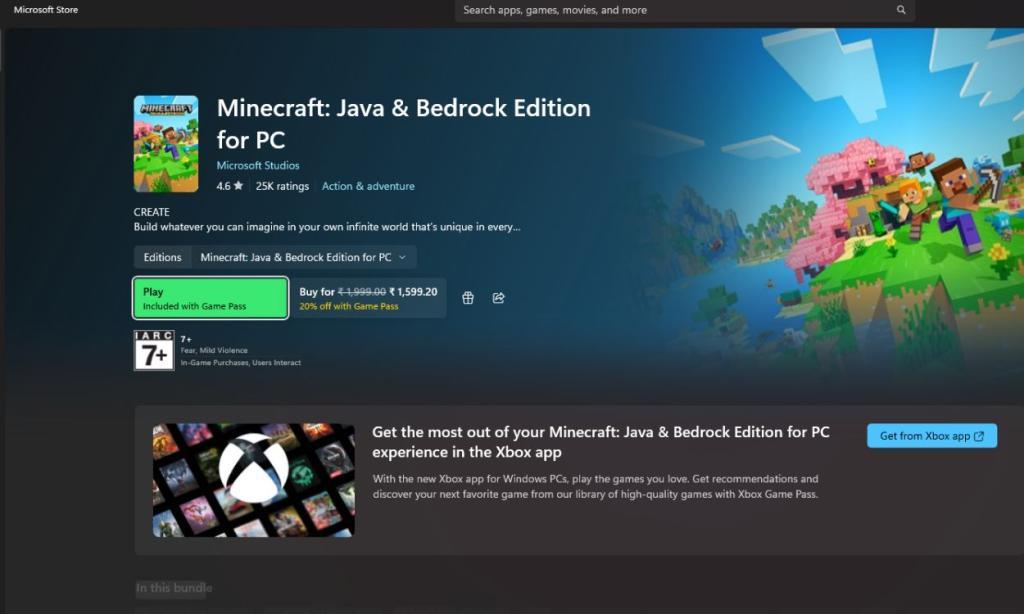
The first and foremost thing to fix this Minecraft error revolves around the Minecraft Store itself. So go ahead to the store and launch Minecraft through its Play button. We say this because, in many cases, many Minecrafters have pending updates in the MS Store.
So once you hit play, your game will begin updating and should run perfectly fine. Once it’s done, you can switch to either Java or Bedrock edition and start up your world.
2. Check for Minecraft Bedrock Updates
If the first step doesn’t work for you, then you can also check out any pending updates in your Minecraft Launcher. You can do this easily by following these simple steps:
- Open your Minecraft Launcher app in Windows.
- Select the Bedrock tab on the leftmost side.
- Now select the Installations tab above, which will open all installations.
- Click on the Check for Updates button for the first option, which is the latest stable release.
- If a green Update button is displayed on the left, click on it and your game will be updated.
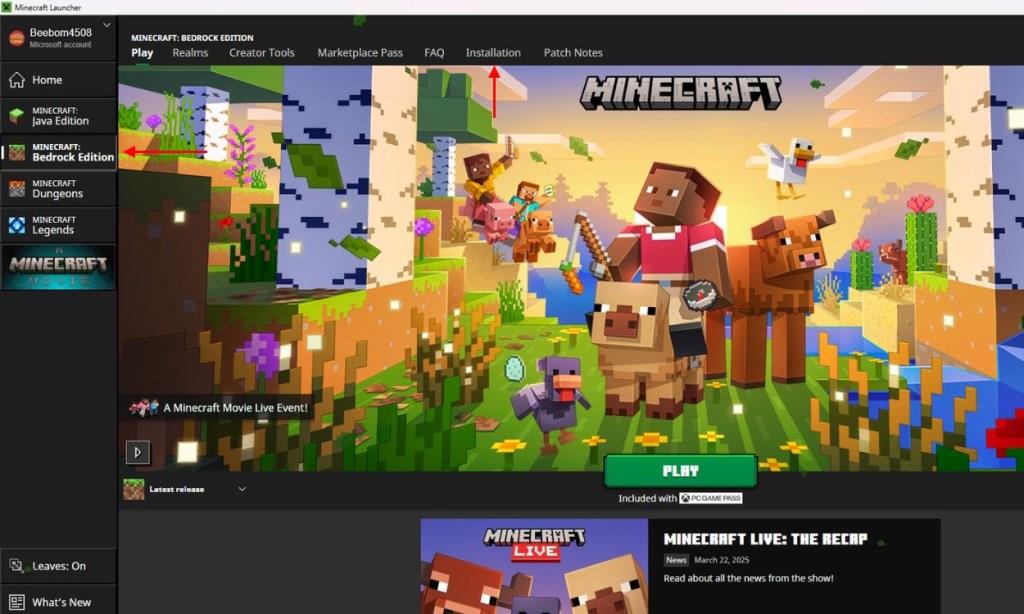
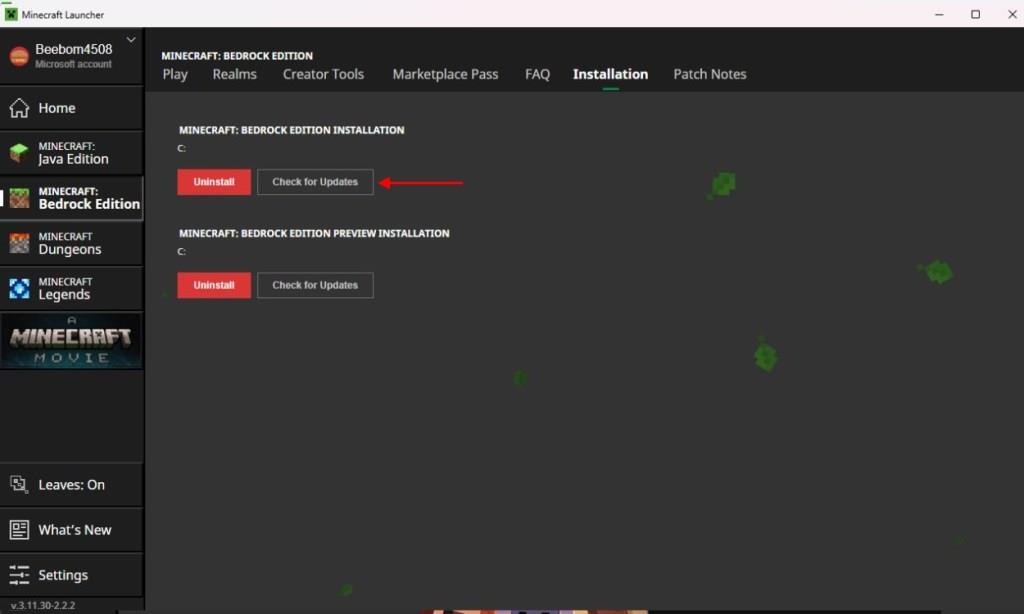
Do note that nothing will happen if your game is already in its latest version.
Also Read: Can You Turn on Vibrant Visuals in Minecraft Right Now?
3. Reinstall Minecraft Bedrock Edition
Sometimes, the Minecraft Bedrock files themselves are corrupted and need a fresh start. As such, there’s no harm in trying a fresh installation of MC Bedrock. So, first, begin by exporting your Minecraft world on your PC.
Once you’ve completed the steps above, simply click on the Uninstall button. Then, you can reinstall Minecraft Bedrock from the launcher itself. A fresh installation will more than likely fix the error.
4. Reinstall Minecraft Launcher
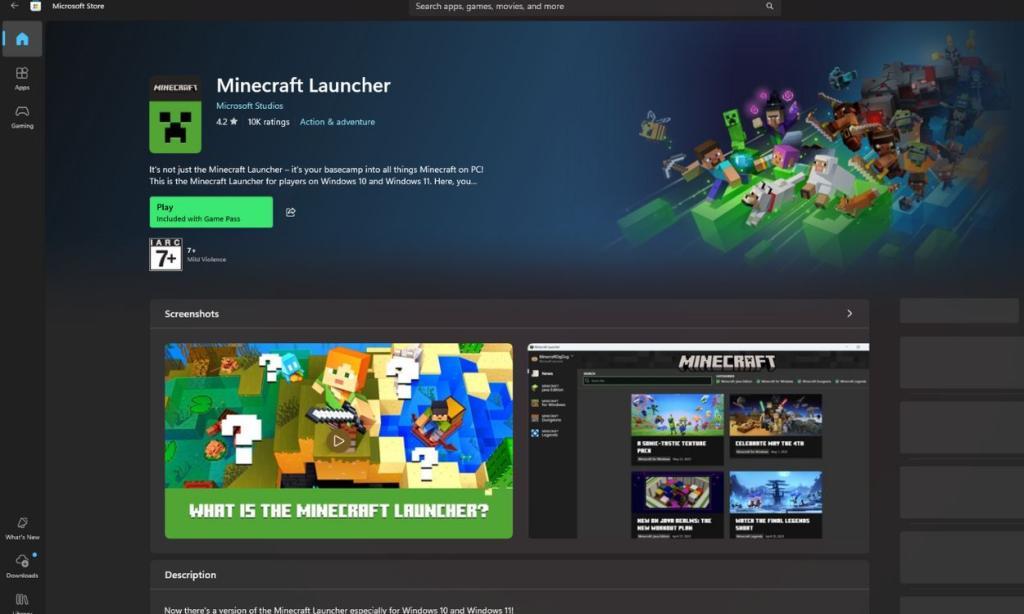
If none of the above steps work for you, the next method is to uninstall your Minecraft Launcher app and install it again through the Microsoft Store. Sometimes, the Minecraft Launcher itself might have bugs and glitches that result in displaying the “failed to find installed product” error message. So, first, begin by uninstalling the app on Windows 11.
Once done, download the client by heading to the Minecraft launcher website. Now, try opening the game and see if Minecraft works.
5. Check Your Internet Connection
As basic as this sounds, sometimes the best solutions are the simplest ones. Many errors occur due to a broken connection, resulting in Minecraft not being able to find your product.
If you keep encountering the failed to find installed product error, then the next best thing is to restart your Internet connection. Simply turn off your router, wait for 10 seconds, and then turn it back on.
6. Restart Your PC
And finally, if you’re still encountering the ‘failed to find installed product error’ in Minecraft Bedrock, this is the last step. Restarting your PC might help in clearing out any stored cache that was causing this “failed to launch” error to occur in your game. Try this method and guess what it might work for you as well.
If you still can’t fix this issue, the best thing to do now is to contact Minecraft support. However, we recommend you state the exact error code and mention your system configuration.
What causes the Failed to Find Installed Product error in Minecraft Bedrock
The “Failed to Find Installed Product” error in Minecraft Bedrock Edition arises when the launcher fails to detect or verify the game’s core files.
Main Triggers
Pending updates in the Microsoft Store often block the launcher from recognizing the installation, especially after Mojang hotfixes like those for version 1.21.5. Corrupted Bedrock files or incomplete downloads also prevent proper detection during launch.
Connectivity Issues
Internet disruptions hinder the launcher’s ability to sync with Mojang servers and validate product ownership. Launcher glitches or cached data mismatches exacerbate this, particularly on Windows systems.
How do I update Minecraft Bedrock through Microsoft Store
To update Minecraft Bedrock Edition through the Microsoft Store on Windows, open the app first and navigate to your Library to check for available updates.
Step-by-Step Process
Click the three-dot menu in the top-right corner of the Microsoft Store, then select Library. Locate Minecraft (or Minecraft for Windows), and click Get Updates or the specific update button if available; the download installs automatically.
Verification Tips
Ensure your internet connection is stable, as updates require syncing with Microsoft servers. After updating, relaunch the Minecraft Launcher, switch to the Bedrock tab, and select Installations > Check for Updates to confirm the latest version like 1.21.5 or newer. If no update shows, your game is current.