Explore how Roblox Moments turns clips into shareable stories, and master the art of crafting videos that captivate fellow players.
Rather than relying on external apps or YouTube uploads, Roblox now gives its users the power to showcase all their best game moments inside the ecosystem. So, if you want to know more about this feature and how to share your moments as well, check out this guide below.
What is Roblox Moments?
Roblox Moments is a built-in feature that lets players capture short video clips of their gameplay directly within Roblox. It makes sharing experiences easier by allowing users to record, edit, and upload highlights without using external software. These clips can showcase creative builds, funny moments, or competitive plays, helping players share their best in-game experiences with friends and the wider community.
Moments is Roblox’s new video-based experience, which allows players to capture their gameplay clips and share them on the platform itself. This feature isn’t just about showing off – it’s also a discovery tool. You can simply look up Moments on the Roblox platform, and it will show up as an experience. Clicking on the play button will open up Moments for you, where you can view the game clips. Moreover, by browsing Moments, players can instantly join the experience shown in clips.
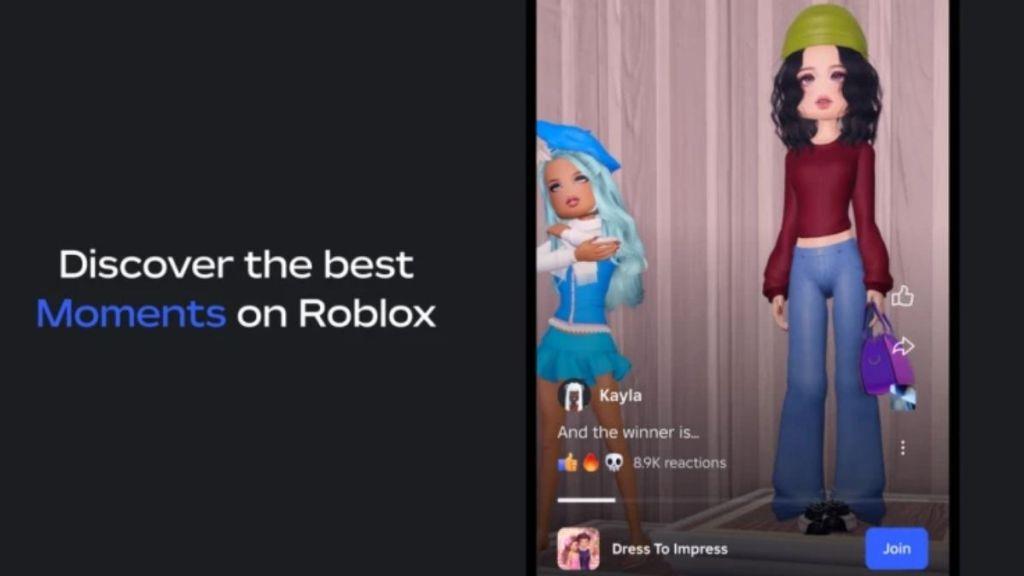
This helps other experiences reach a wider audience. Creators can thus benefit from increased visibility, while players can get a curated feed of exciting gameplay worth exploring. Apart from the Moments, Roblox is trying to bring new technology and incorporate AI in its experiences. Do check out the RDC 2025 Keynote Recap to know more about what the future of Roblox holds.
Also Read: Roblox Fish It Enchantment Guide – All Enchants and Tier List
How to Capture Moments and Share on Roblox
Roblox Moments allows players to capture highlights from their gameplay with just a few clicks. You can take screenshots or record short videos directly inside the game, then edit them using built-in tools like trimming or adding captions. Once your clip is ready, share it on your Roblox profile or with friends to show fun achievements or creative builds. This feature makes it easy to turn your favorite moments into shareable stories within the Roblox community.
Capturing the gameplay clips using the new feature is very simple, but it’s important to follow the right steps. So, check out the given steps below to capture and share your videos on Roblox:
1. Capture Moments
- Open the Roblox app and search for the game you would like to play.
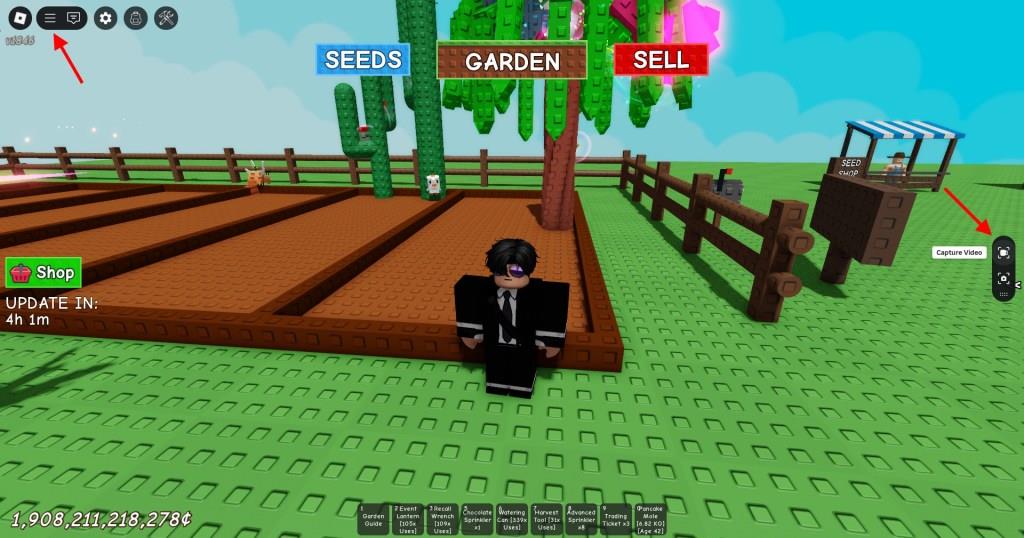
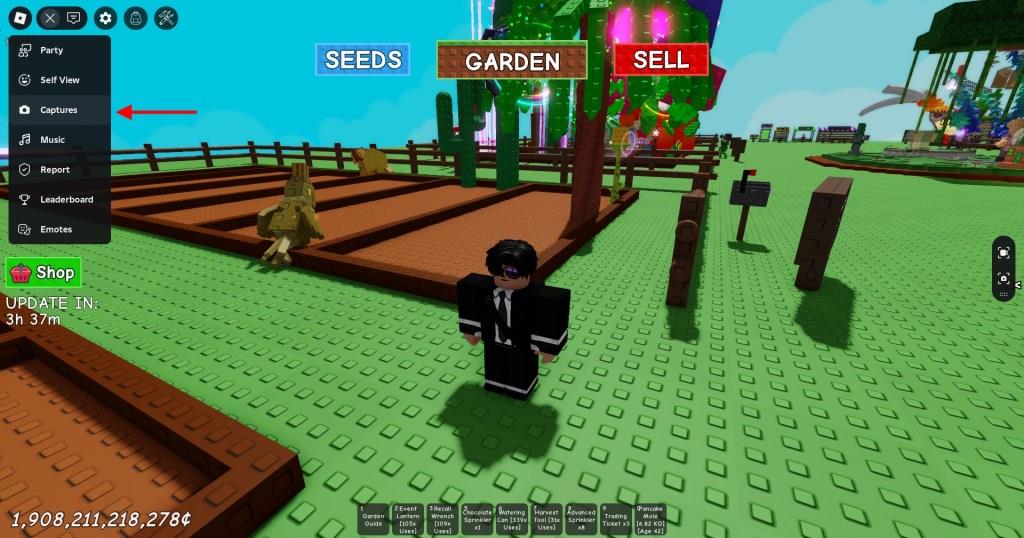
- Click on the play button, and once it loads up, click on the Hamburger menu on the top left.
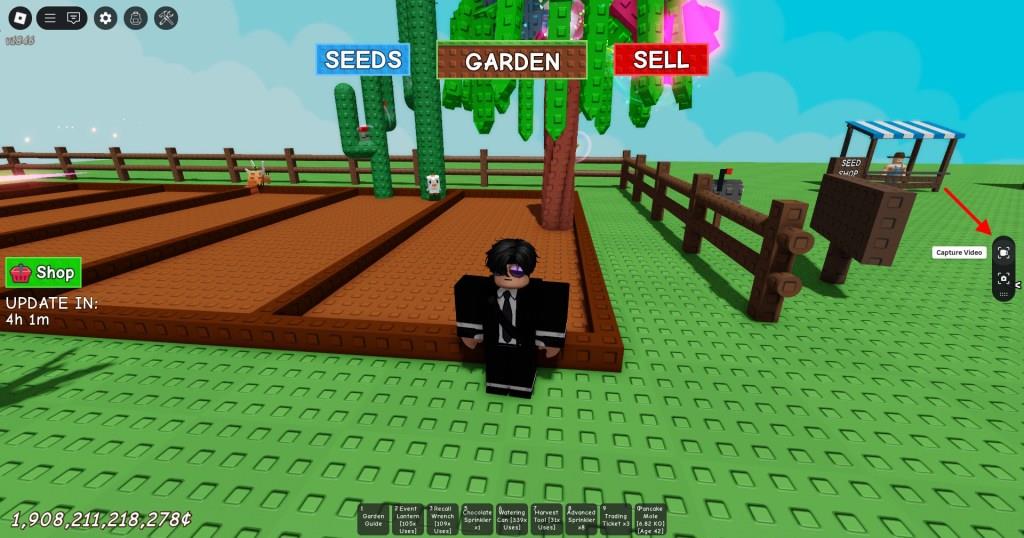
- On your right, the capture feature opens up with a camera and video recorder icon.
- Click on the Video Recorder icon, do your tasks, and capture your best moment.
2. Share Moments on Roblox
- Once done, leave the game and search for “Moments” on Roblox to open the hub.
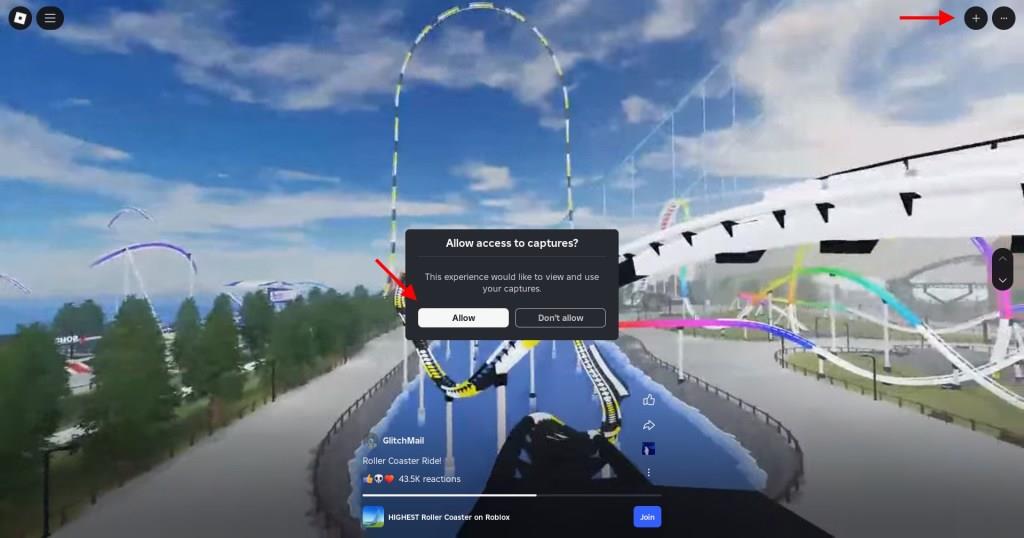
- Inside the experience, click on the ‘‘ button on the top right and select the Allow option. Don’t worry, because Roblox can only access those videos captured on the platform.
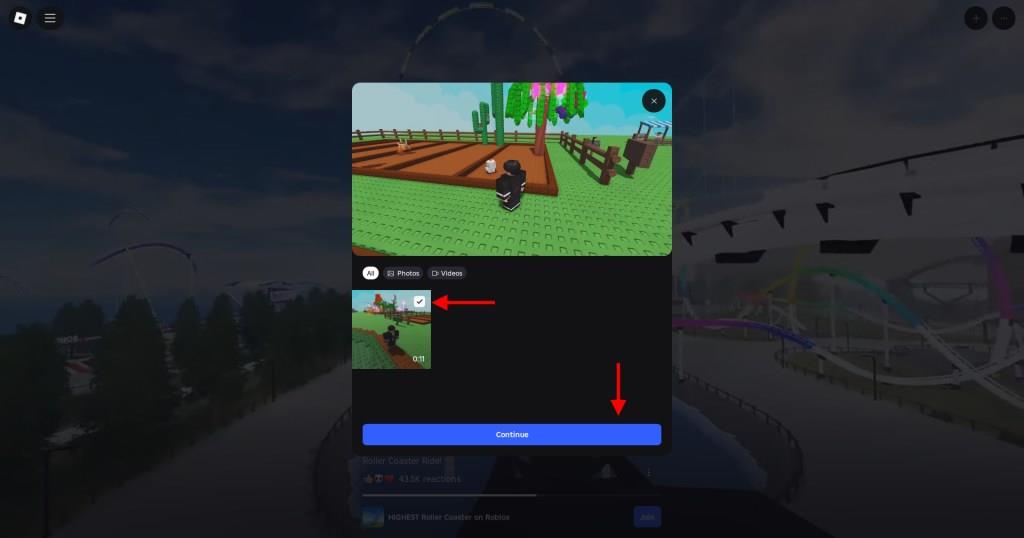
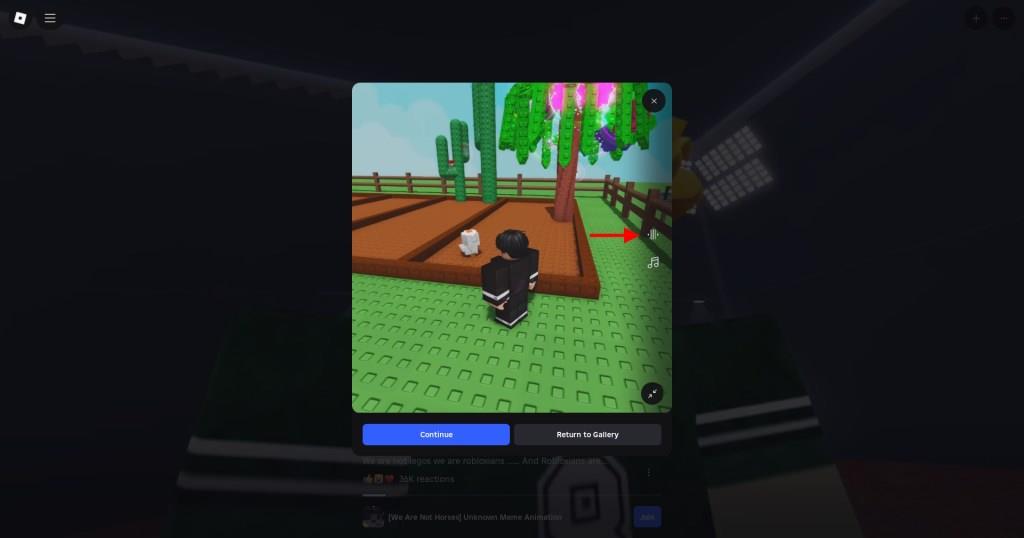
- Now, select the video you want to post and click on Continue. In the next step, you can trim your video and also add music to make it stand out.
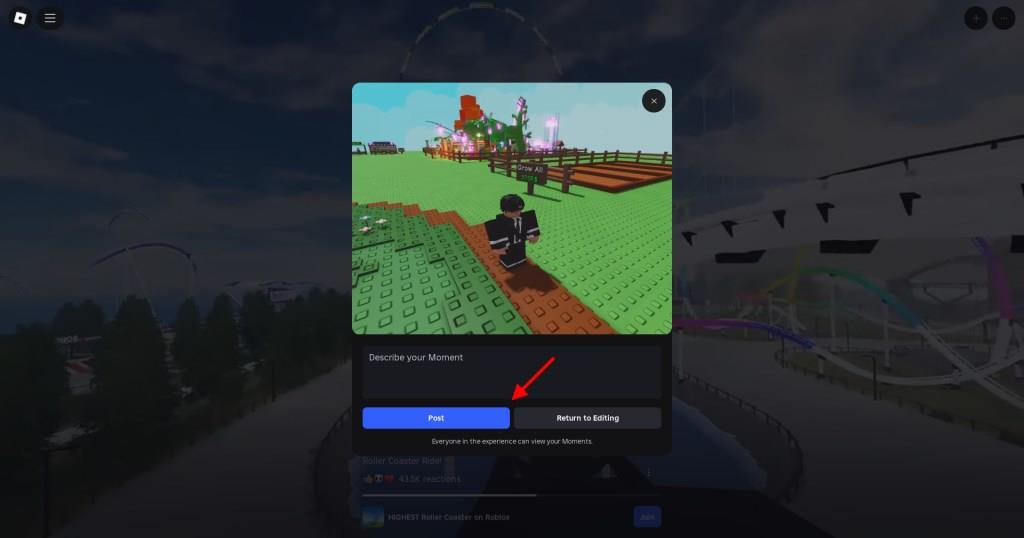
- Finally, add your description to the clip and publish your Moment. The clip will become visible for others to watch, react to, and even jump into the experience.
How do I enable Moments on mobile and PC
Roblox Moments requires enabling video capture within experiences, as it’s an opt-in feature available on both mobile and PC. No separate global toggle exists beyond per-experience activation, but you can manage it easily during gameplay.
Enable on Mobile
Open any Roblox experience, tap the hamburger menu (three lines) in the top-left corner, and select “Captures” or the camera icon to turn on recording. Grant permissions if prompted, then use the video recorder button on the right side of the screen to start capturing clips. Access your gallery via the same menu to confirm it’s active.
Enable on PC
Launch a Roblox experience through the desktop app or browser, click the menu icon (three lines) in the top-left, and choose “Captures” to enable the feature. Click the camcorder icon on the right toolbar to begin recording, with clips saving to your in-app gallery automatically. Disable anytime via the same menu if needed.
Troubleshooting Access
Ensure your Roblox app is updated to the latest version, as Moments rolled out in late 2025. If the option doesn’t appear, restart the experience or check privacy settings under Account Info > Privacy, though capture is user-controlled per session.
Enable Moments on Android step by step
Enabling Roblox Moments on Android involves activating the capture feature directly within a Roblox experience, as it’s opt-in per game session. This works on the latest Roblox app versions from late 2025 onward.
Step-by-Step on Android
-
Update the Roblox app via Google Play Store to ensure Moments support.
-
Launch any Roblox experience from the home screen.
-
Tap the hamburger menu (three lines) in the top-left corner.
-
Select “Captures” from the menu to enable the feature-grant microphone/camera permissions if prompted.
-
Confirm activation: A video recorder icon (camcorder) appears on the right side of the screen.
-
Tap the icon to start/stop recording clips (up to 30 seconds), which auto-save to your in-app gallery.
Verification and Tips
Preview clips in the Captures gallery via the same menu. If unavailable, restart the app/experience or check device storage/privacy settings, as Moments excludes UI/chat audio by default. Disable by toggling off in the menu anytime.
