Curious how a simple Garden Guide can turn Roblox progress into real growth-and how you can use it to track every seed of progress from sprout to bloom.
With the book it has become a lot easier to keep track of your progress, plants you have discovered, cosmetics you have unlocked, and so on. So, this article will give you a step by step explanation of what is exactly the garden guide, how to use it and all the function of all tabs inside. So, without further ado, jump right in.
How to Use Garden Guide in Grow a Garden
Garden Guide helps you organize your gardening tasks in Roblox’s Grow a Garden by showing what to do, when to do it, and how far you’ve progressed, so you can plant, nurture, and harvest with confidence.
The Garden Guide is given to all the players the moment you launch the game after the Beanstalk event update has been released officially in Grow a Garden. You may find it as the first item on your hotbar. So, here’s how you can use the item:
- Press the corresponding key of the hotbar, or left click on the garden guide in your inventory to equip it in your hand.
- Now, click the left mouse button anywhere on the screen to open the book.
- The garden guide UI will pop up on the screen, showing the player profile first.
- Here, you can click on any of the tabs on the left and access them, whether you want to view your own progress in terms of XP in the Player tab, view the Daily Quests, all your Achievements, or view what plants, pets, or cosmetics you have unlocked yet.
In the section given below, we will explain what the guide is all about along with all the tabs on its side.

What All Will You Find in Garden Guide in Grow a Garden
The Garden Guide in Grow a Garden includes detailed sections on plant types, growing methods, and soil care to help players manage their gardens with confidence. It explains how to track growth stages, harvest progress, and use tools efficiently. The guide also covers special plant varieties, achievements, and seasonal challenges, giving players a clear view of what they can cultivate and how to reach their gardening goals in the game.
The garden guide is a book with a red cover that you can access for viewing your own stats. As you already know how to use this tool, let’s explain what all features it has. On the left hand side, you shall see several tabs that you can click to view all the information they hold. Here’s a brief about all the tabs on the garden guide:
Daily Quests
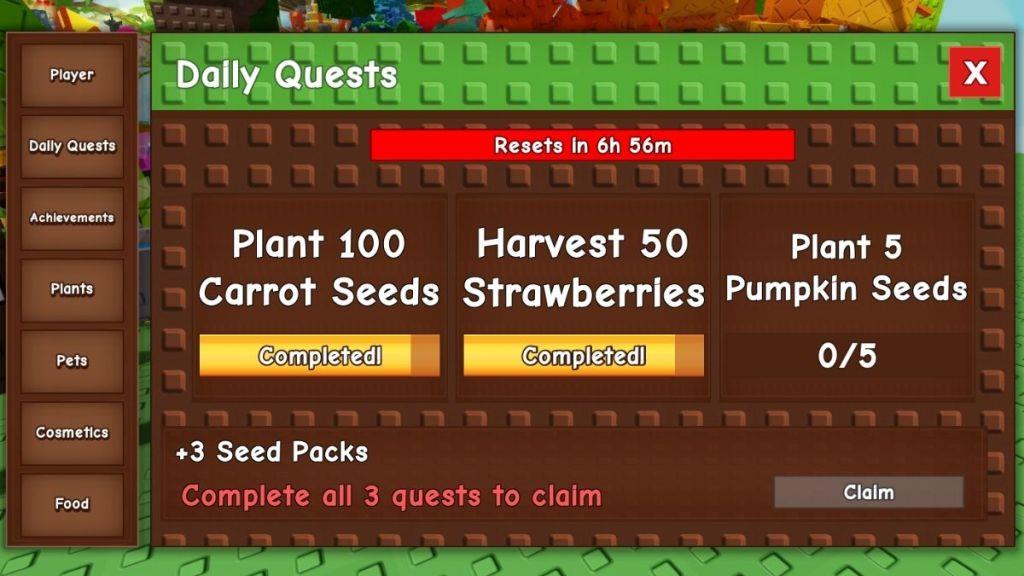
The daily quests tab holds three quests that are refreshed every 24 hours. These quests can be really simple like planting seeds, harvesting fruits, and more. Completing all three of them will earn you 3 seeds packs.
Achievements
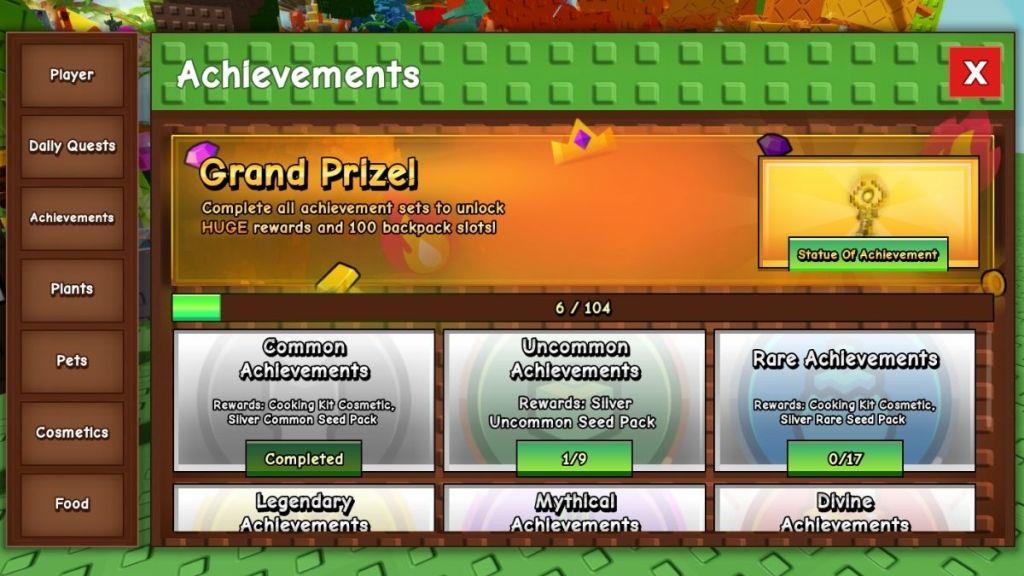
The achievements in Grow a Garden are a new feature using which you can earn cool and profitable rewards. But they can be claimed only once. Starting with common achievements, you can go up to prismatic rarity and earn even better rewards. If you want to know more about all the achievements in Grow a Garden, go ahead and check out our dedicated guide on it here.
Also Read: How to Make Spaghetti in Grow a Garden
Plants
Under the plants section, you will find all the crops available in Grow a Garden. While the ones that you have unlocked in the game will be visible the completely, all the locked plants will be shadowed, and a white question mark is displayed on top of their square boxes.
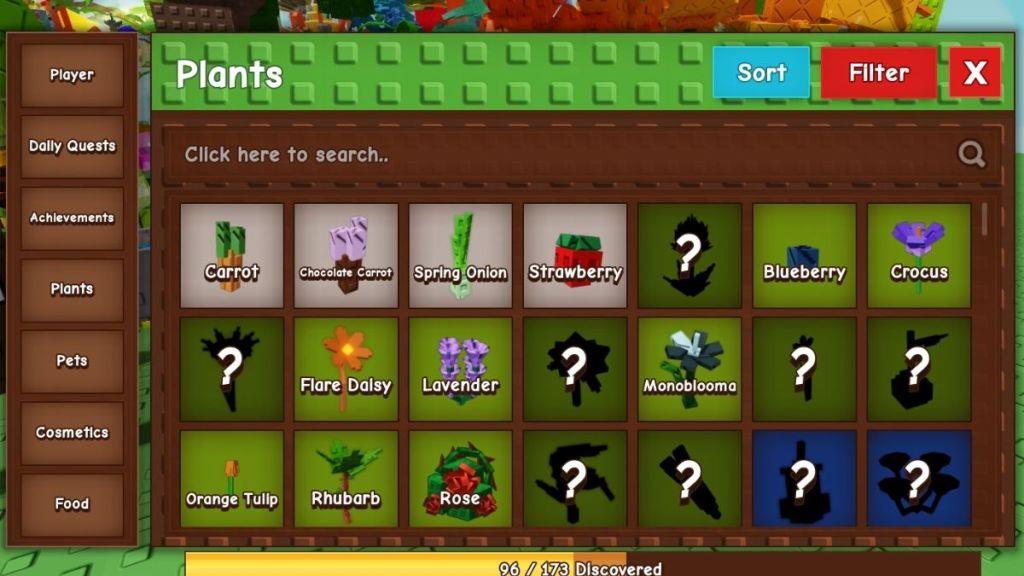
In order to access the locked ones, you must find their seed first. Clicking on any of the crop boxes will display the description of the plants, stating their type, your highest valued discovery, and sale values.
Pets
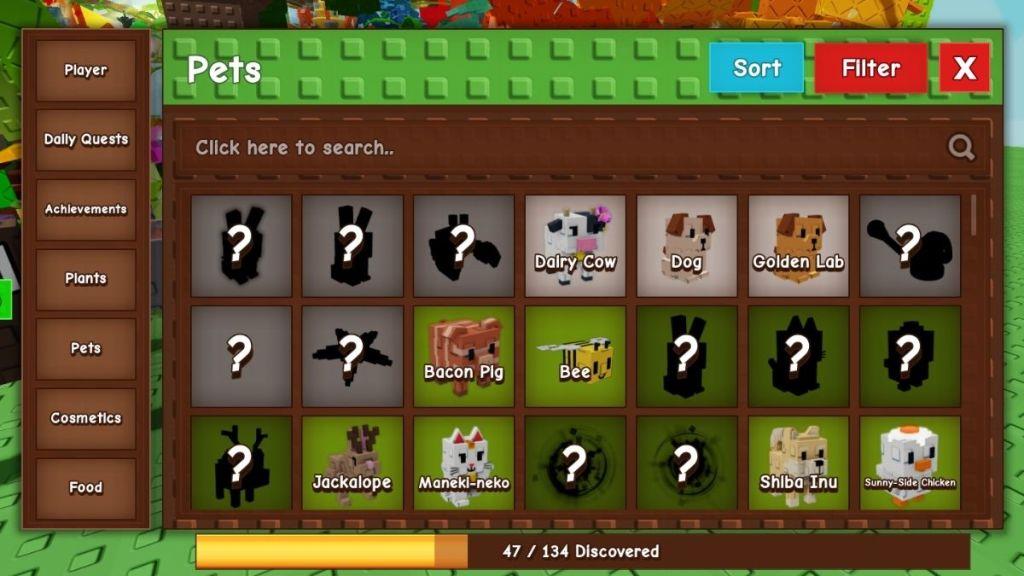
Clicking on the pets tab will display the whole list of pets in Grow a Garden. Similar to the plants, all the locked pets are shown in grayscale and behind a question mark. You can view the description of any pet and its traits by left-clicking on the pet box. You can also sort or filter out the results as per your requirements here.
Cosmetics
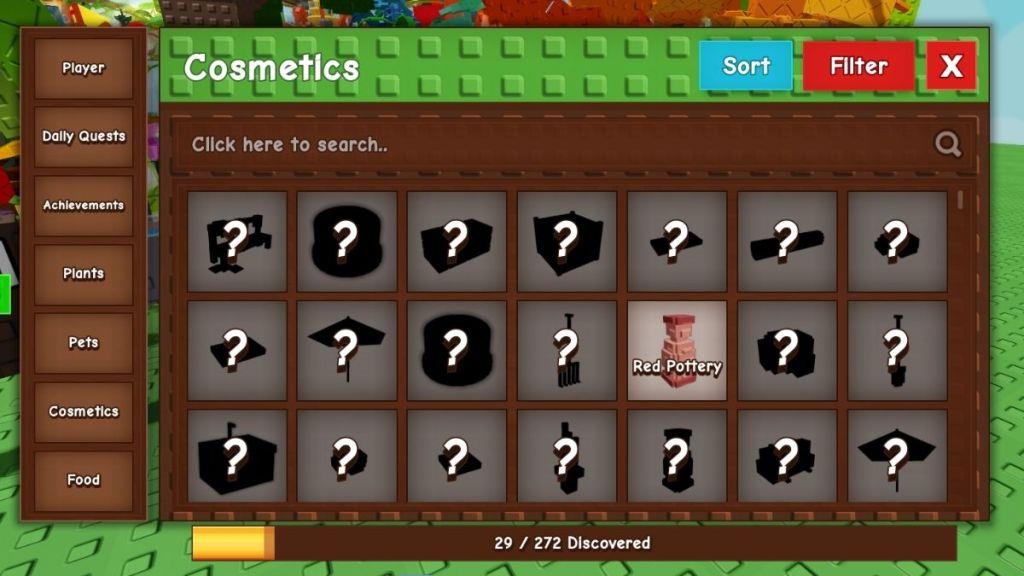
The Cosmetics tab shows all the cosmetic items in Grow a Garden. From the locked and grayed out items, you can guess all that you haven’t yet found out. While those you own will be visible clearly. So, click on those boxes and have a look at where you found these decorations.
Food Items
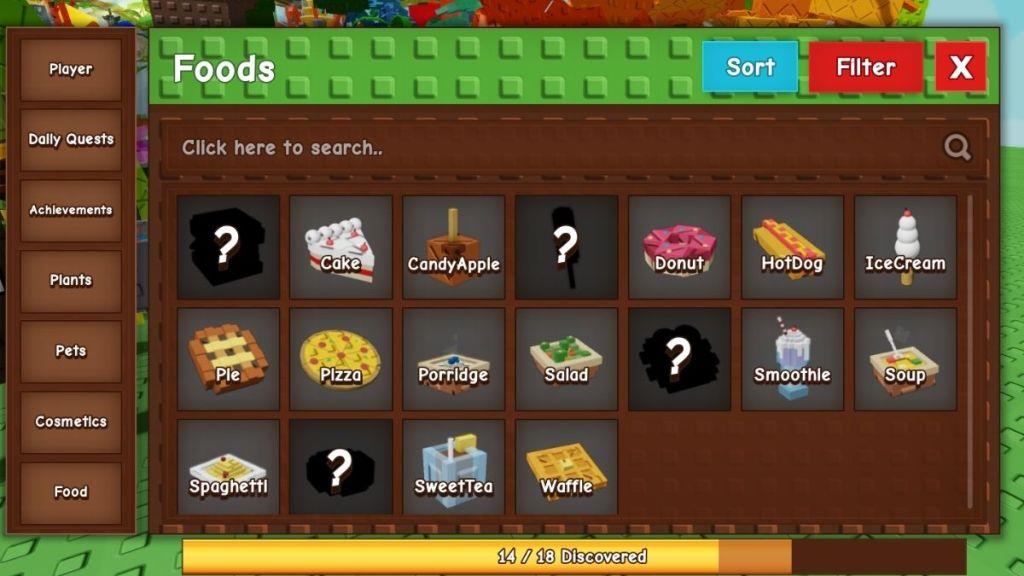
Finally, the last tab on the garden guide is the food section. You can left click on the unlocked food items to view all of their recipes and descriptions. If you need help in making a certain food item required as a crafting ingredient, such as a corndog for making a pet pouch, simply open up the guide and look up its recipe.
How to access all Garden Guide tabs
Garden Guide tabs are accessed via a simple left-click menu after opening the book. All tabs become immediately available upon equipping and using the Garden Guide-no unlocks or prerequisites are required.
Opening the Guide
Equip the red-covered Garden Guide from your hotbar (first slot by default) by pressing its key or left-clicking it. Left-click anywhere on-screen to open the UI, which defaults to the Player profile tab.
Navigating Tabs
Click any tab icon on the left sidebar to switch instantly:
-
Player: View XP, level, and daily quests.
-
Achievements: Track progress on pets, plants, and mini-achievements (claim rewards here).
-
Plants: List all crops with descriptions, rarities, and discovery stats.
-
Pets: Browse unlocked pets with traits and filters.
-
Cosmetics: Check owned decorations and sources.
-
Food: See recipes and crafting steps.
-
Mutations (if available): Index mutation types and details.
Open the Garden Guide in-game and navigate to the Achievements tab
Equip the Garden Guide from your hotbar and open it to reach the Achievements tab. No prerequisites block access-all tabs load immediately upon opening the book.
Step-by-Step Access
-
Open your inventory and locate the red Garden Guide book in the first hotbar slot (added automatically post-Beanstalk update).
-
Equip it by pressing the assigned key (default 1) or left-clicking the icon.
-
Left-click anywhere in the game world to open the UI, landing on the Player tab by default.
Switch to Achievements
Click the Achievements tab icon on the left sidebar-it switches instantly to display progress on Plants, Pets, and Mini Achievements sections, where you claim rewards like seed packs and cosmetics upon completion.