Finding your friends across vast Minecraft worlds just got faster. The new Player Locator Bar pinpoints teammates in real time, turning multiplayer coordination into a smooth, hassle-free experience.
Although this feature is in beta testing phase, you can try it out by installing the latest Minecraft Bedrock Preview. Being excited about it myself, I quickly installed the Bedrock version and tested out the player locator bar.
How Does the Minecraft Player Locator Bar Work?
The Minecraft Player Locator Bar tracks your friends’ positions by using their in-game coordinates and syncing them with your interface in real time. Each player’s location appears as a marker or direction indicator, letting you see how far away they are and which way to move to reach them. This feature reduces confusion in multiplayer sessions, letting groups stay connected and coordinate exploration or building projects with ease.
The new Minecraft locator bar makes finding other players on your server much easier. Put simply, the new UI overlays the experience bar. Nearby active players will now appear as tiny squares above the inventory. This is possible when the player is inside the 120-degree space from your viewpoint.
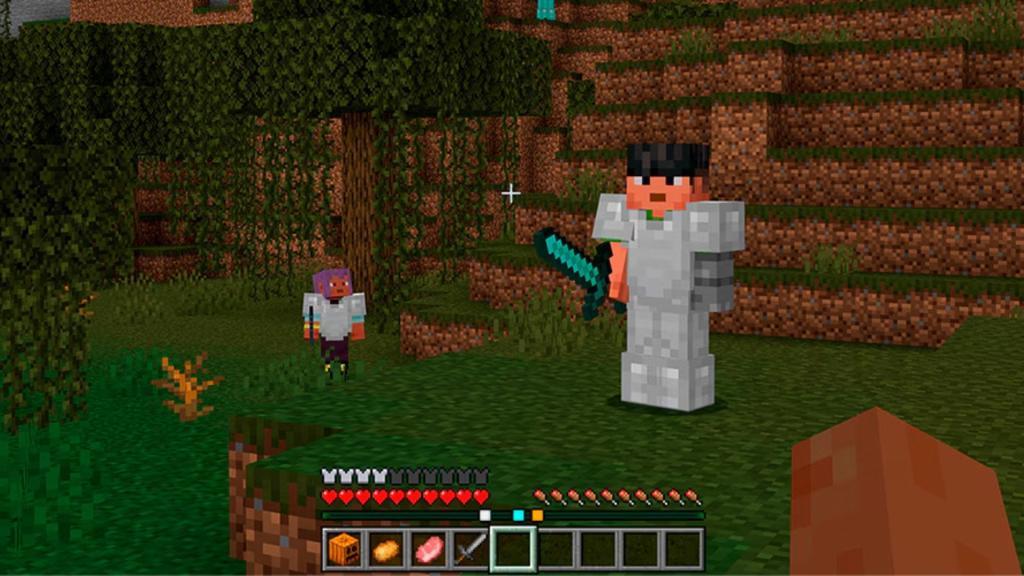
Furthermore, if you are 30 meters above or below another player, the tiny squares will have a small arrow signifying the respective direction. I tried looking straight up and down while my friend was in front of me, and apparently, the arrows also appeared for this instance.
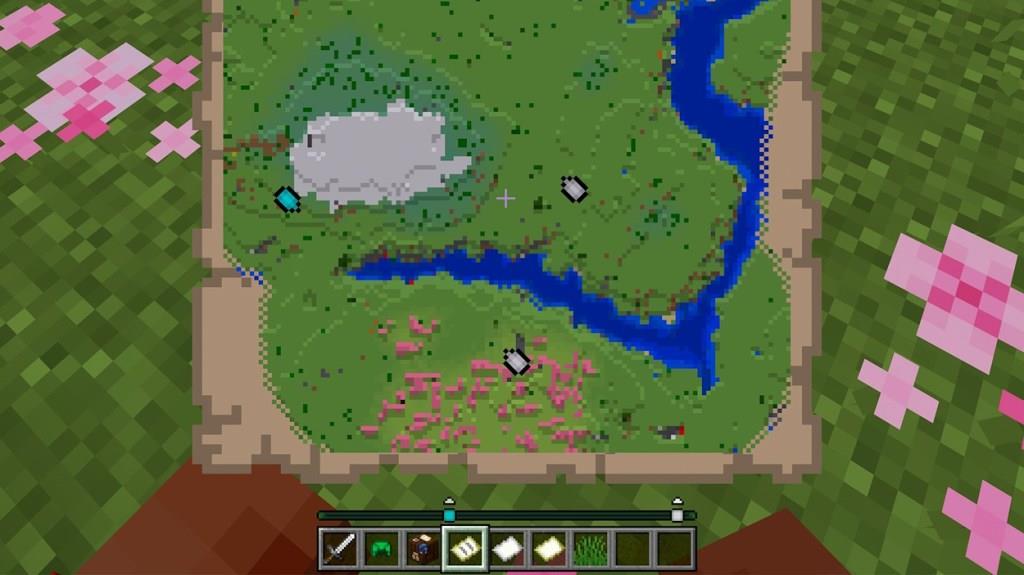
If you are still confused about how you will be able to see your XP while the tiny squares are active, then worry not. As long as you are actively gaining experience points, your level will be visible on top of the locator bar, and once it stops, the player level will disappear.
I personally feel that the new bar is a much-needed QoL update in Minecraft. Sometimes, it can get really frustrating toggling the F3 menu, checking my coordinates, and then moving towards where my friend is. With the locator bar, I can simply follow my friend’s dot and reach where he is currently mining.
Also Read: Minecraft Live 2025 Announced; Check out the Event Date Here!
Another aspect of this feature is that it will make locating all the griefers and pranksters far easier than before-unless, of course, they’re using tricks to stay hidden. This will help me take revenge on all those who have destroyed my base in my absence.
How to Hide from the Minecraft Player Locator Bar
Avoiding detection from the Minecraft Player Locator Bar requires careful movement and smart use of the environment. Staying underground, hiding under dense foliage, or moving through areas with limited visibility can make it harder for others to spot your position. Using invisibility potions or switching dimensions, like traveling to the Nether, can also remove your signal temporarily. For extra stealth, reduce your activity or crouch to limit the distance your tag becomes visible to others.
Speaking of being hidden, if you like staying Incognito, prepare for some loopholes. You can disappear from the Minecraft player locator bar of other players in three ways: Sneaking, Wearing a Mask, or becoming invisible.
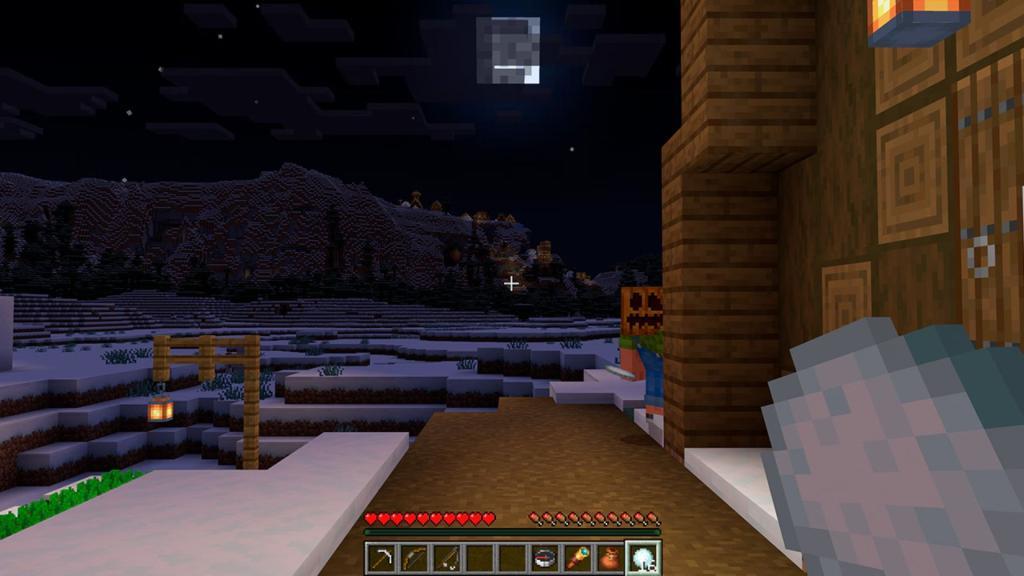
However, every method above has its own caveats. For instance, using the sneak key might get tiring after a while. And while you can wear a mask using a Minecraft mob head, this makes you more vulnerable to attacks.
The last method is quite expensive, but it can guarantee that you stay out of the radar. You must craft a Potion of Invisibility using a Night Vision Potion, Fermented Spider Eye, Blaze Powder, and a Brewing Stand. Finally, you can use the Spectator game mode to turn invisible from the locator bar. However, your friends might not like playing with you if you use cheats.
Minecraft Community Reacting to the Locator Bar
Players across the Minecraft community have shared mixed reactions to the new Locator Bar. Many appreciate how it simplifies meeting up with friends, saying it saves time that was once spent coordinating coordinates or maps. Others worry it could make exploration feel less adventurous, as finding people will be too easy. Still, the feature has sparked plenty of discussion, with players eager to see how it changes their multiplayer sessions.
Comment
byu/Captainorbeez from discussion
inMinecraft
As was expected, most of the crafters reacted positively to the introduction of the locator bar in the Bedrock Preview. Previously, they feared getting lost while following their friends’ coordinates. Some even stuck to using the teleport command, as it was quite frustrating to follow directions, especially if the one giving them is not good with landmarks.
Comment
byu/Captainorbeez from discussion
inMinecraft
This feature is helpful for those who don’t like the nerdy text covering the whole screen when you press the F3 key for XYZ coordinates. Many gamers prefer to follow a small orange dot rather than clutter their screen just to get the right direction using the coordinates.
Comment
byu/Captainorbeez from discussion
inMinecraft
However, in Bedrock, you do have the option to simply see three sets of coordinates rather than the whole F3 screen. Therefore, people have claimed that the locator bar will be more useful in the Java edition than Bedrock. Furthermore, a few claim that this feature might break the PvP aspect of the game and it should be toggleable when released in the stable update.
How do I disable the locator bar on my server
To disable the Player Locator Bar on your Minecraft server, use the gamerule command as an operator (op). This works for both Java and Bedrock Editions in versions 1.21.6 and later, where the feature was added.
Step-by-Step Instructions
Log into your server with op permissions, then run this command in chat or the console: /gamerule locatorBar false. The bar will immediately disappear for all players in that dimension, reverting the HUD to show the XP bar instead.
Dimension-Specific Fixes
Gamerules are per-dimension, so repeat the command in the Overworld, Nether, and End to ensure it’s off everywhere-some servers need this for persistence after restarts. Players cannot override it individually; only ops control this globally.
Server Console Option
From your hosting panel (e.g., Aternos, Nodecraft), enter the command directly in the console without logging in. No server.properties toggle exists, so gamerules are the only method.
Disable locator bar for all dimensions permanently
To disable the Player Locator Bar across all dimensions on your Minecraft server permanently, set the gamerule in each dimension (Overworld, Nether, End) and ensure persistence through server configs or startup scripts, as gamerules can reset on reboot or operator logout.
Commands per Dimension
Travel to or execute in each dimension as op: /gamerule locatorBar false.
-
Overworld: Run directly.
-
Nether/End: Teleport (e.g., /execute in minecraft:the_nether run gamerule locatorBar false) or visit and set manually.
This immediately hides the bar server-wide, showing XP instead.
Making It Permanent
Gamerules reset on restarts or op logout in some setups (Realms, vanilla servers), so add lines to server.properties or a startup script:
textgamerule:locatorBar=false (Overworld) gamerule:minecraft:the_nether:locatorBar=false gamerule:minecraft:the_end:locatorBar=false
For hosted servers (Aternos, etc.), use console commands at startup or mods like “No Locator Bar” from Modrinth. No native server.properties toggle exists without these tweaks.
